Getting Started
Martypex turns your iPhone or iPad into a complete typesetting studio. You write in Typst or Markdown, and the document compiles to a publication-quality PDF right on your device. No server, no account, no internet connection required for compilation.
This page walks you from a blank screen to an exported PDF.
First launch
The first time you open Martypex, a short paged welcome intro covers what Martypex is, its strongest capabilities, and the on-device promise, no account, no cloud, no tracking, across three swipeable (or tappable) screens. Skip stays reachable throughout, and the intro shows only once.
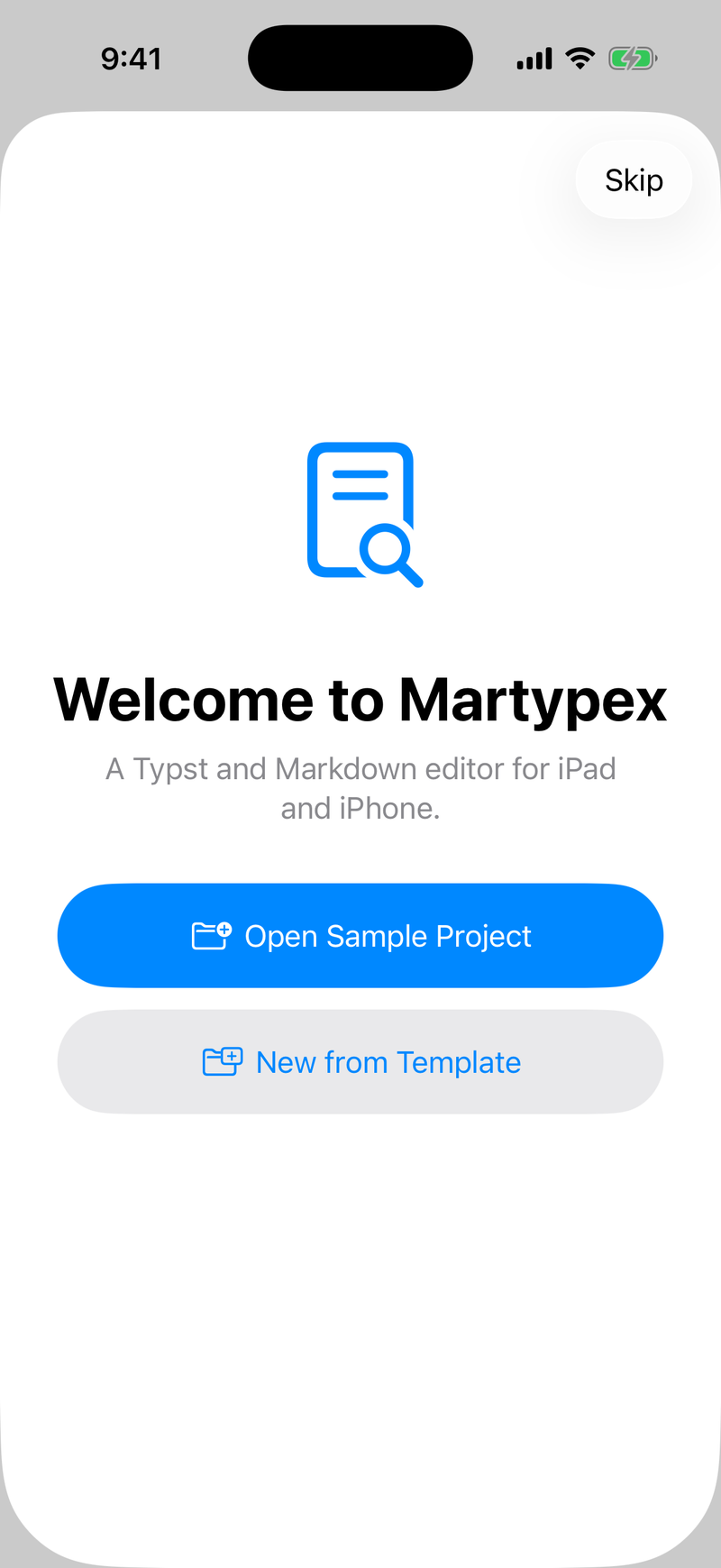
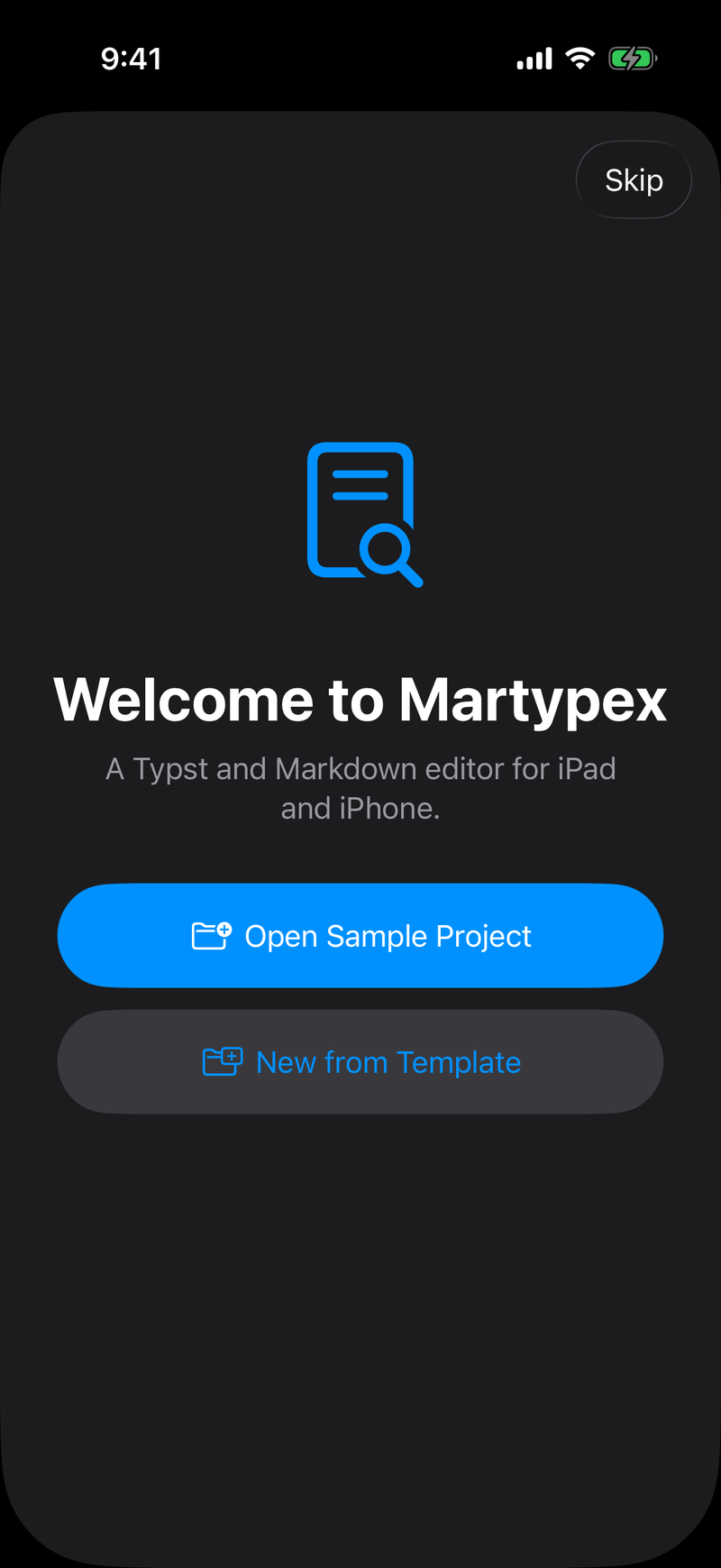
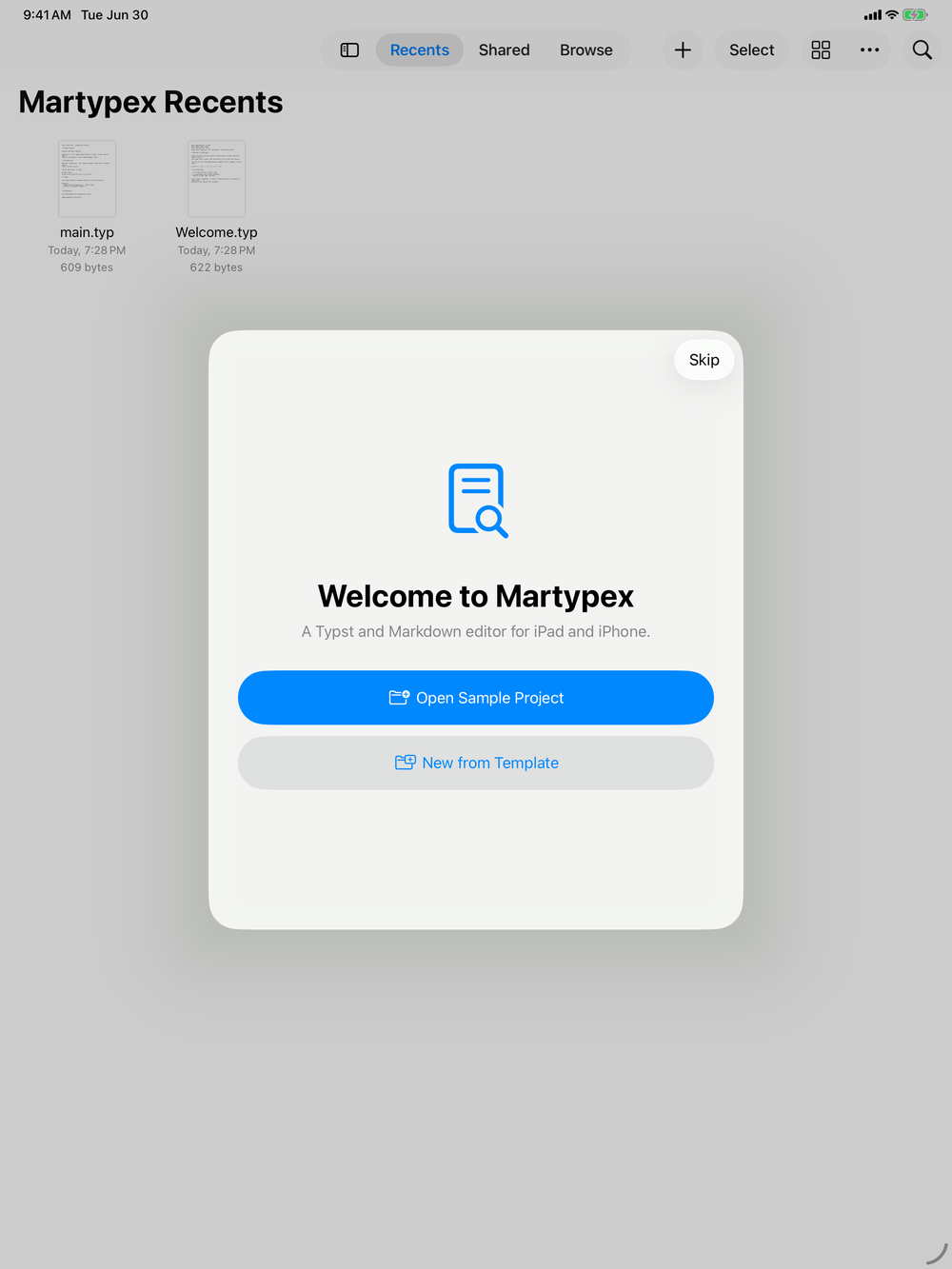

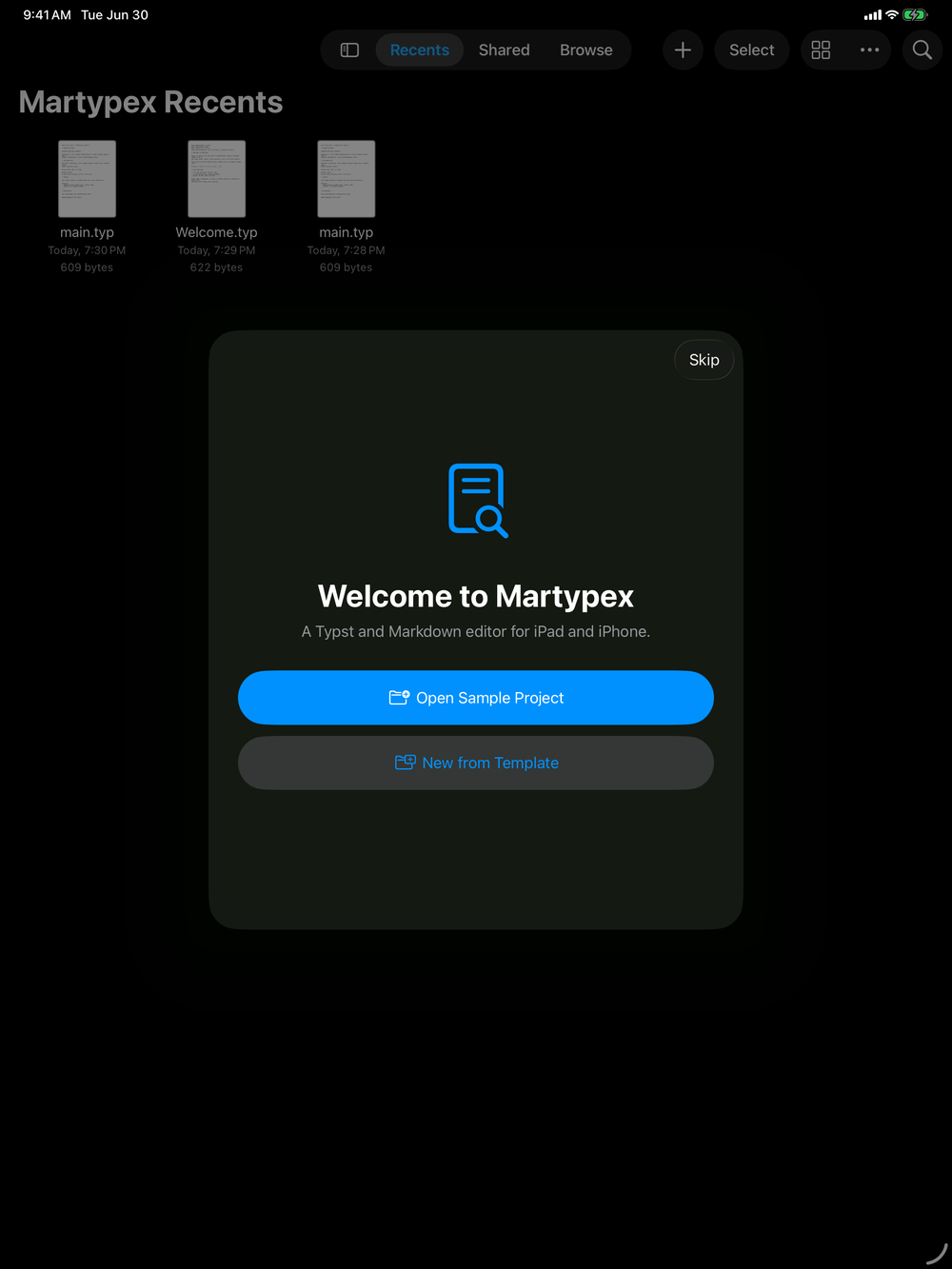
The last screen’s Get Started lands you on Home, Martypex’s card-based library; Open Sample Project and New from Template beside it get you there in one tap instead. The first time you open an editor, whether the sample project or a document of your own, a brief feature tour highlights the format bar, the live-preview toggle, and the Command Palette, one card at a time, again skippable and shown only once.
Missed one, or want to see it again? Replay both from Settings → Replay Onboarding.
Create your first document
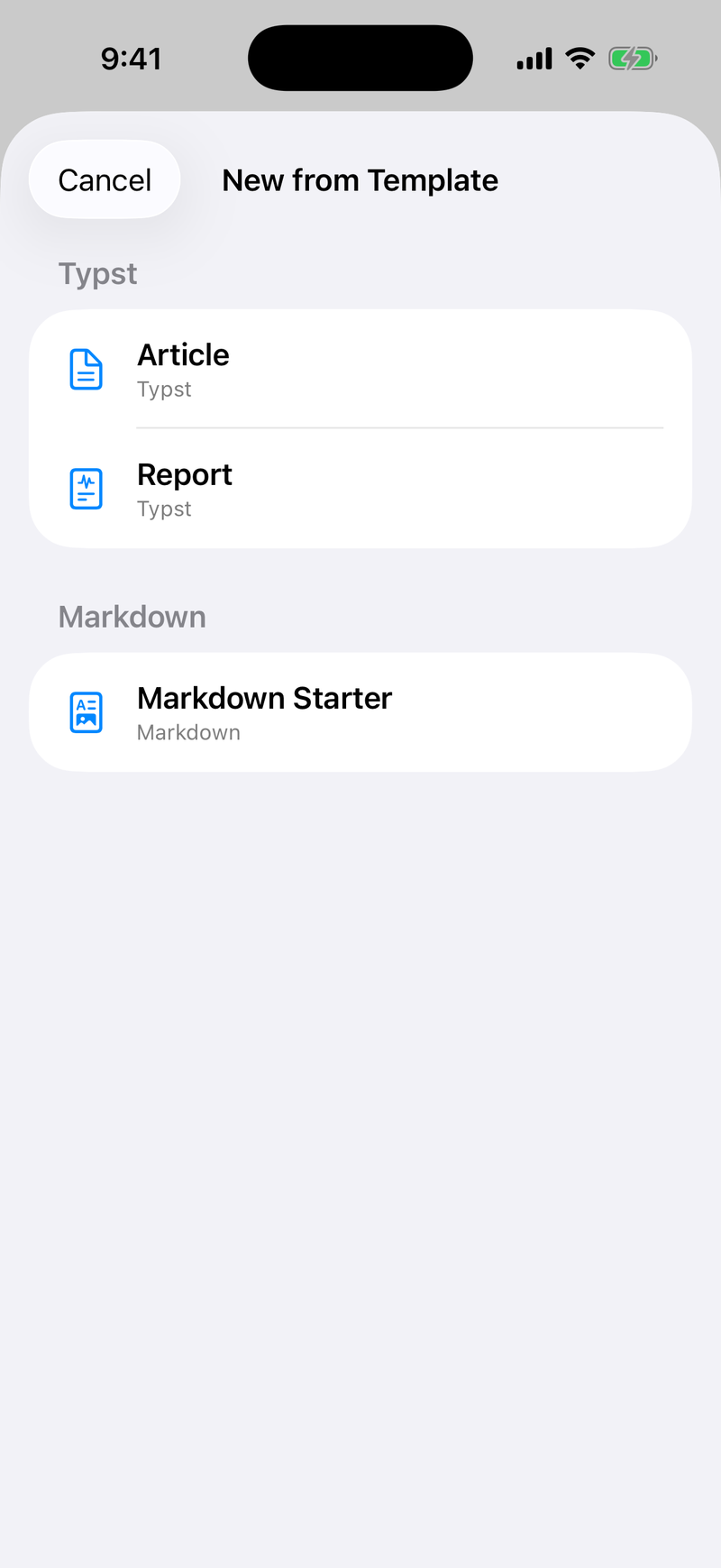
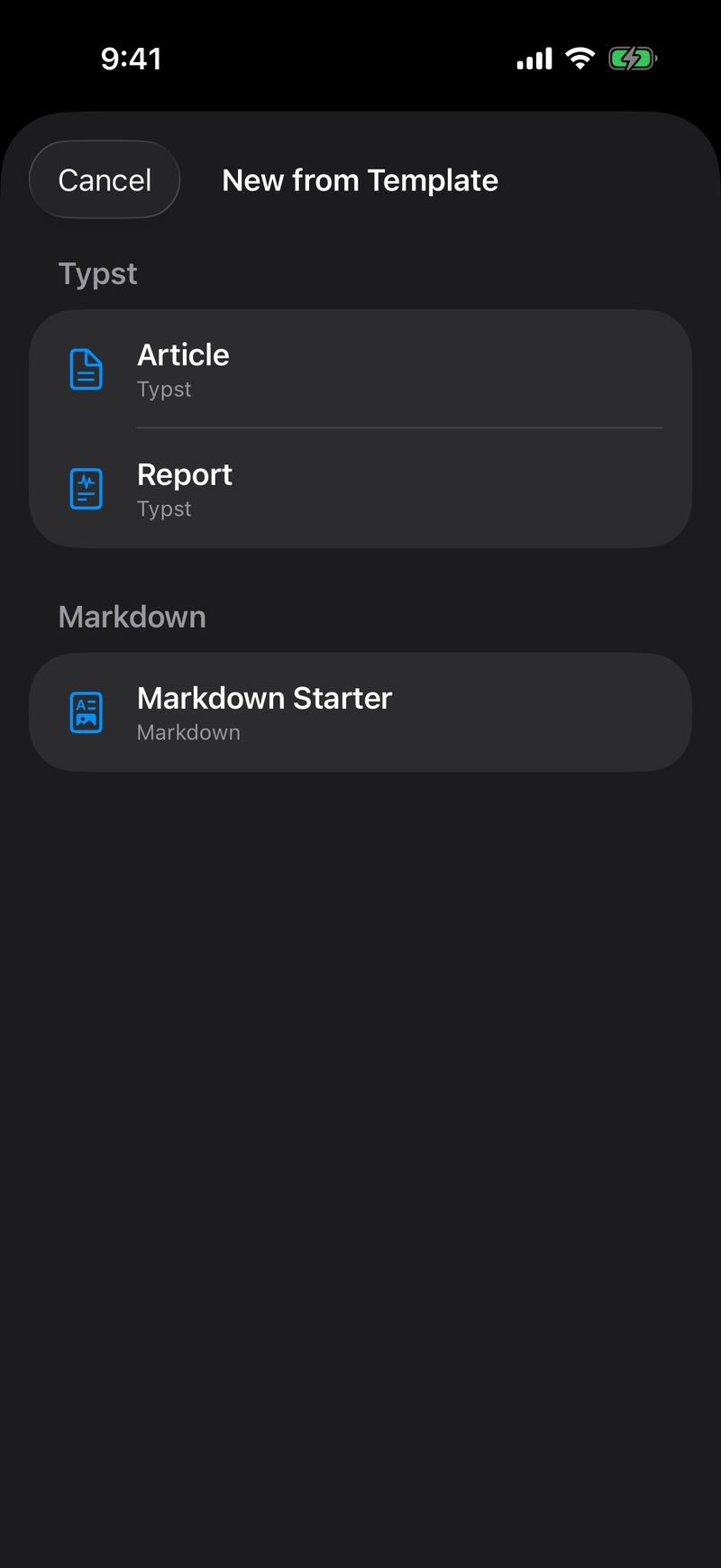
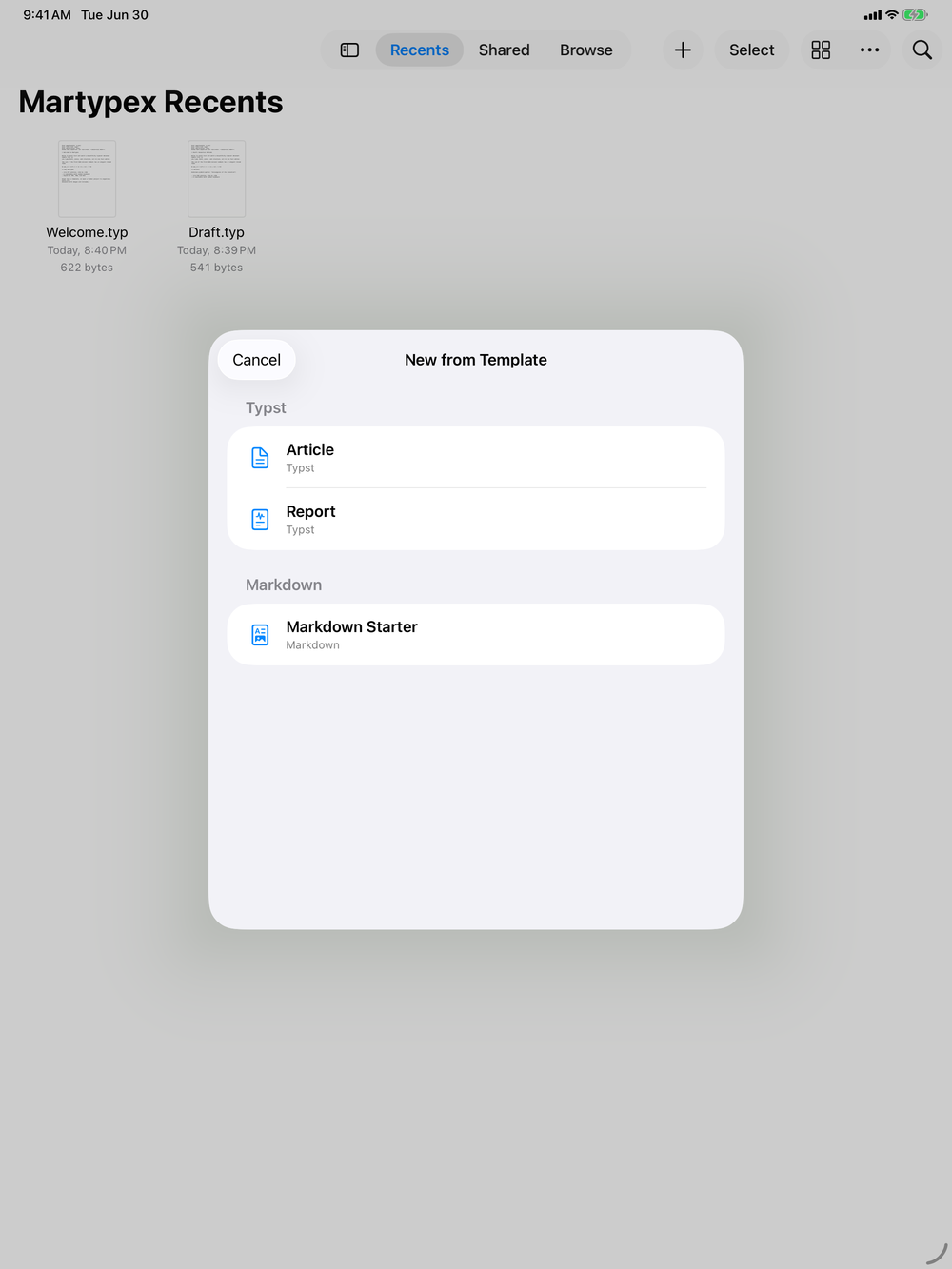
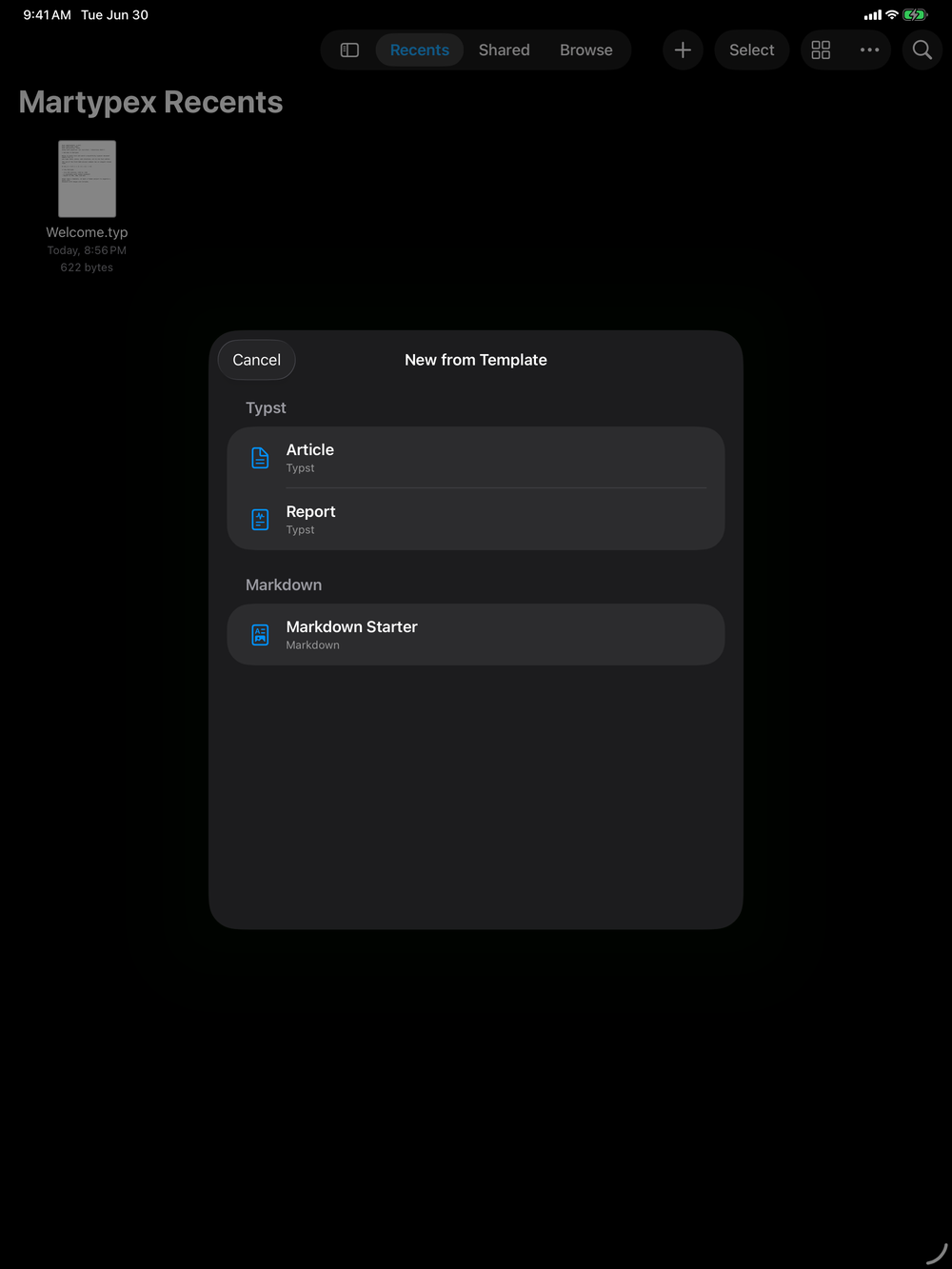
Home organizes your work into Recent, Folders, Projects, and Documents, so a growing library stays easy to scan. See Home for the full tour. If your library is empty, it shows an actionable empty state instead of a blank list: tap Create your first document to open the template picker, Open the sample project to see a complete document, math and all, in action, or Browse Files to reach an existing .typ or .md file already on iCloud Drive or in the Files app. A + in the toolbar creates a new document any time, whether your library is empty or full.
However you start, the template picker asks you to choose a dialect:
- Typst (
.typ) for full typesetting control: precise layout, figures, citations, and Typst’s own math syntax. - Markdown (
.md) for fast, familiar writing that still compiles to a clean paginated PDF.
You can change the default dialect later in Settings, and you can always open existing .typ and .md files from the Files app or iCloud Drive.
Write and watch it compile
Type in the editor and Martypex compiles as you go, showing a paginated PDF preview beside (iPad) or behind a toggle (iPhone). The preview keeps your last good render on screen while you type, so a half-finished line never blanks your document. Compile errors appear inline with the line they came from.
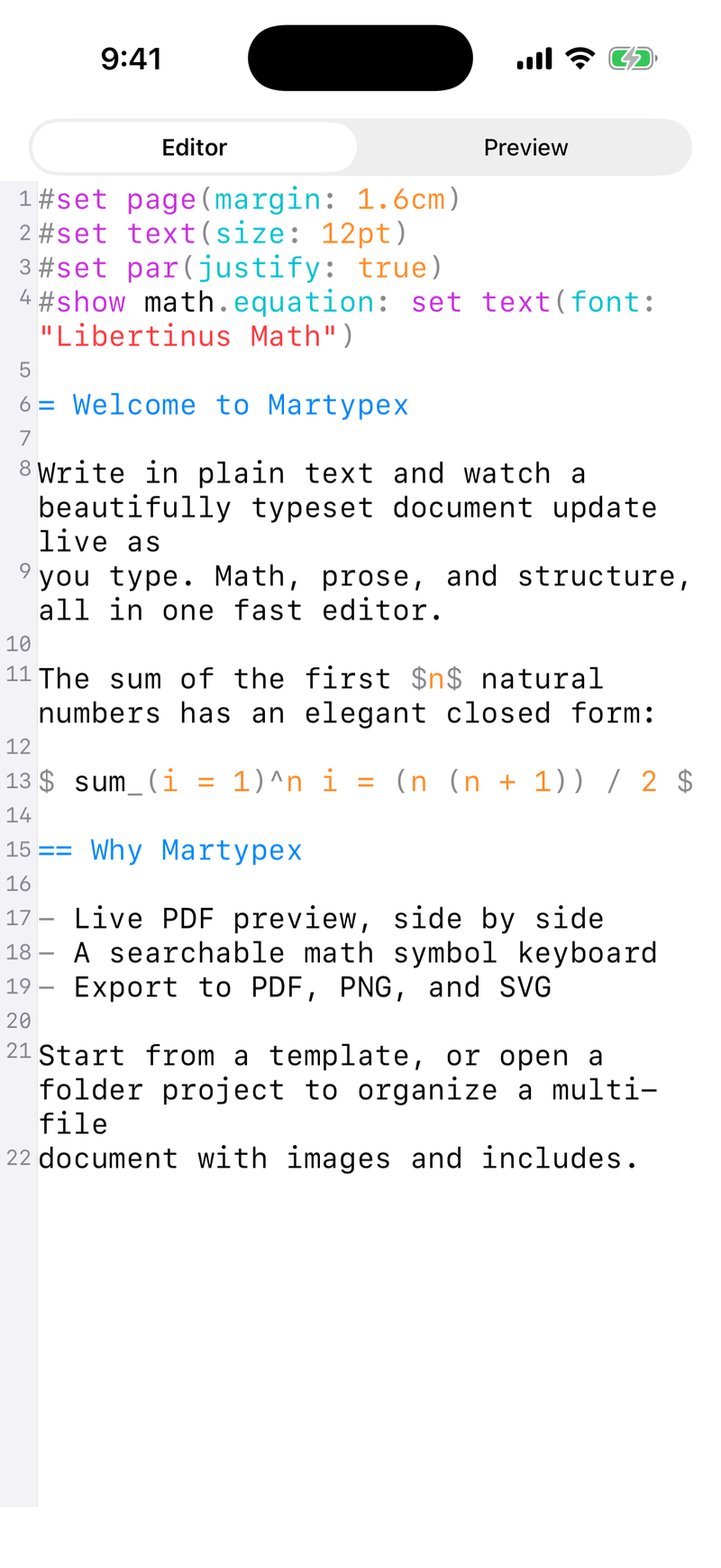
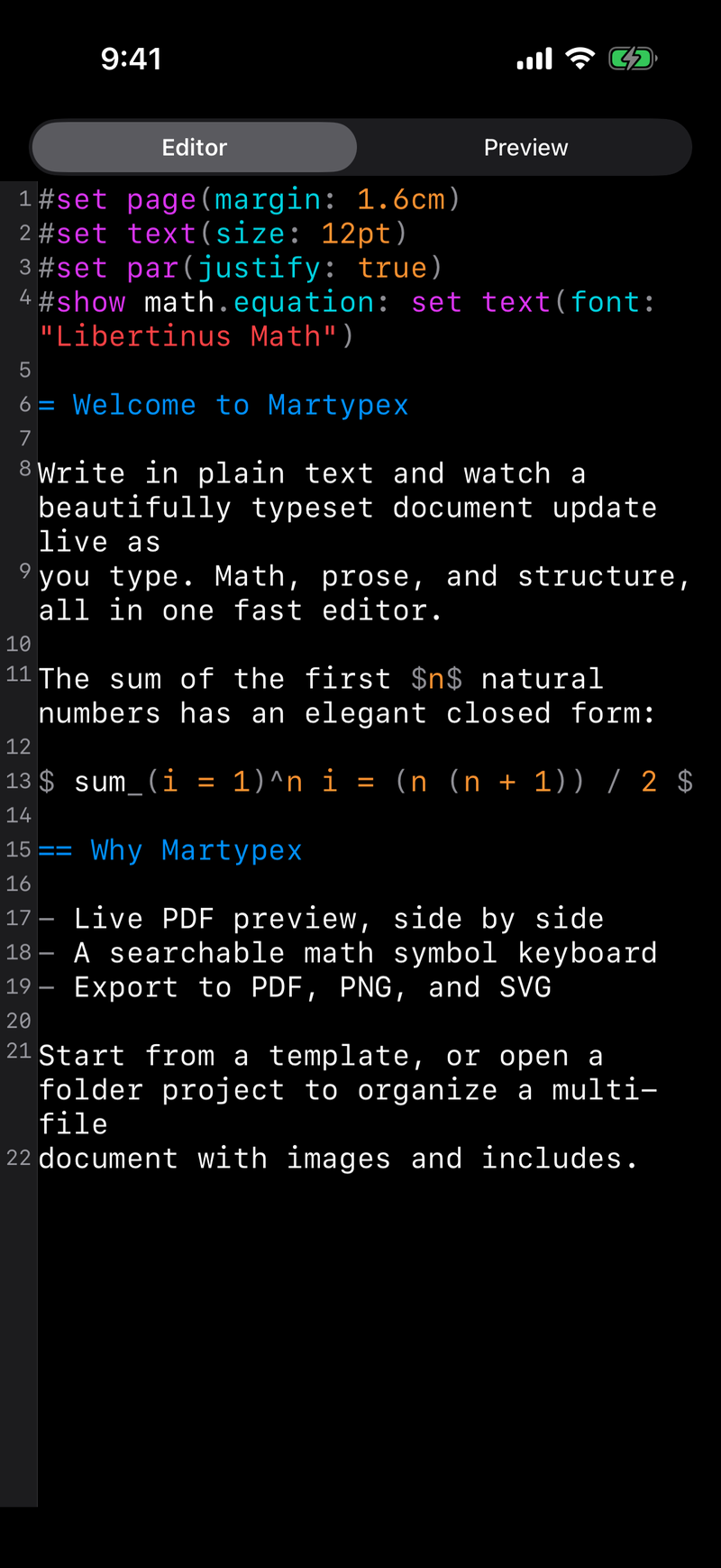
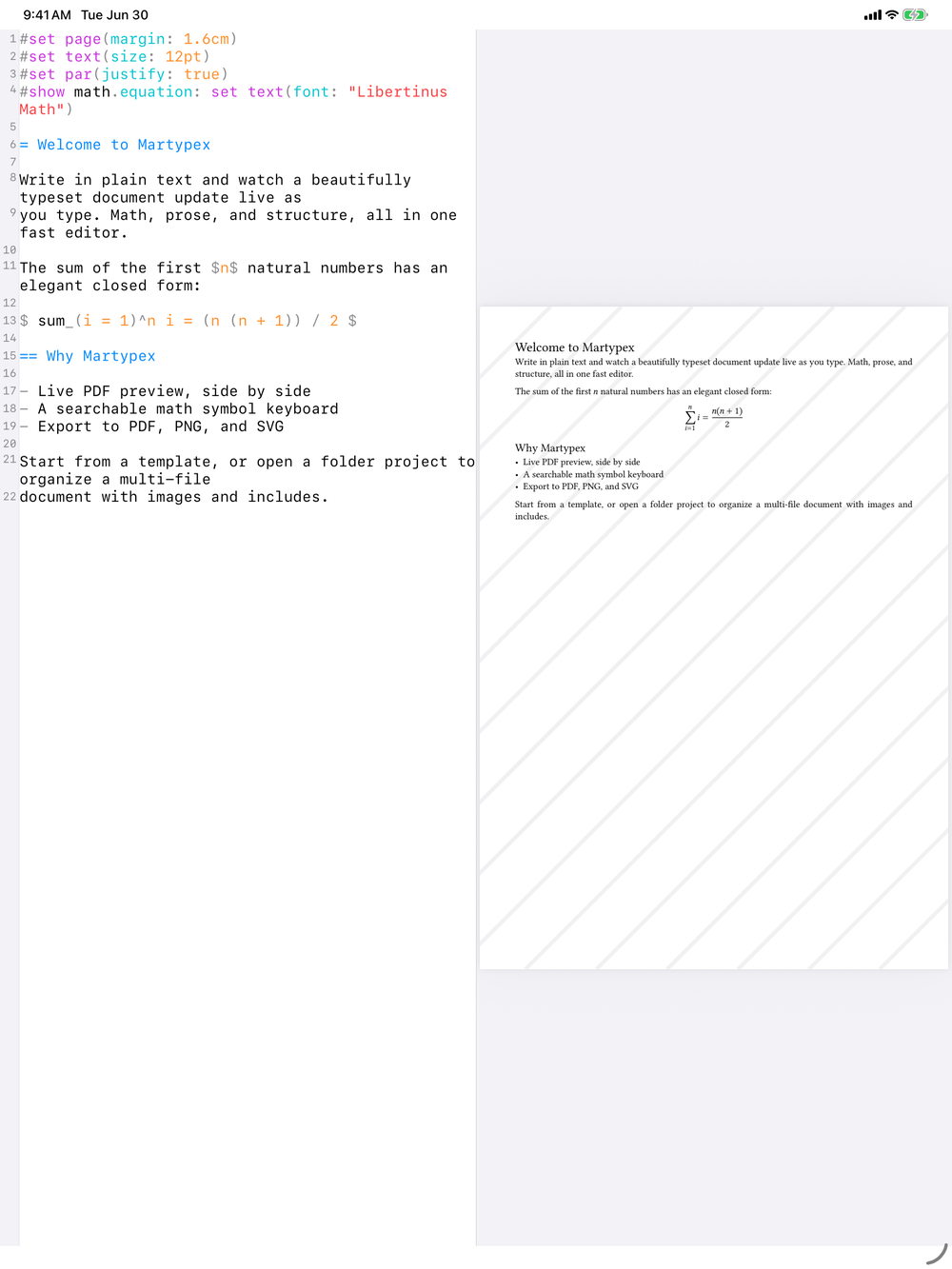
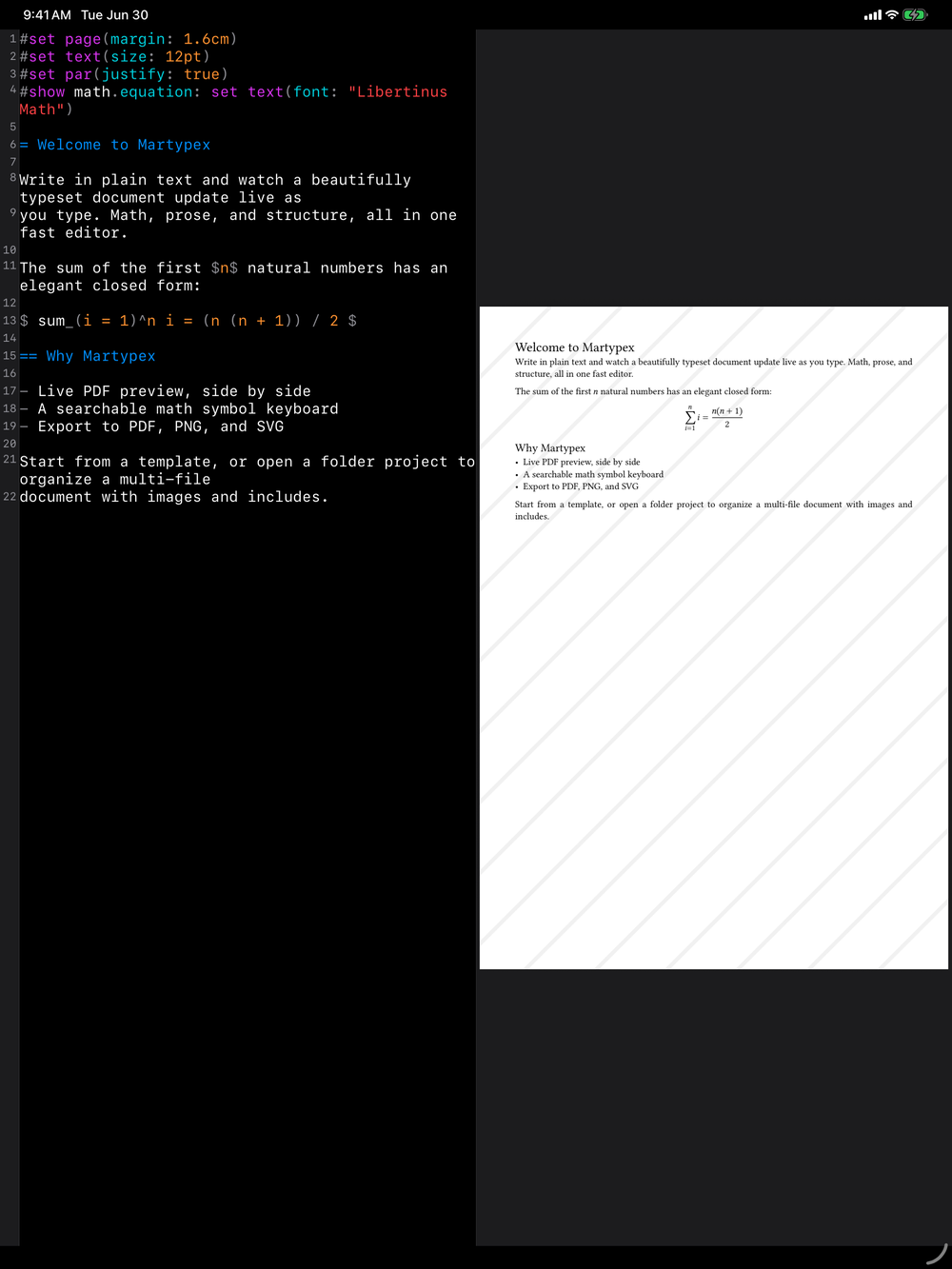
On iPhone, use the compact toggle in the title bar to switch between Editor and Preview. On iPad, they sit side by side.
A quick-format bar above the keyboard covers common formatting, Bold, Italic, Heading, and more, in one tap, writing the correct syntax for whichever dialect you’re in. See Writing Tools.
The editor itself can render as you type, too: headings, bold, italic, links, and code pick up style while the raw markup stays a tap away on whichever line you’re editing, and a Document Options card summarizes your title, author, and page setup at the top of the document. See Live-Styled Editor and Document Options.
Add math
Tap the math key on the input accessory bar to open the math keyboard. It is dialect-aware: it inserts Typst math in .typ files and LaTeX-style math in .md files, so you never have to remember which syntax a file expects. A searchable symbol palette covers the Greek letters, operators, and relations, with LaTeX-name aliases for the symbols you already know.
Cite your sources
Bring a .bib file into a folder project and Martypex compiles a formatted reference list from it, free, with no separate bibliography tool to install. Type @key for as-you-type completion, or open the Citation Browser from the ••• menu to search and insert by title or author instead. If your references live in Zotero, Martypex Pro connects your library so you can browse and insert from it the same way. See Bibliographies and Zotero.
Export your PDF
Tap Export to produce a PDF. The free tier exports a watermarked PDF; the one-time Pro unlock removes the watermark and adds PNG, SVG, and custom-DPI export. AirPrint and the system share sheet are available in both tiers, so you can print, email, or hand the file to any other app.
Pro is a single purchase, never a subscription, and it is shared across your Family Sharing group.
Where your files live
Martypex documents are ordinary files. Save them anywhere the Files app can reach, including iCloud Drive, so they sync across your devices and stay in your control. For anything larger than a single file, open a folder as a project to work across multiple .typ files with #import/#include, images, and a .bib bibliography.
Prefer a hardware keyboard? Every command has a shortcut, and you can rebind any of them, or press ⇧⌘K for a searchable Command Palette instead. See Keyboard Shortcuts.
Stuck on something? Settings → Help & Support opens an in-app Help hub with quick how-tos and a keyboard-shortcut reference, both linking straight back into this guide.
Next steps
- Home: Recents, Folders, Projects, and Documents, and managing what’s in them
- Live-Styled Editor: rendered headings, emphasis, math, and vanishing markers
- Figures: inserting a
#figureand its tap-to-edit properties - Document Options: title, author, page setup, and structure, for Typst and Markdown
- Editor: syntax highlighting, find & replace, key commands
- Writing Tools: the quick-format bar for Bold, Italic, Heading, and more
- Keyboard Shortcuts: every key command, and how to rebind one
- Command Palette: search-and-run access to commands, symbols, snippets, and files
- Live Preview: the paginated PDF and how compilation works
- Math Keyboard: dialect-aware math input
- Completion: functions, labels, citations, and the symbol palette
- Bibliographies: the Citation Browser, rich
@completion, and citation styles - Zotero: connect a Zotero library and cite from it, with Martypex Pro
- Folder Projects: multi-file documents on Files and iCloud
- Markdown: the Markdown Sample template and the live-styled editor in
.md - Export: PDF, PNG, SVG, AirPrint, and the watermark
- Themes: the warm default theme, and full custom theming with Pro
- Settings: themes, snippets, cache, and diagnostics
- Accessibility: VoiceOver, Dynamic Type, and Reduce Motion support
- SVG & HTML: editing web documents with a live preview