Settings
Settings is where Martypex’s editing, preview, and export behaviour comes together. It is organized into clear groups, from your Pro status to storage housekeeping, so you can find what you need without digging.
Settings opens as a dedicated pushed page on the same navigation stack as the editor, not a popup sheet, so drilling into a sub-screen like Editor Themes or Keyboard Shortcuts feels like part of one continuous flow, and the back button always returns you exactly where you left off.
Pro
This section shows your current Pro status. If you have already purchased Pro on another device, tap Restore Purchases to re-link your entitlement without paying again, no account or sign-in required.
Pro is a one-time purchase, never a subscription. It unlocks editor themes, watermark-free export, PNG/SVG/custom-DPI export, and the personal snippet library.

Pro is shared across your Family Sharing group.
Editor
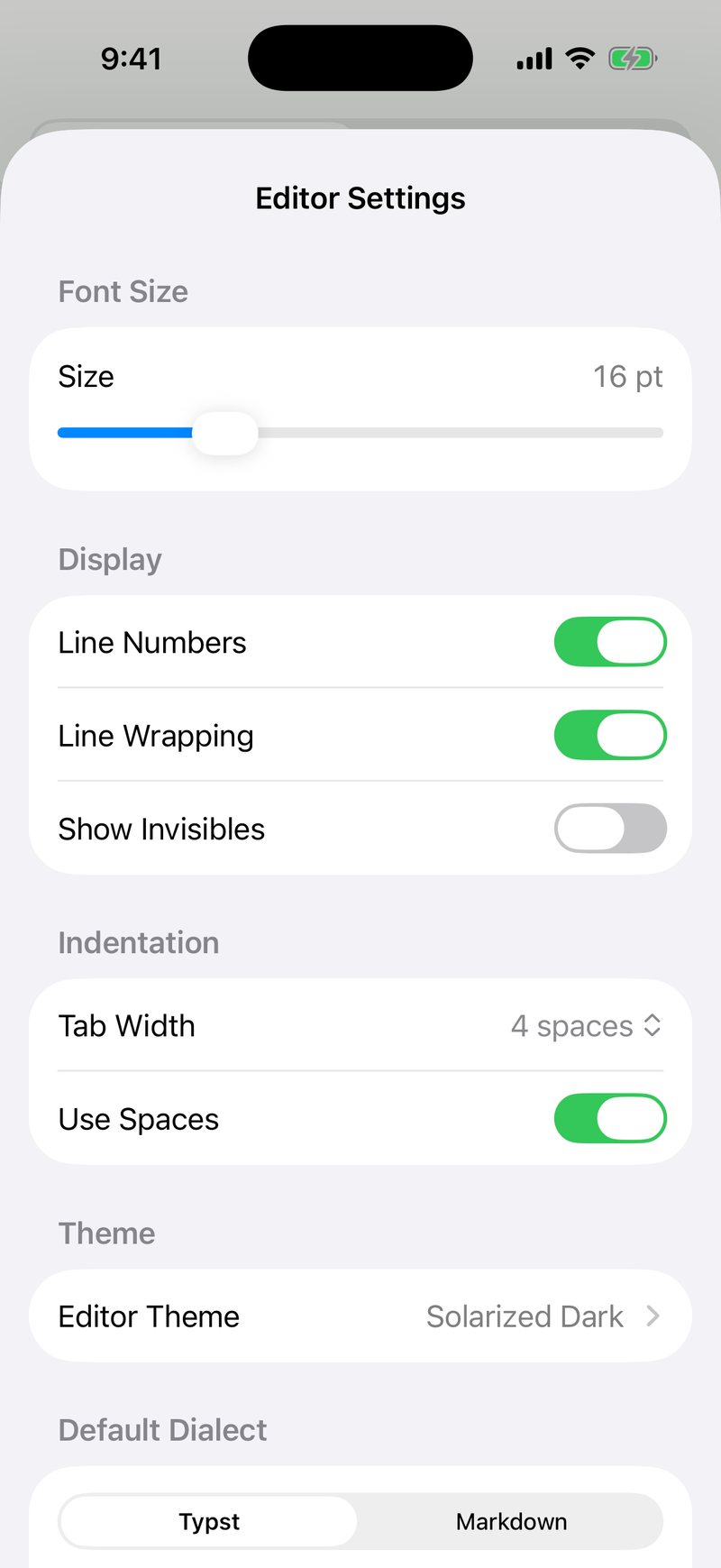
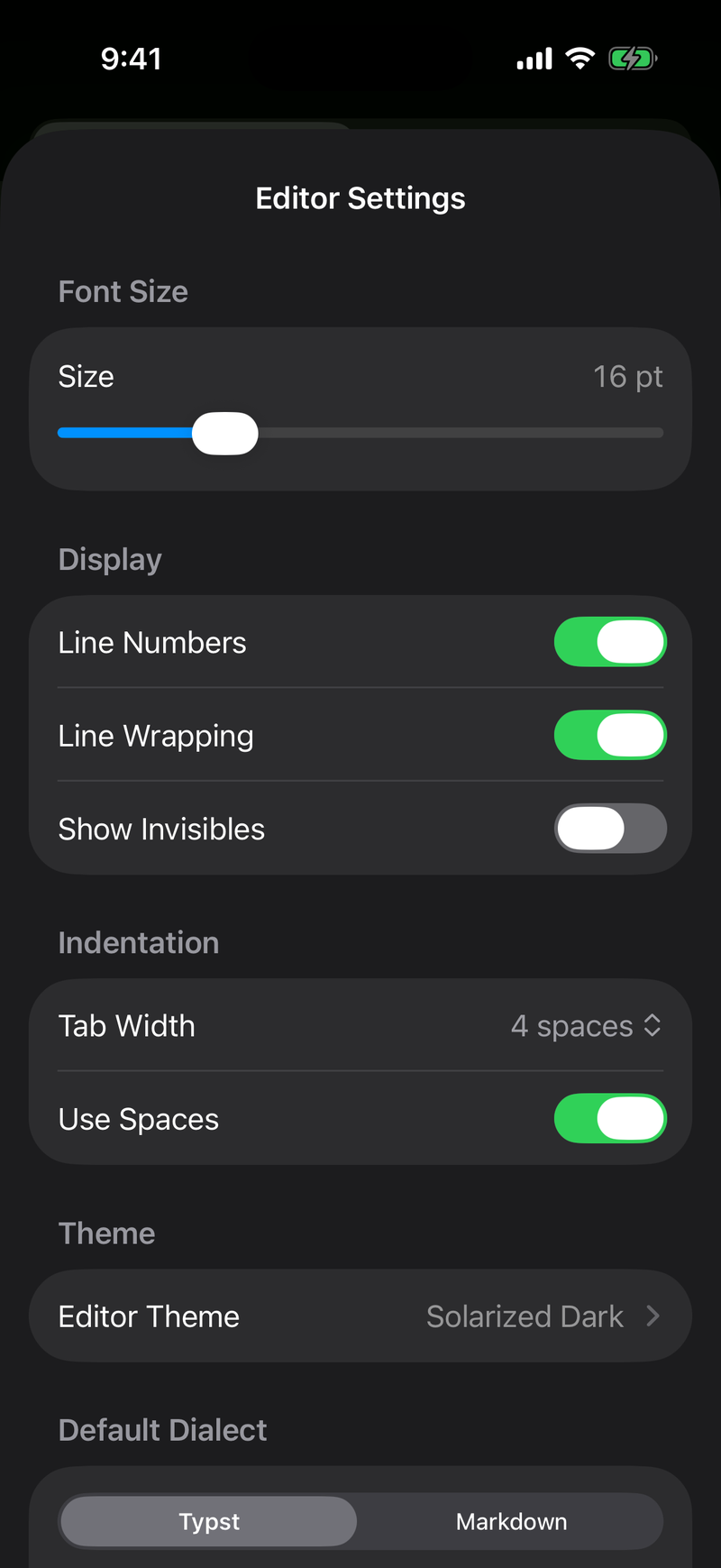
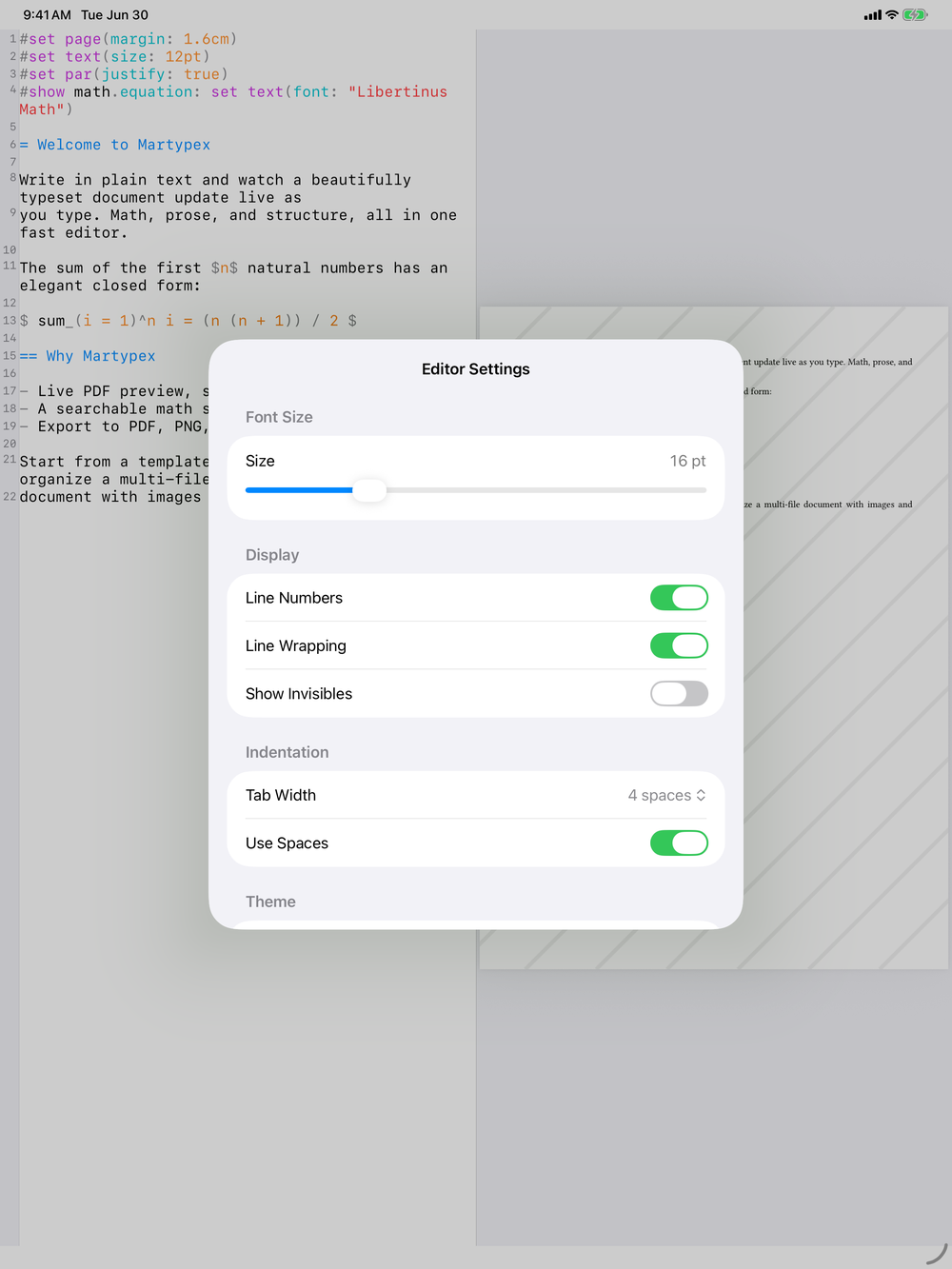
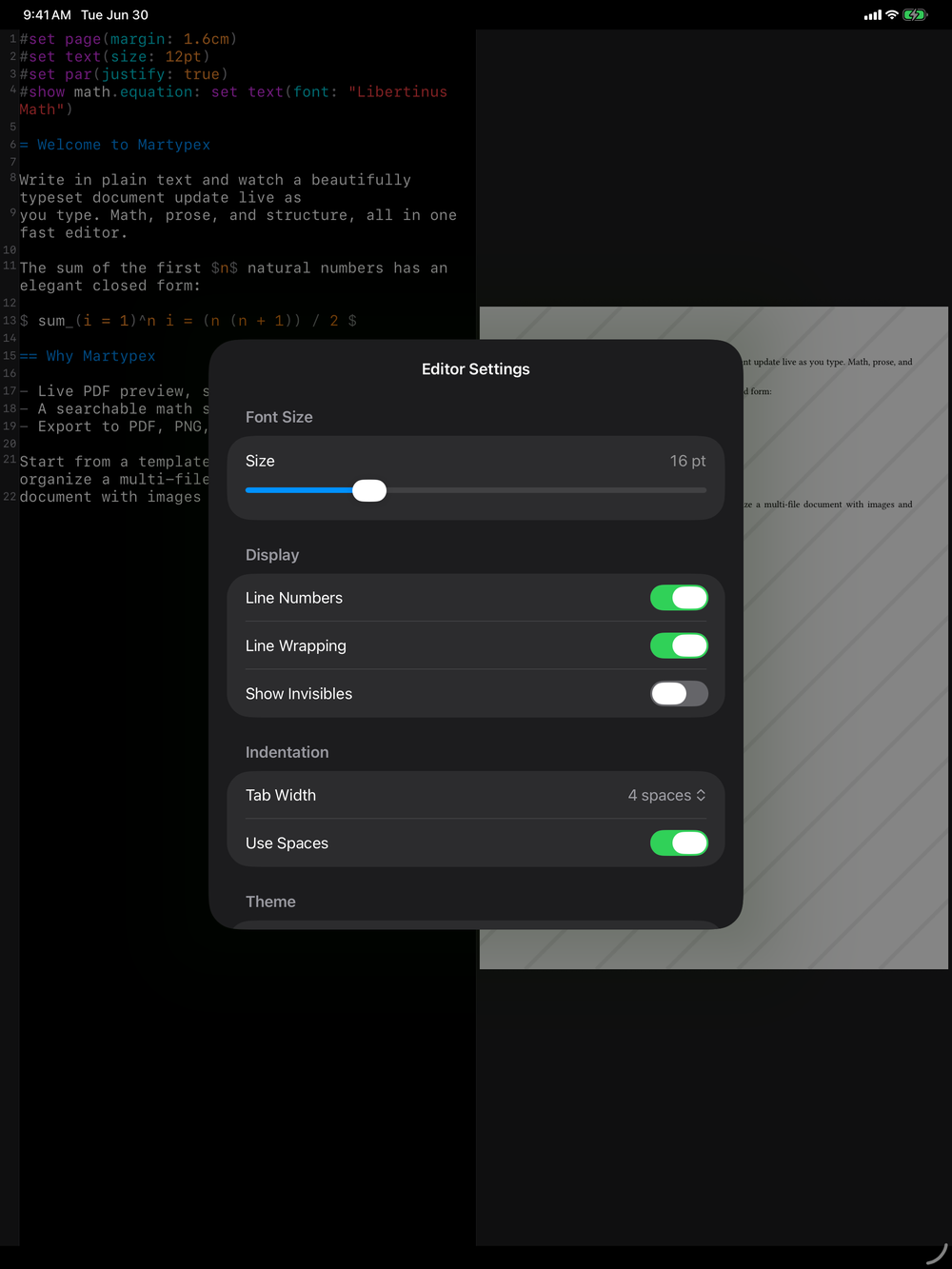
Tune the editor to how you write:
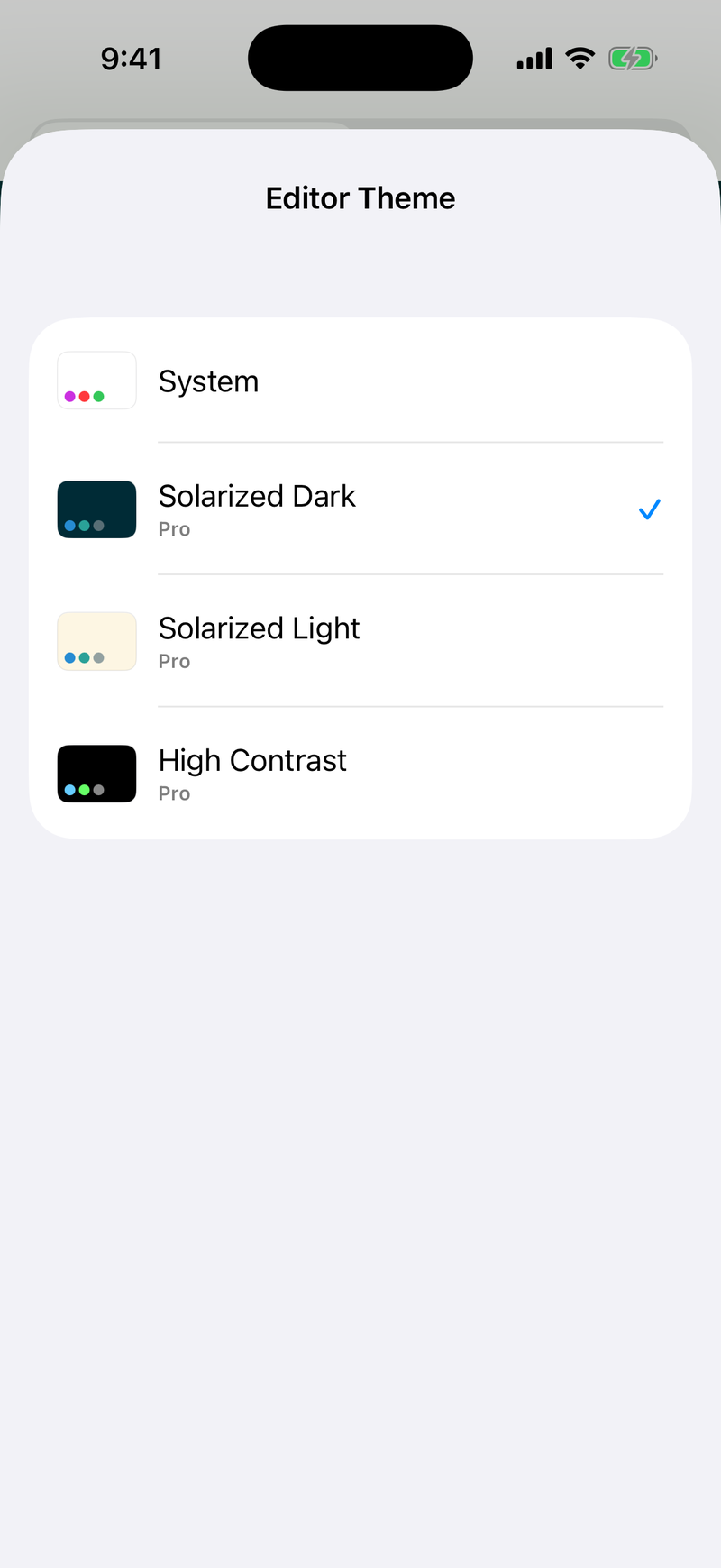
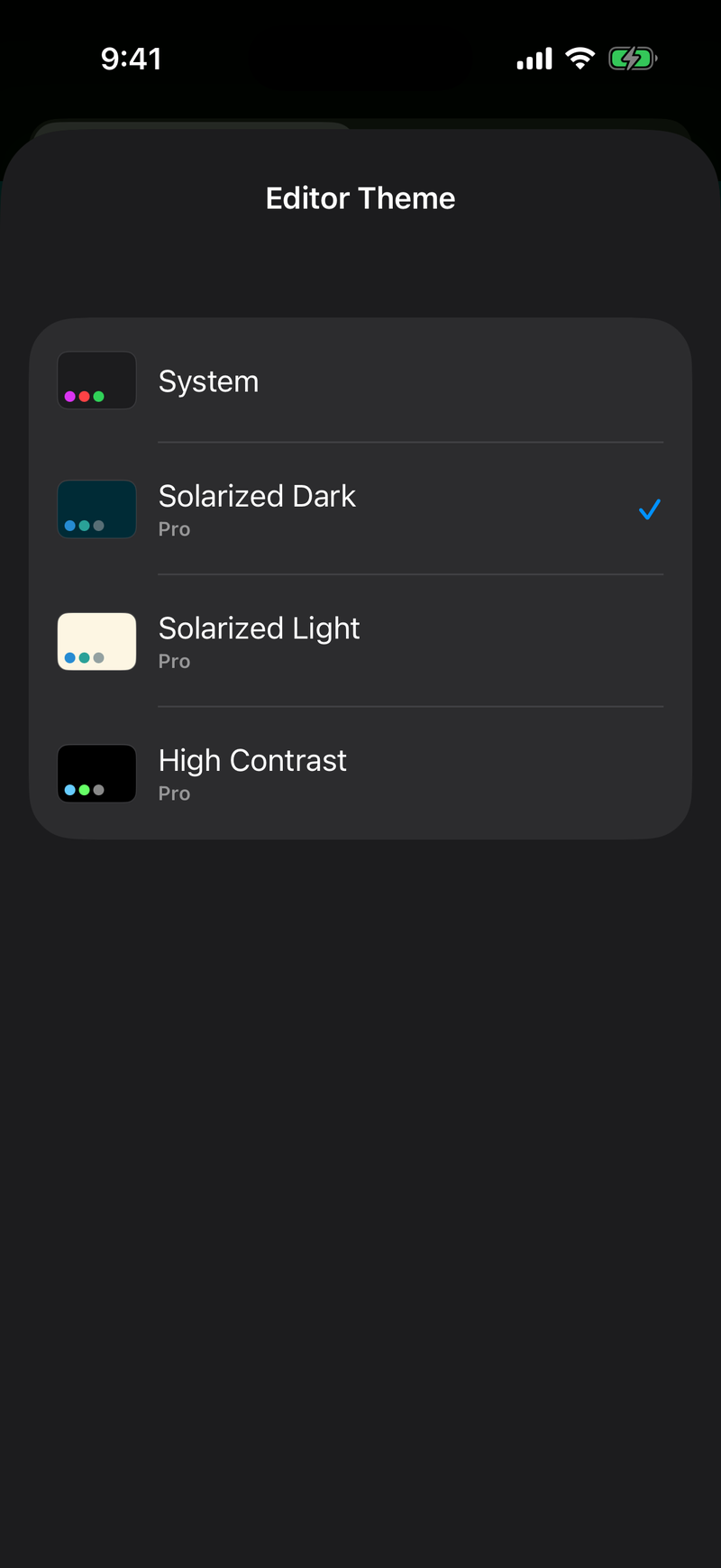
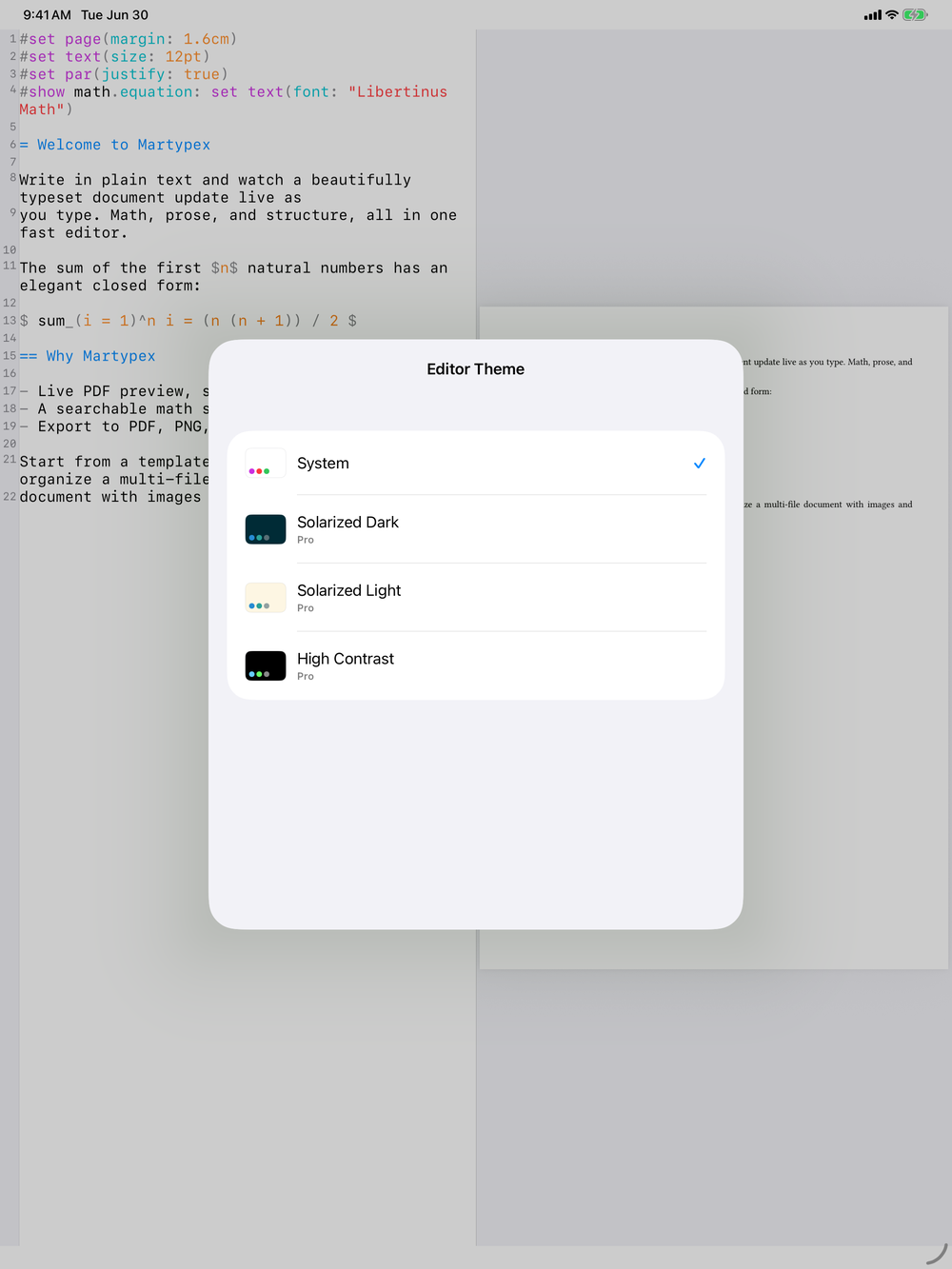
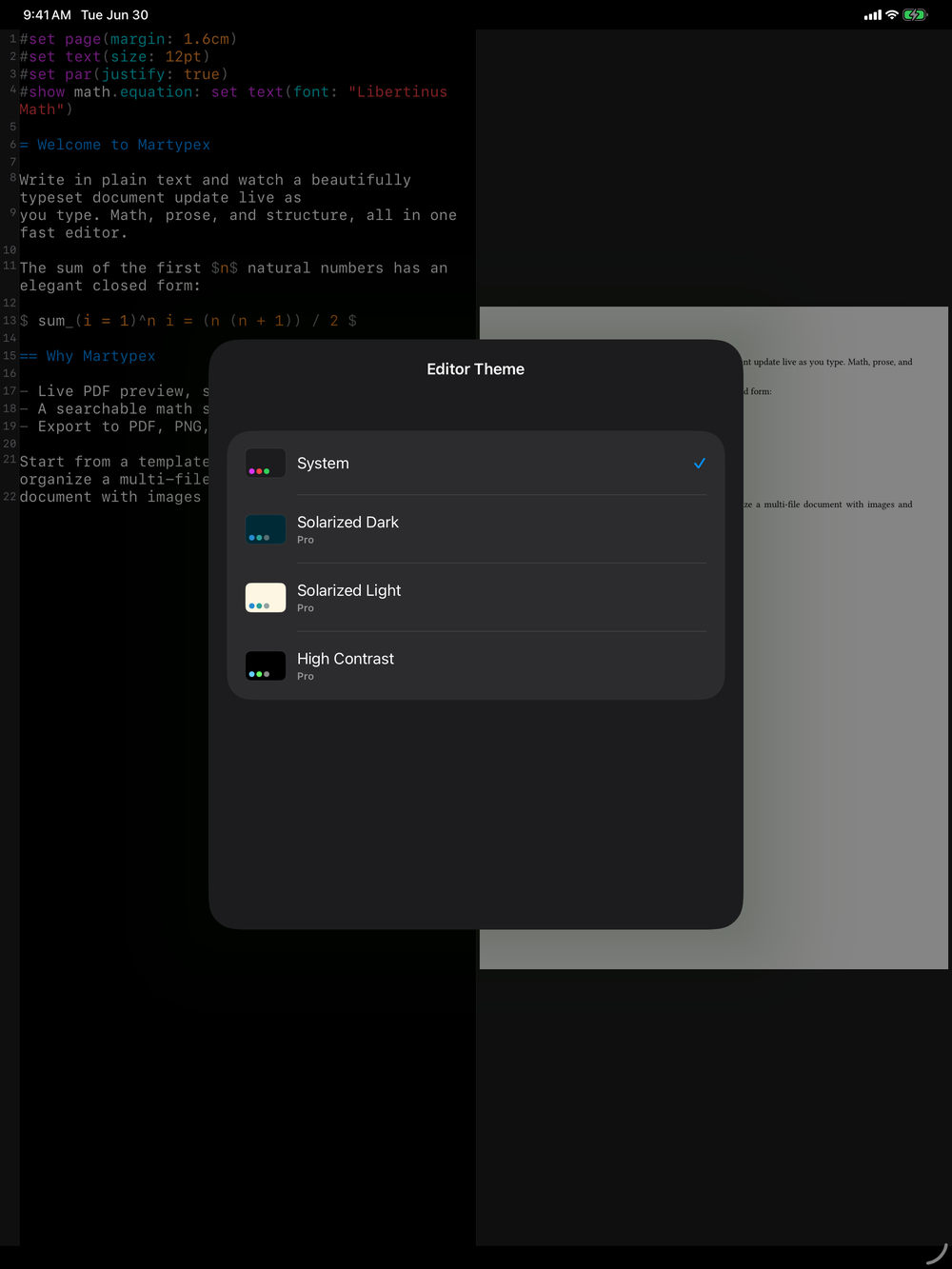
- Theme: choose among several syntax-highlighting themes (Pro).
- Font size: scale the editor text independently of system settings.
- Line numbers: show or hide the gutter.
- Soft wrap: wrap long lines instead of scrolling horizontally.
- Tab width: set how many spaces a tab inserts.
- Auto-indent: keep new lines aligned with the line above.
- Default dialect: choose whether new documents start as Typst (
.typ) or Markdown (.md). - Keyboard Shortcuts: see every command’s key binding, grouped by File, Edit, and View, and rebind any of them. See Keyboard Shortcuts.
Editor options
A few more toggles fine-tune how the editor behaves as you write:
- Live styling: render headings, bold/italic, links, code, and quotes with a bit of style while keeping the raw source underneath. On by default on iPhone, off by default on iPad. See Live-Styled Editor.
- Hide markers: with Live styling on, conceal markup symbols entirely except on the line you’re editing; off, markers stay dimmed but always visible instead.
- Render math & images: with Live styling on, typeset inline math and show images right in the editor, except on the line you’re editing, which always shows the raw source.
- Check Spelling: turn on the red wavy underlines beneath misspelled words in your prose. It stays off until you opt in, since function names, labels, and math would otherwise be flagged constantly. See Spell Check.
- Auto-pair brackets: automatically insert the matching close for
(,[,{,", and (in Typst)$, so every pair stays balanced as you type. See Editor. - Downloading pasted images: when you paste rich content that carries images, choose whether Martypex asks each time, always downloads them into your project, or never does. See Writing Tools.
Editor themes
Pro unlocks full custom theming: built-in themes like System, Solarized, and Dracula recolour both the editor’s syntax highlighting and the app’s own interface, and you can create, customize, import, and export your own. See Themes for the full walkthrough.
Preview
Control how the live preview compiles:
- Auto-compile: recompile automatically as you type, or only on demand.
- Debounce: the pause after your last keystroke before a recompile starts.
- Render quality: balance preview sharpness against compile speed.
Export
Set defaults for the export sheet:
- Default DPI: the resolution used for PNG export and rasterized previews.
Free-tier exports carry a light watermark. The one-time Pro unlock removes it and adds PNG, SVG, and custom-DPI export.
Snippets
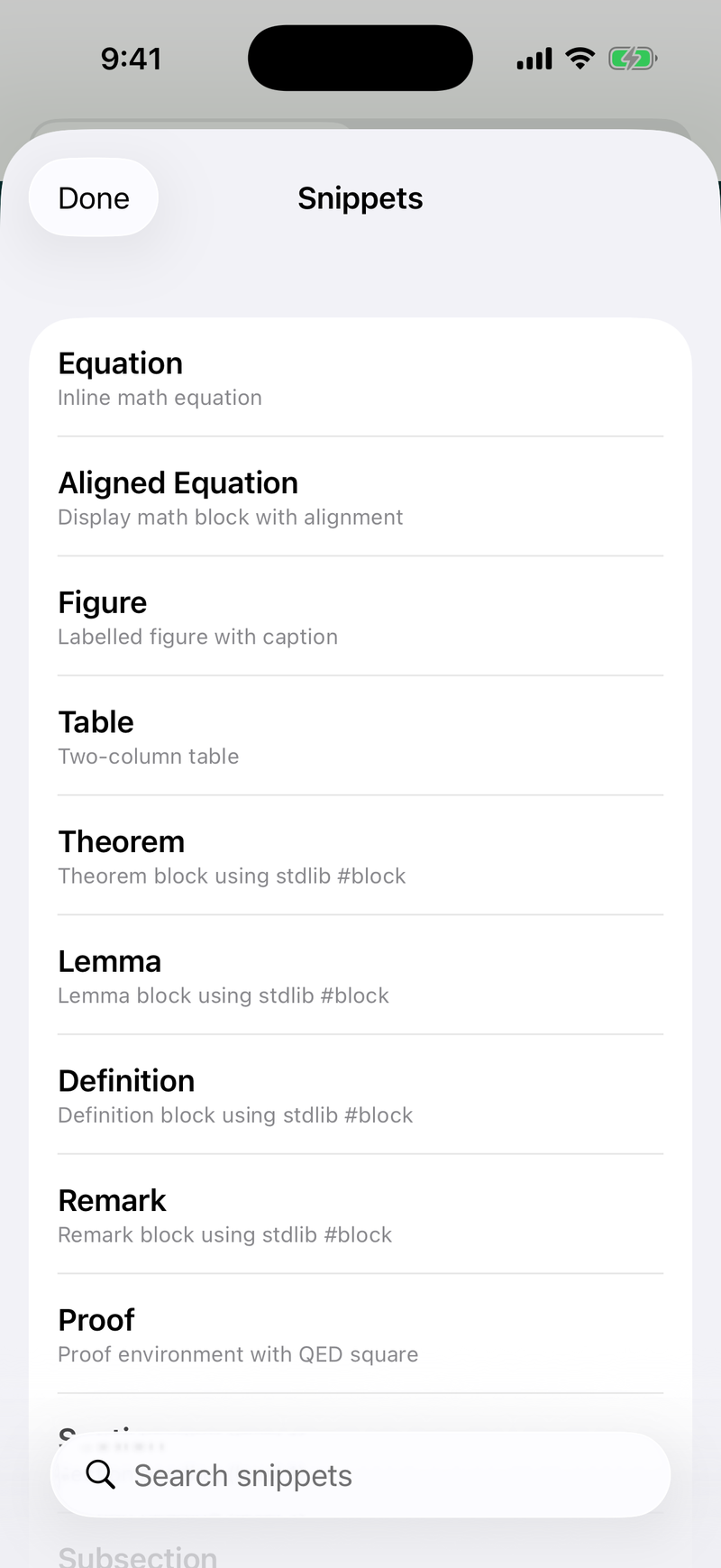
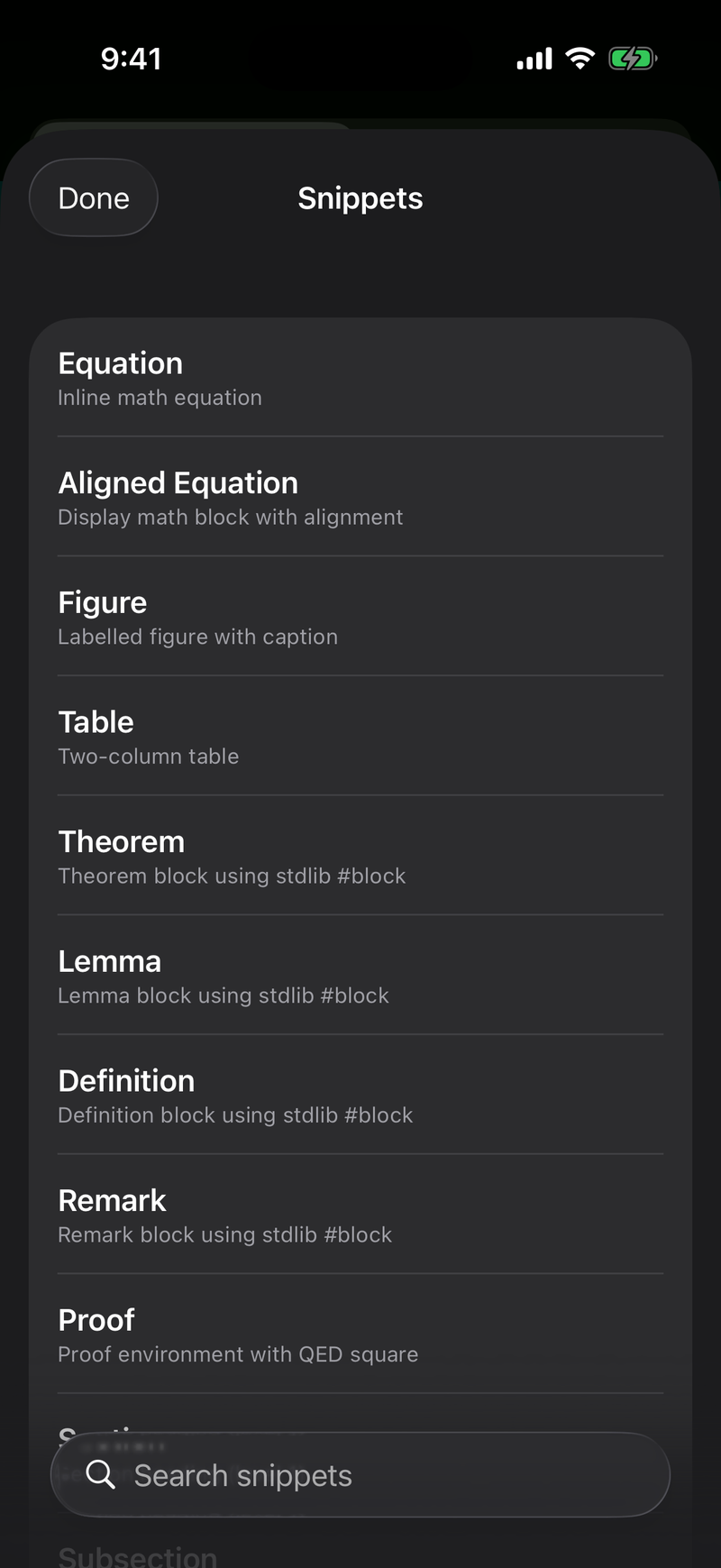
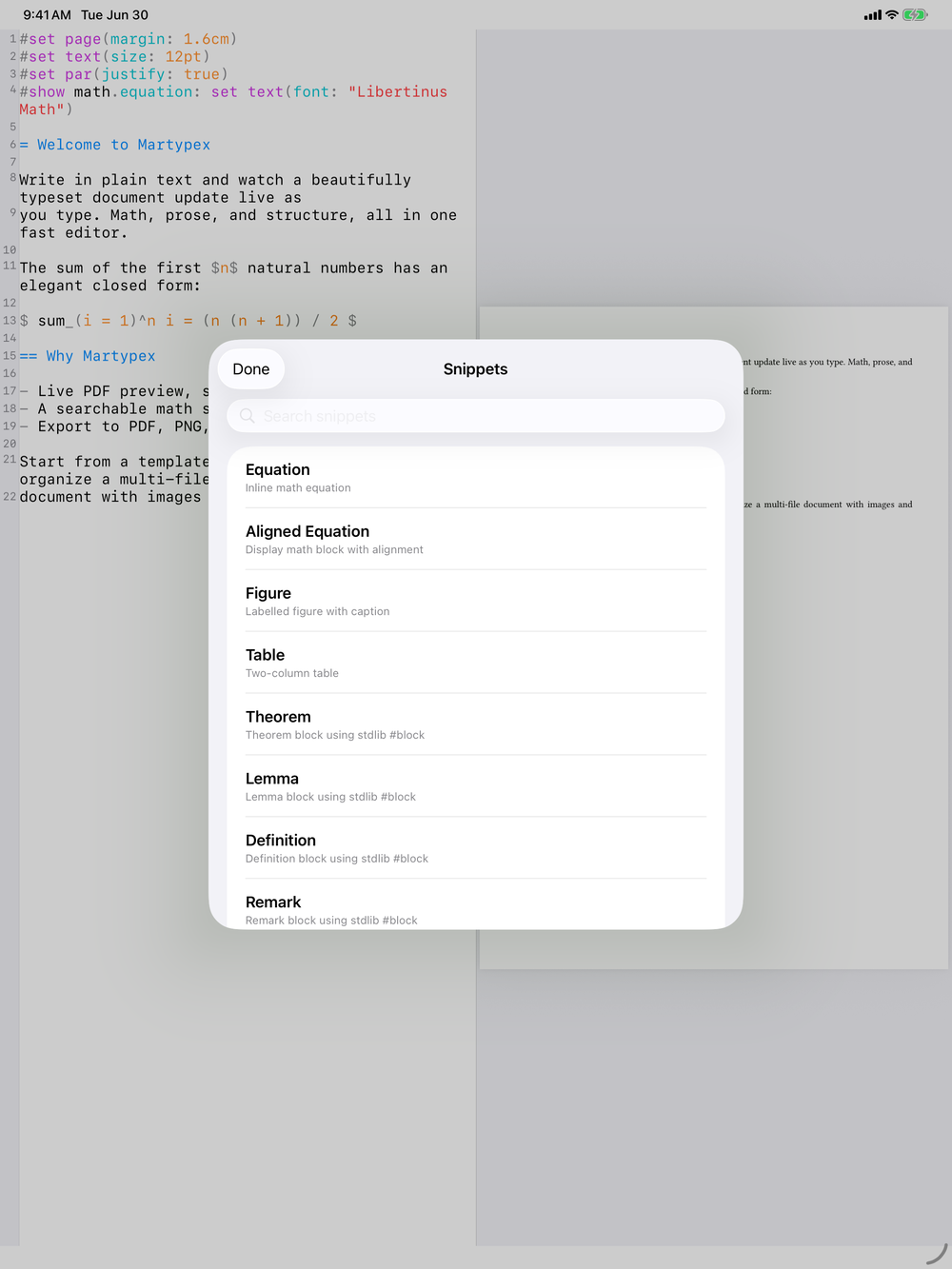
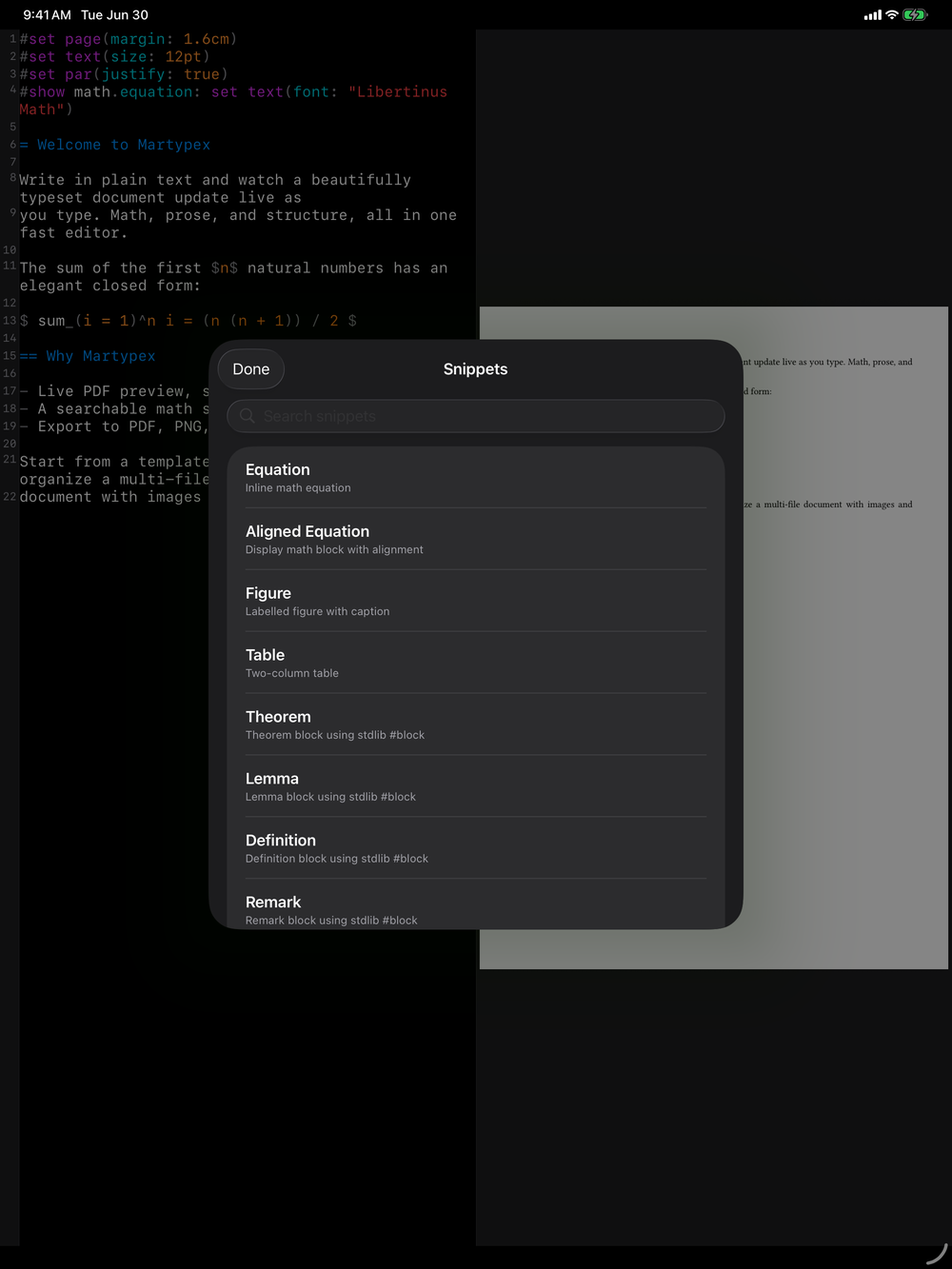
Pro unlocks a personal snippet library: save reusable blocks of Typst or Markdown (a figure layout, a citation pattern, a table skeleton) and insert them again in any document. Snippets live alongside completion as another way to keep boilerplate out of your way.
Zotero
Pro unlocks a Zotero connection: paste a personal API key from zotero.org/settings/keys to browse your personal and group libraries from the same Citation Browser used for a local .bib, and insert references into your project’s bibliography. The key is stored securely on-device only. See Zotero for the full walkthrough.
Fonts
Manage your font library: download the New Computer Modern text weights from the Typst distribution (free), import your own font files, or browse Google Fonts (Pro). Everything you add applies to the open document live. See Fonts for the full walkthrough.
Packages
See and manage the Typst @preview packages cached on device, with each one’s version, size, and licence, and clear the cache to reclaim space. You can also browse the full registry and pre-install a package for offline use. A separate Package Licenses entry lists the packages your current document uses, direct and transitive, with a one-tap Copy attributions. See Packages for details.
Storage & Diagnostics
Martypex keeps a few on-device caches to make compilation fast; this section lets you manage them:
- Clear preview cache: free up space used by rendered preview pages.
- Clear recovery scratch: remove the local autosave data used to recover unsaved edits.
- Export Diagnostics: share a scrubbed report for support. It redacts all file-system paths and never includes document content; you can email it, copy it to the clipboard, or open a pre-filled GitHub issue.
- Version info: the bundled Typst version, package-snapshot date, and compile-engine version, useful when reporting a bug.
Help & Support
Help opens an in-app hub: a short “Getting Started” list of how-tos, each with a one-line pointer and a Learn more link straight to its page in this guide, plus the full Keyboard Shortcuts reference and a link to open this online guide directly. Support reaches the same contact channel as the Support page.
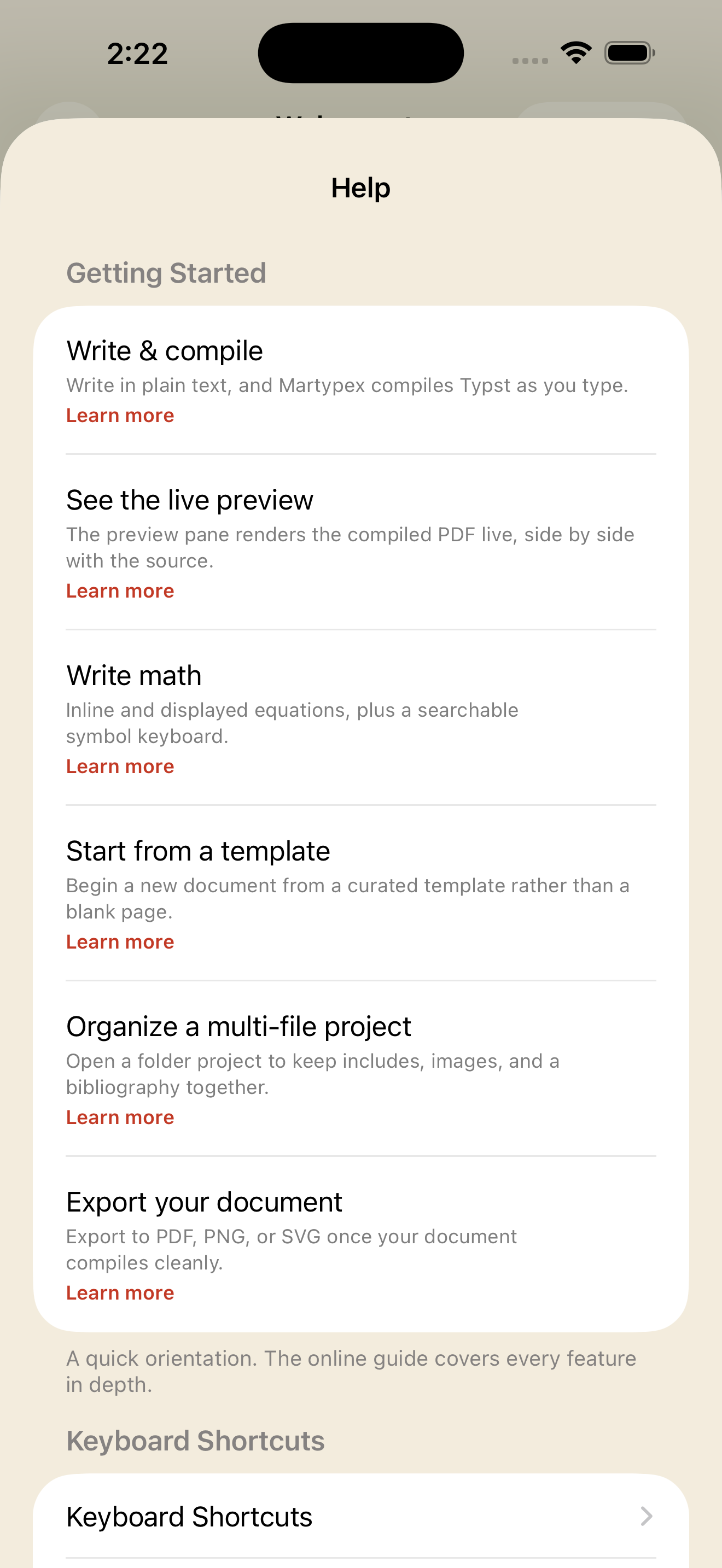
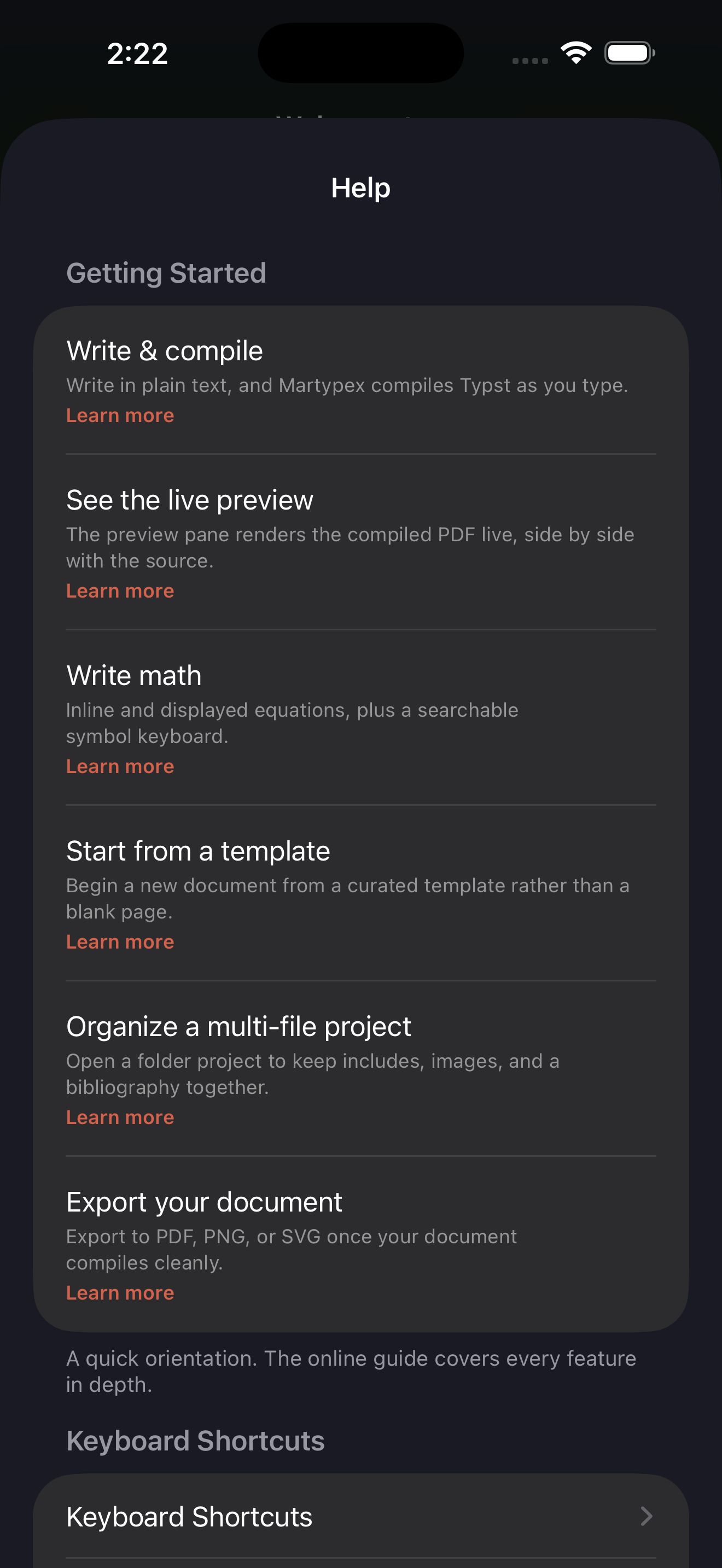
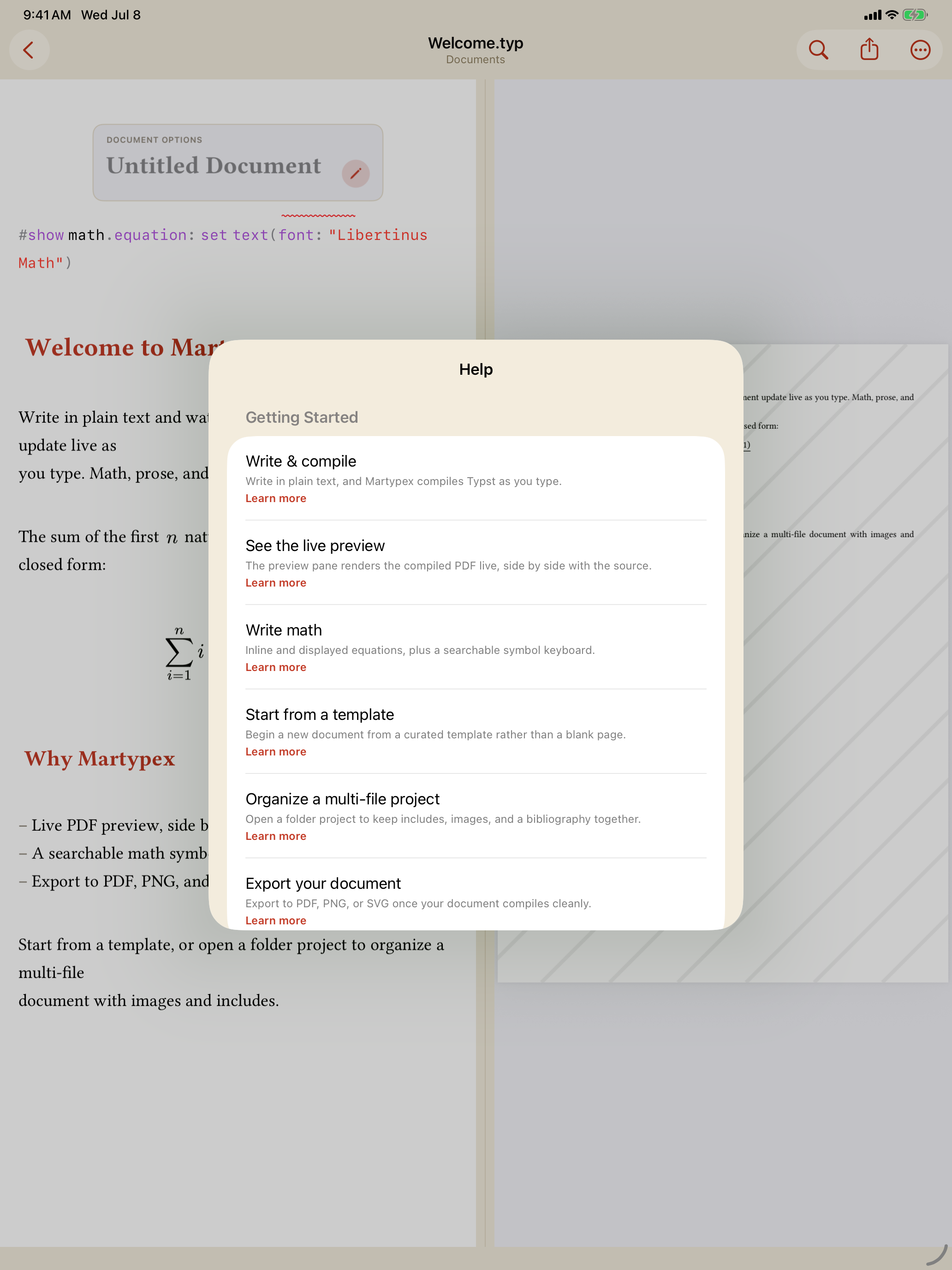
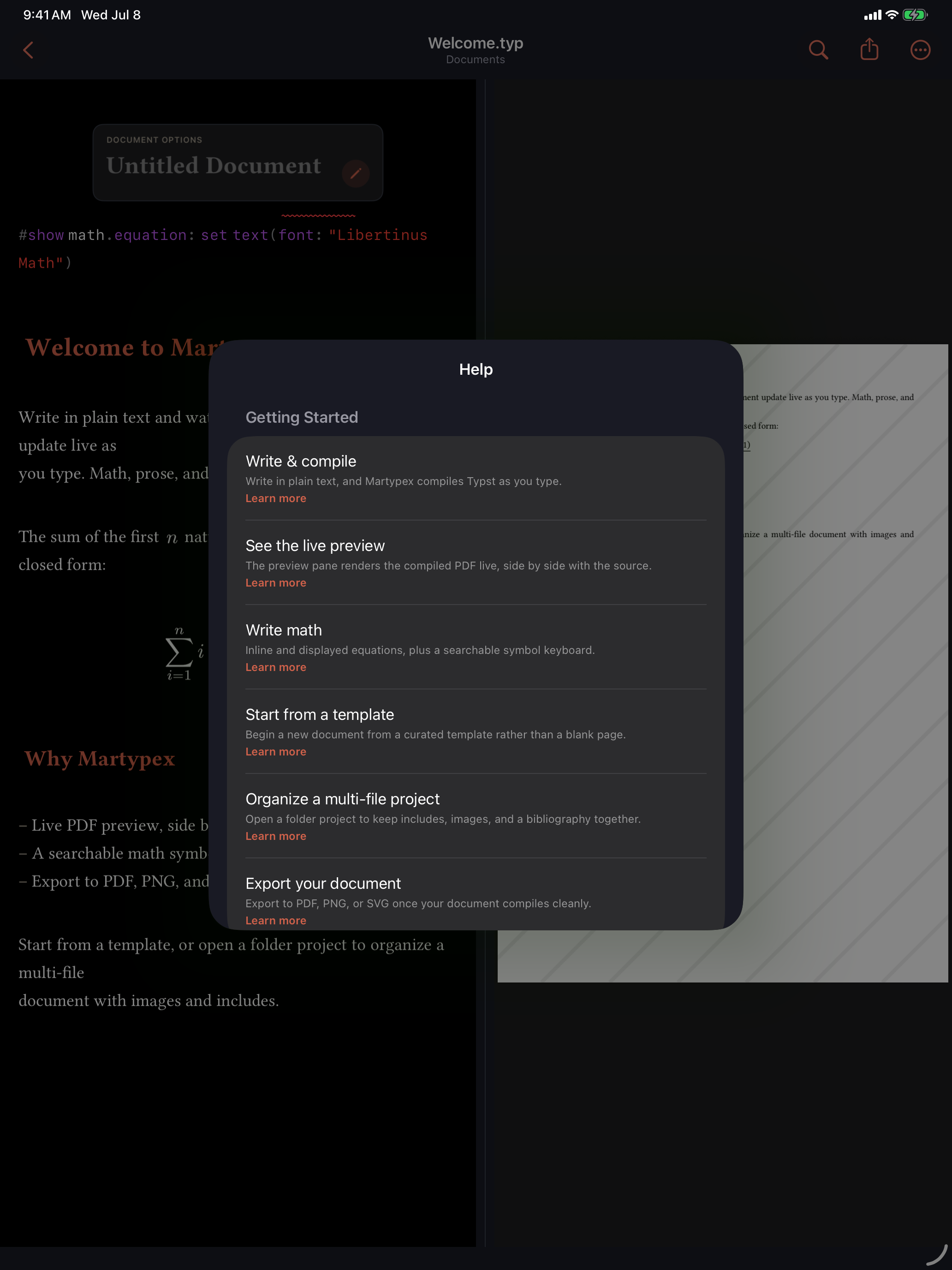
A handful of more advanced screens, Themes, Packages, the Export format picker, and the Citation Style picker, add a small (?) button of their own: a one- or two-sentence explanation of that screen with its own Learn more link into the matching guide page.
Privacy
Analytics in Martypex are local-only and never transmitted; the analytics toggle here lets you opt out entirely. From this section you can also reach the Privacy Policy, review acknowledgments and open-source licences, and tap Replay Onboarding to see the welcome intro and the first-run feature tour again, exactly as they appeared on your first launch.
Your documents never leave your device. See the Privacy Policy for the full picture.