Live-Styled Editor
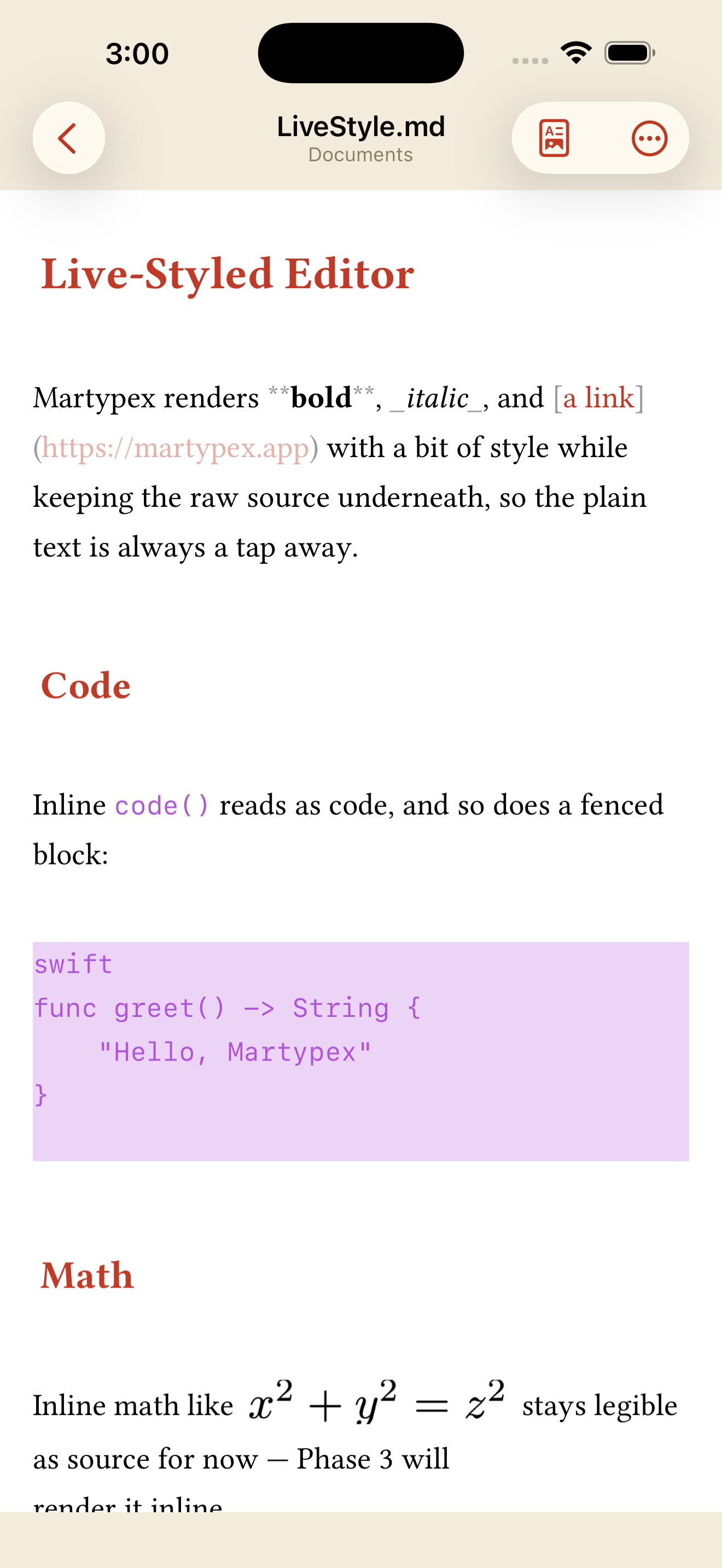
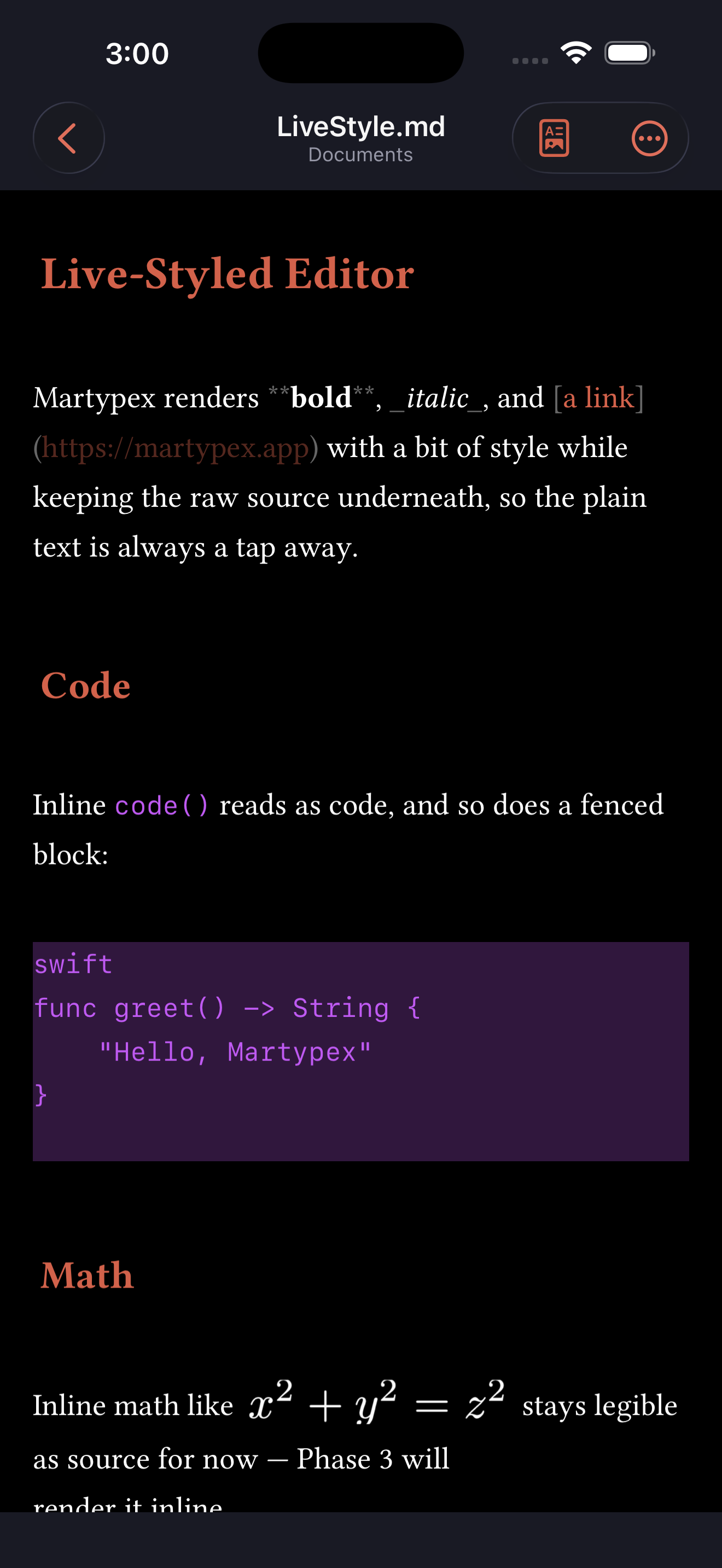
Martypex’s editor can render your Typst or Markdown source with a bit of style while you write it — headings that look like headings, bold and italic that look like emphasis, links and code that read at a glance — without ever leaving plain text. The page in front of you looks finished, but the exact characters you typed are always one tap away.
This is a display layer, not a different file format. Live styling never changes your document’s bytes: copy, paste, undo, find & replace, and every other editing operation see the same plain-text source they always have.
What renders
With Live styling on, Martypex recognises and styles:
- Headings, in a serif face sized by level
- Bold and italic emphasis
- Links (Markdown only, since Typst has no equivalent construct)
- Inline
codeand fenced code blocks, kept in monospace with a tinted background - Blockquotes
- Inline and display math, typeset from
$…$(or, inside a folder project, rendered#figureblocks; see Figures) - A Document Options header card in place of the leading title/author/page-setup directives (see Document Options)
Both Typst and Markdown documents get this treatment; the two dialects share the same renderer, so switching between them doesn’t change how any of the above looks.


Vanishing markup markers
The delimiters that would normally clutter the page, **bold**, _italic_, # heading, backticks, link brackets, don’t just get colored, they’re concealed entirely. Martypex only reveals a line’s raw markup while your caret is actually on it (or a selection spans it): the markers reappear there, dimmed, so you can see and edit exactly what you typed, and vanish again the moment you move on. This is a reveal-on-active-line model, not a “no markup ever” word processor. It always tells you the truth about what’s on the current line.
List bullets, blockquote > markers, and horizontal rules are deliberately never concealed, since hiding structural markers like those would cost more clarity than it buys.
Prefer to see markers dimmed everywhere rather than concealed on inactive lines? Turn off Hide markers in Settings ▸ Editor and Live styling keeps rendering everything else while leaving every marker visible, just toned down.
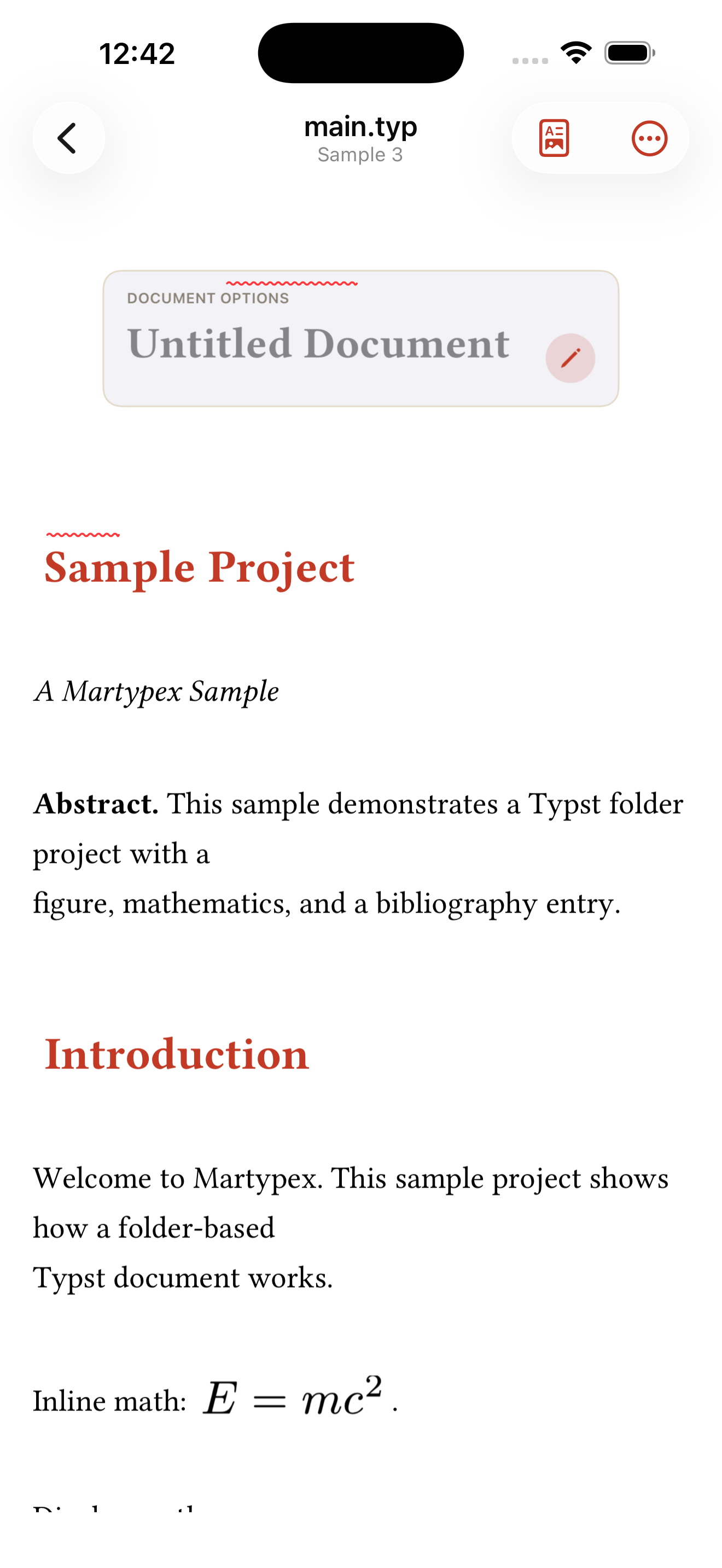
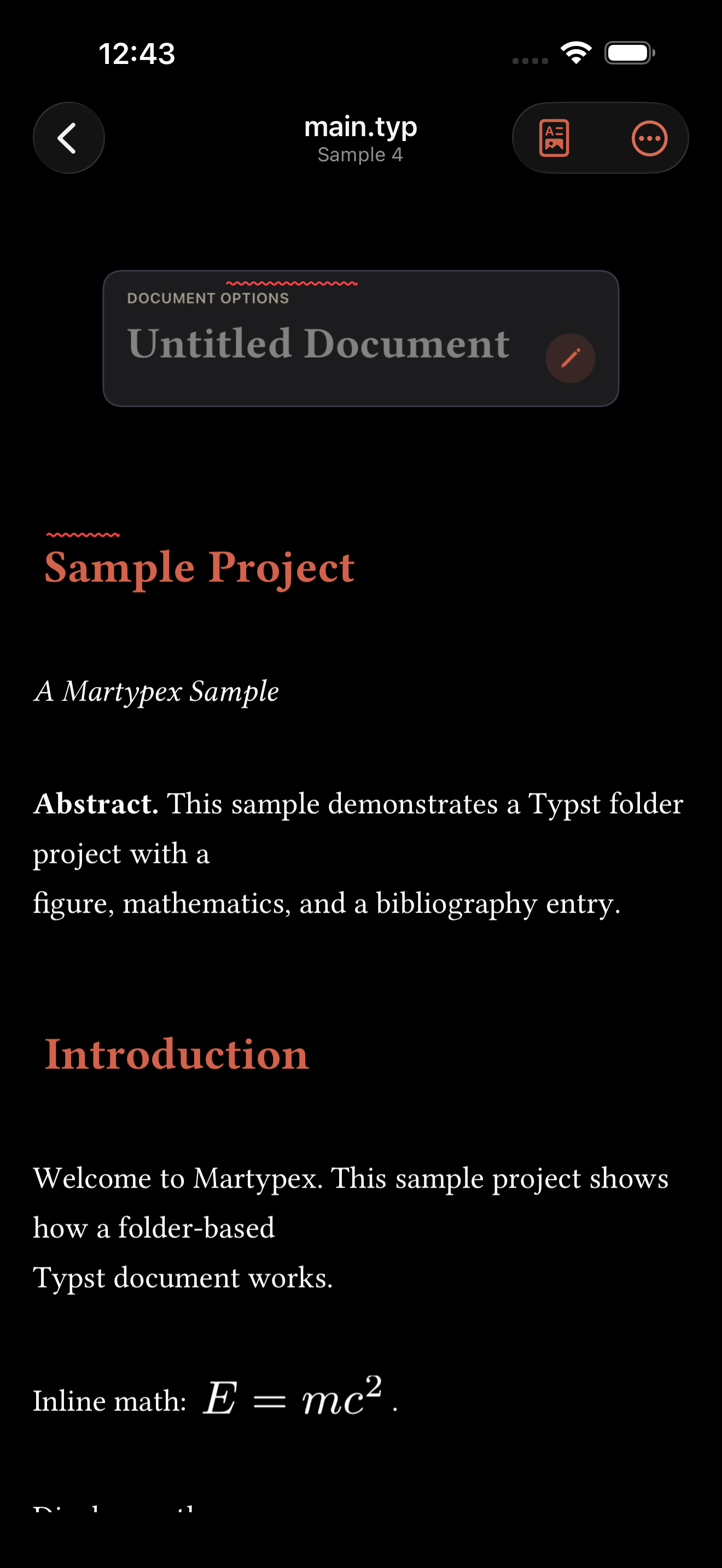
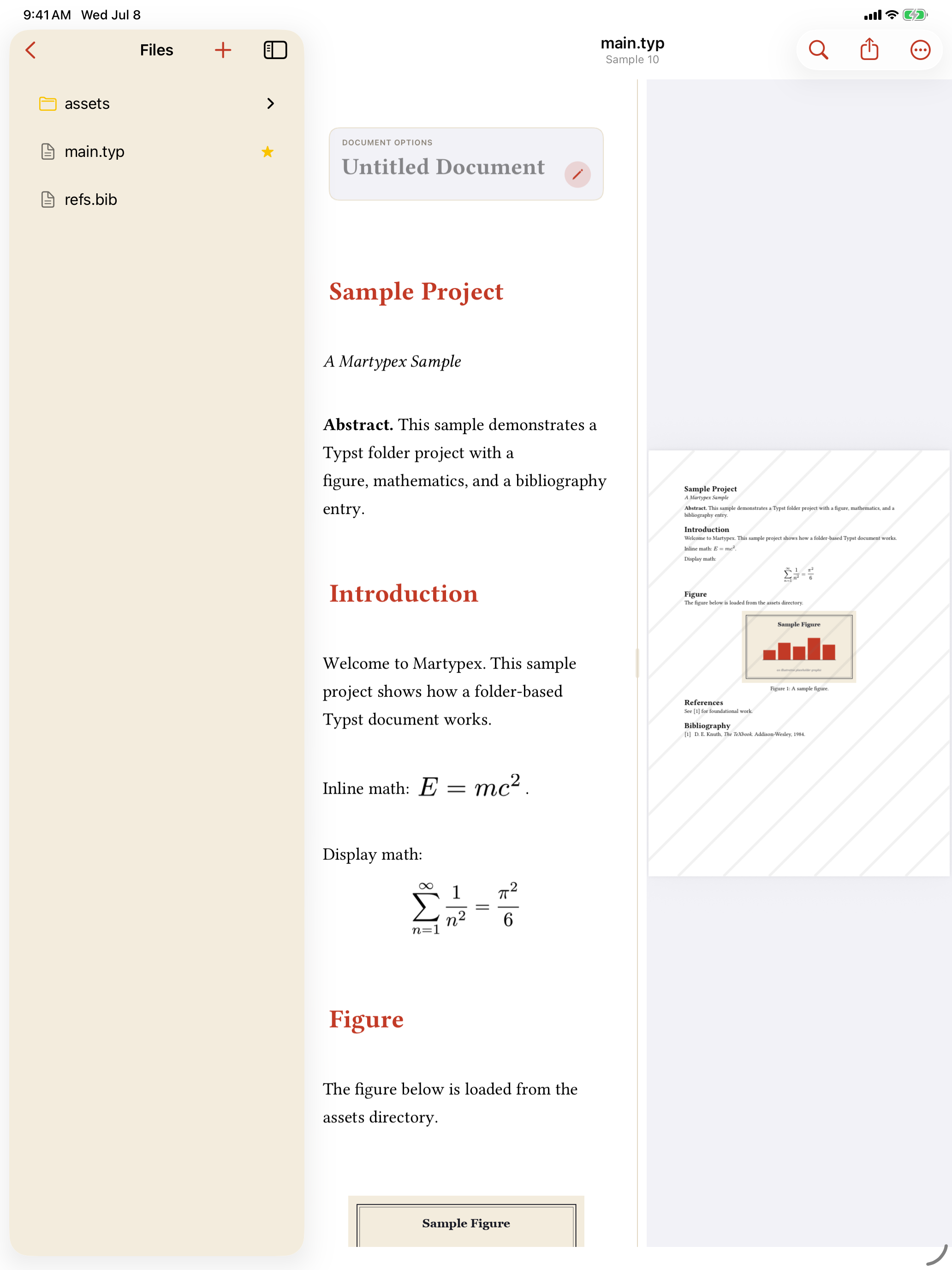
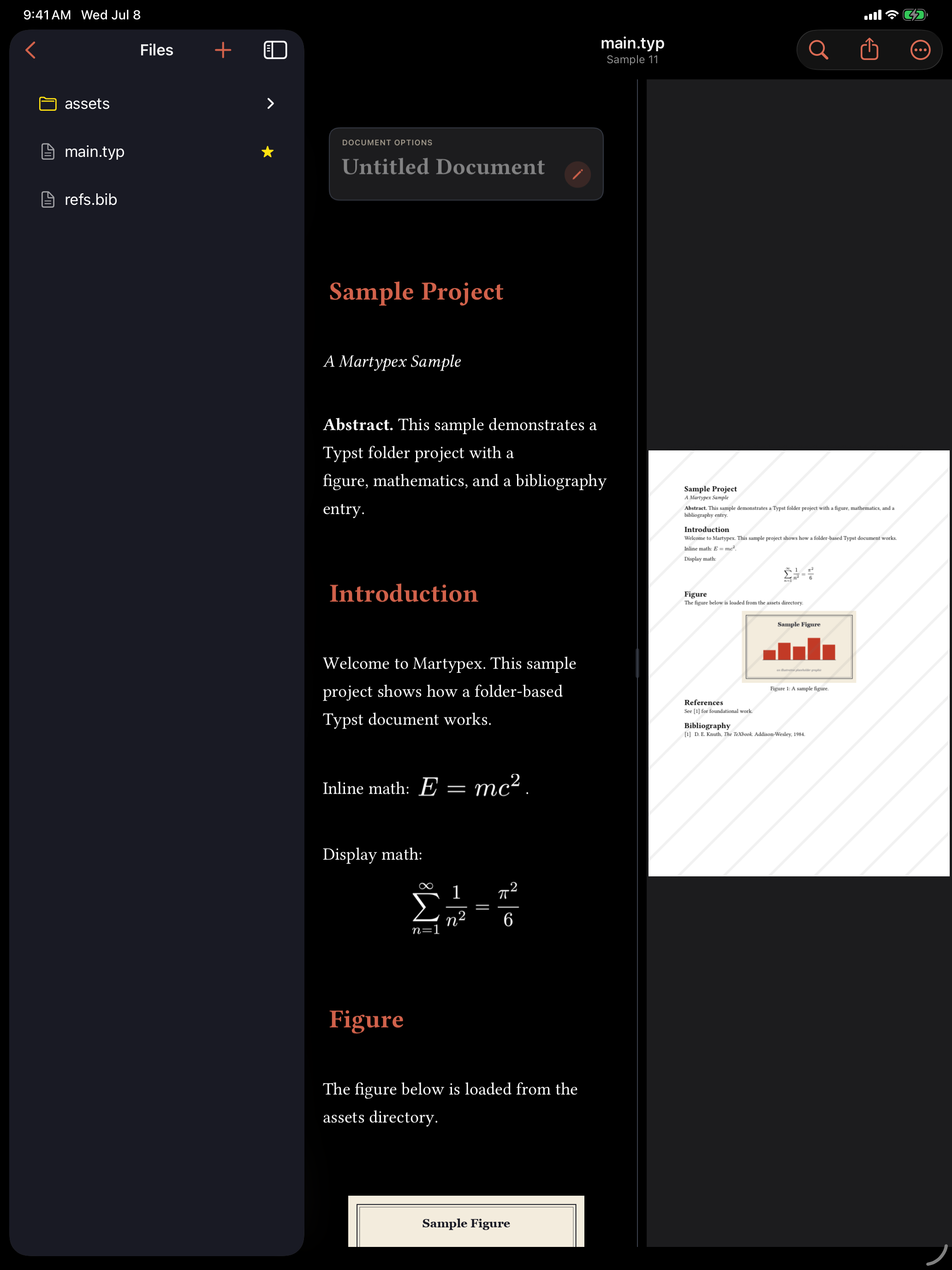
A word-like page
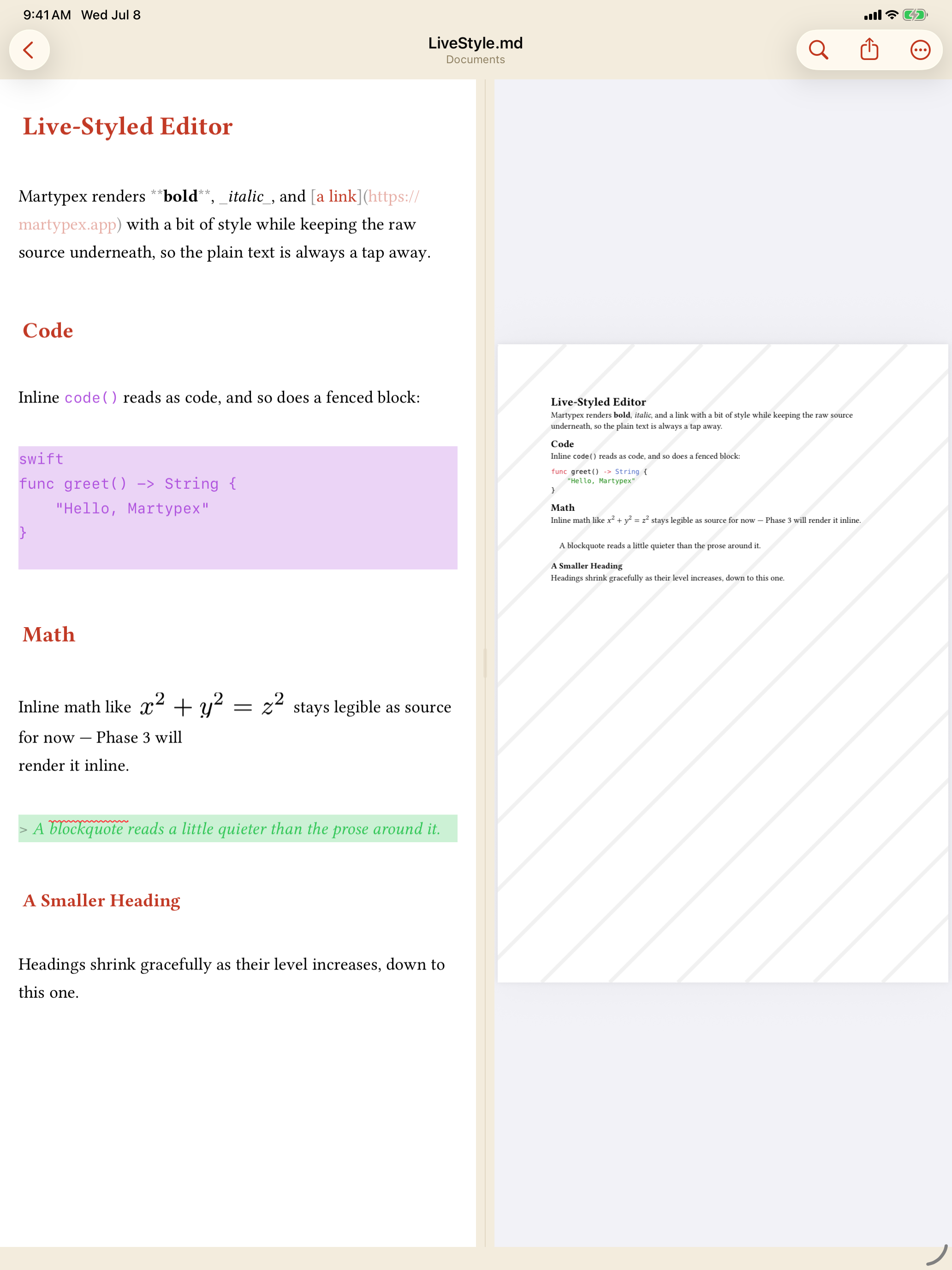
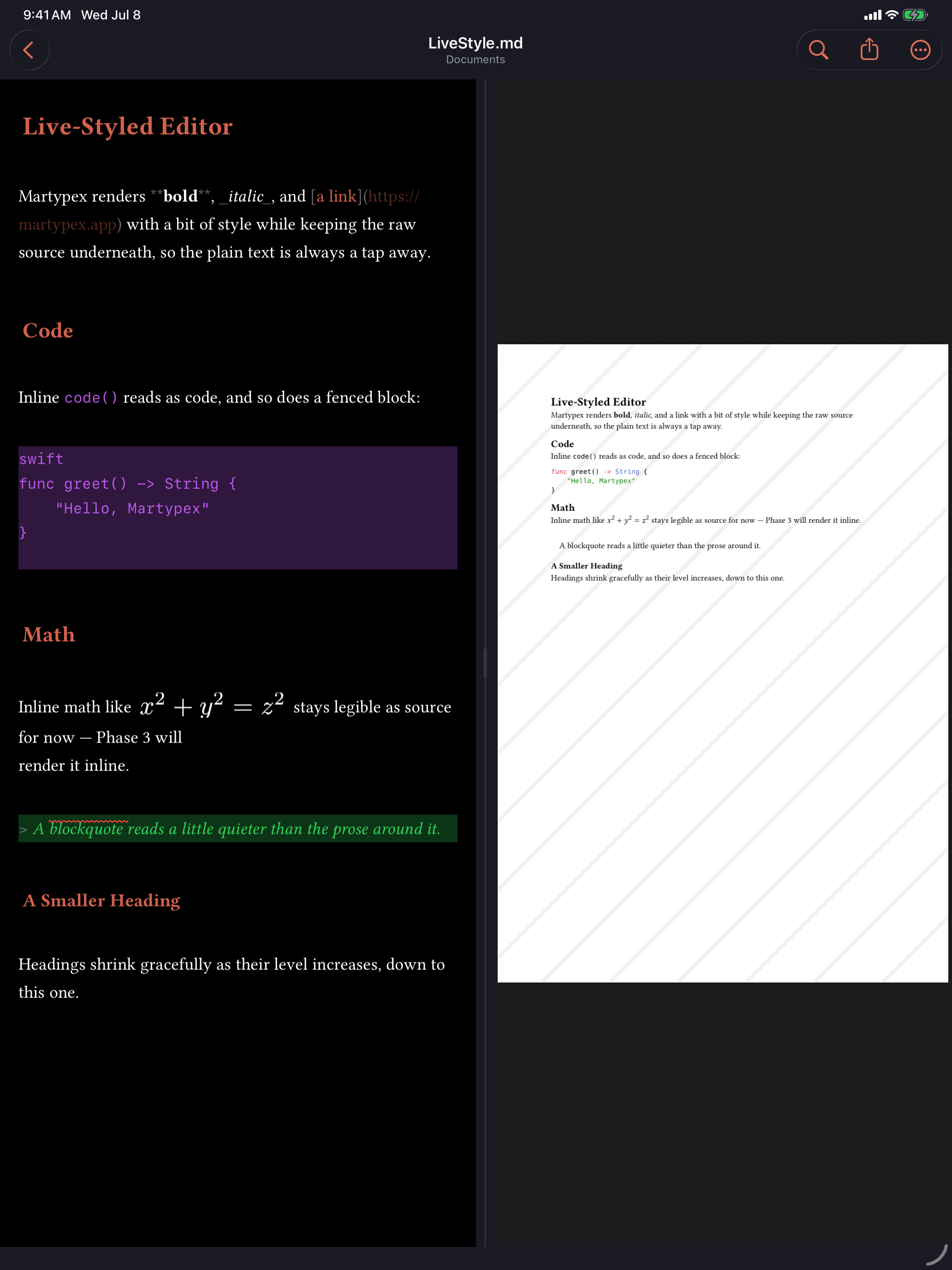
Switching Live styling on changes more than individual characters. The line-number gutter disappears, and the text picks up page-like side margins, centering a comfortable column rather than running edge to edge, so a wide iPad window reads like a page, not a terminal. Body text moves to a proportional serif face, and Martypex adds a little extra space above headings and between paragraphs so the document breathes the way a typeset page does. Code, whether a fenced block or an inline span, and anything Martypex doesn’t specifically recognise, stays in monospace throughout, so code still reads like code even on an otherwise dressed-up page.
Turn Live styling off and you get exactly today’s plain code editor back: gutter and line numbers restored, monospace throughout, every marker visible, no extra margins.
Math and images
Inline math ($…$) and display math typeset right in the editor, in both Typst and Markdown documents. Markdown’s math detection is intentionally conservative, it recognises genuine LaTeX-style math and steers around ordinary uses of $, like prices or shell variables, that aren’t math at all. Inside a folder project, a #figure renders as an image with its caption underneath. See Figures for how to edit one.
Turn off Render math & images in Settings ▸ Editor to keep Live styling’s other rendering (headings, emphasis, code) while leaving math and images as coloured, raw source instead.
Turn it on or off
Three toggles in Settings ▸ Editor control the whole feature:
- Live styling: the master switch. On by default on iPhone, off by default on iPad, since iPad’s split view already shows a live compiled preview beside your source, so the source pane starts out plain there. Either platform can override the default.
- Hide markers: with Live styling on, conceals markup markers everywhere except the active line; off, markers stay dimmed-but-visible everywhere instead.
- Render math & images: with Live styling on, typesets inline math and shows images in the editor; off, they stay as coloured, raw source.
A note on accessibility
VoiceOver reading the whole field, or using “Read All”, speaks the rendered meaning: headings are announced as headings, concealed markers are skipped, and math or an image is announced with a short label. Navigating character by character or line by line while actively editing, though, still reads the underlying raw source characters rather than the rendered text. This is a known gap in how the editor’s text-input bridge reports content, not a deliberate design choice. If you rely on VoiceOver for fine-grained navigation while writing, keep this in mind.