Accessibility
Martypex is built to be usable with VoiceOver and the system accessibility settings. Accessibility is not a separate mode or a paid tier bolted on afterward: it runs through the editor, the live preview, the document browser, Settings, and every sheet and dialog in between, and it works exactly the same with no account and no connection, in keeping with the rest of the app.
VoiceOver
Every control in Martypex, from toolbar buttons and format-bar icons to switches and sliders in Settings, carries a clear accessibility label, so VoiceOver announces what a control does rather than reading a raw icon name. Compound rows read as a single unit: a recent-project row speaks its name and when it was last opened together, a snippet row speaks its name, description, and whether it is Pro-locked, and a diagnostics row speaks its severity and message, instead of scattering that information across several separate stops. Decorative icons that would only repeat what an adjacent label already says are hidden from VoiceOver rather than announced twice.
Screens expose proper heading structure, so you can jump between sections with the rotor instead of swiping through every row in order, and paged content like the welcome intro announces its own position (“Page 1 of 3”) as you move through it.
This runs across the whole app: the editor and its diagnostics, the format bar and math keyboard, the live preview, the document browser and the empty-state CTAs, the welcome intro and feature tour, Settings and every sub-screen (Themes, Fonts, Packages, Keyboard Shortcuts, the Help hub), the Command Palette, Find & Replace, the document outline and statistics, snippets, and every dialog and picker, including the Pro paywall, export, and citation-style pickers.
Dynamic Type
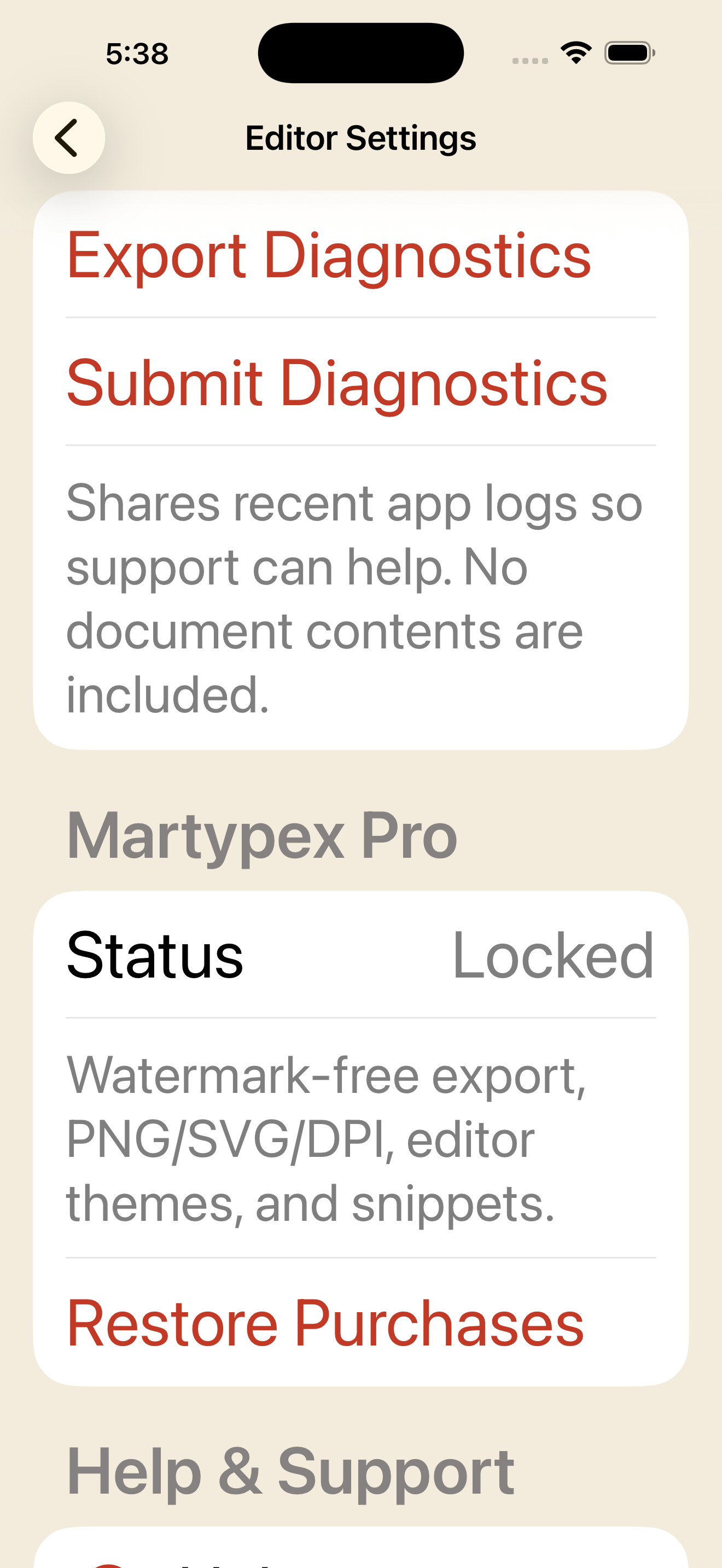
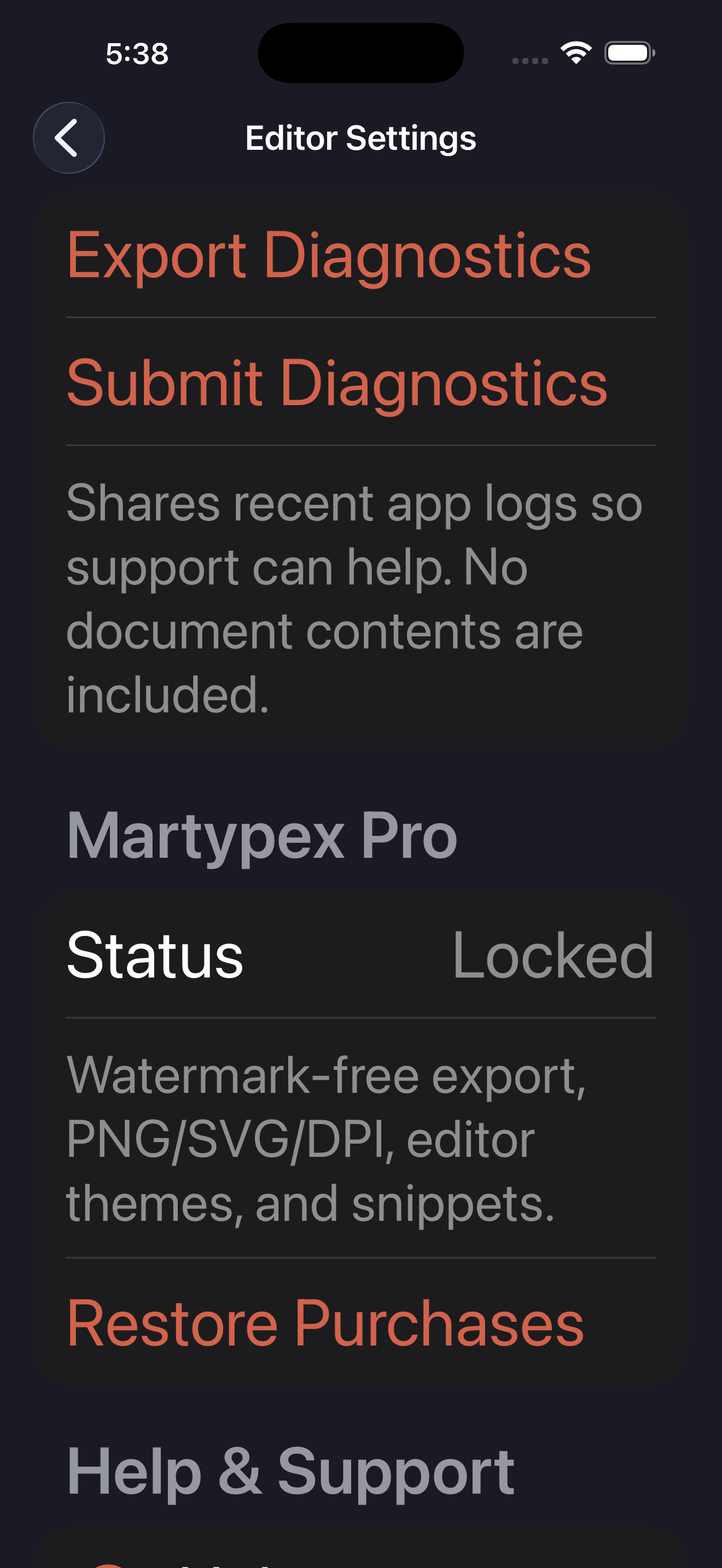
Martypex’s interface text follows your system Dynamic Type size. Turn up the text size in the system’s Display & Text Size settings, and labels, buttons, and Settings rows scale and reflow with it, rather than clipping or truncating. The editor’s own font size is a separate, independent setting (see Settings), so you can keep source text compact while the surrounding interface reads larger.


Touch targets
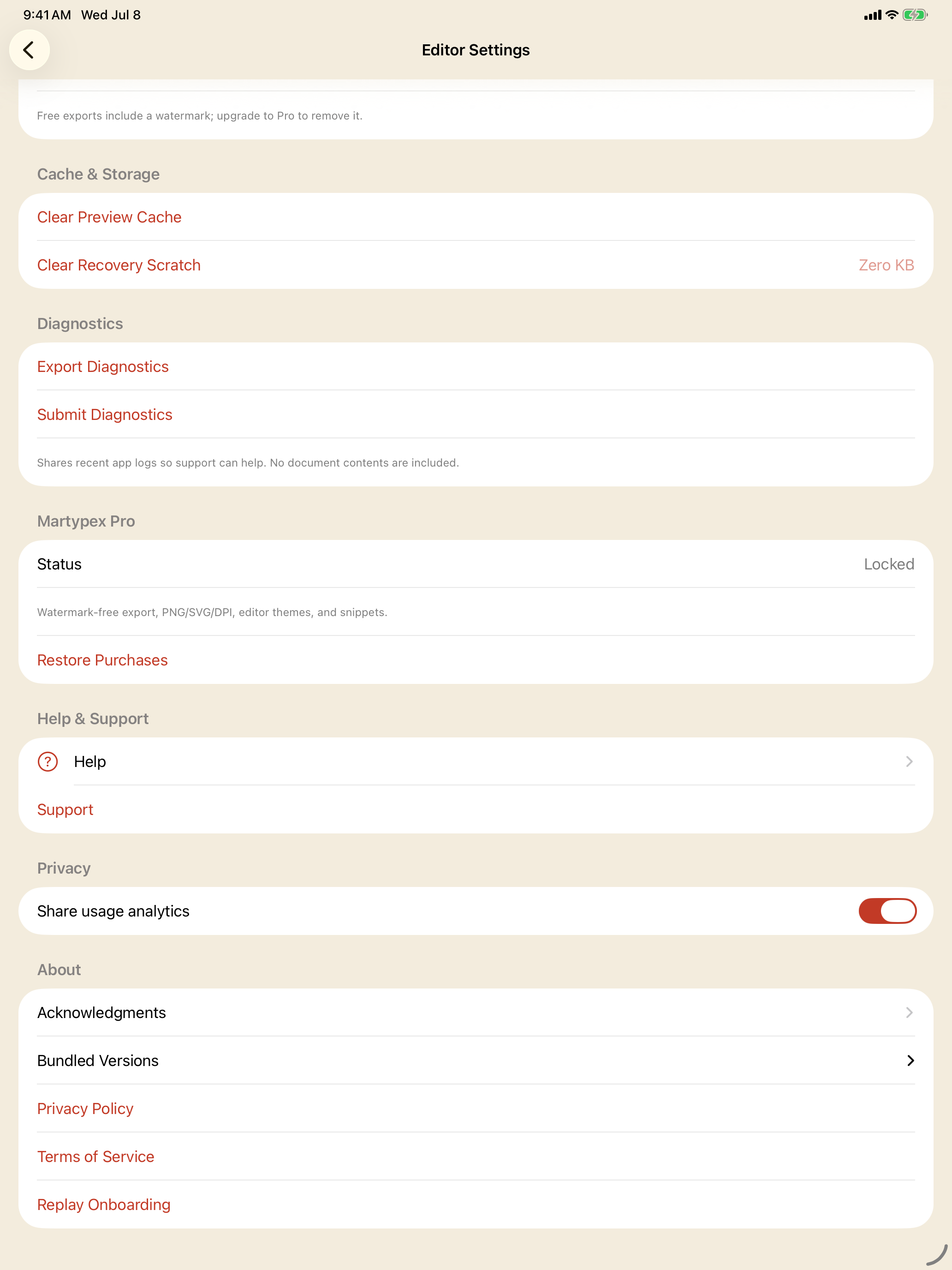
Every tappable control meets the platform’s 44-point minimum hit area, even compact ones like the Clear button in the find bar or a bordered toggle in Settings. Where a control’s visual size is smaller than that for layout reasons, its tappable region is padded out to the full 44 points without changing how it looks, so precision is never a requirement for using Martypex accurately.
Reduce Motion
If you have Reduce Motion turned on system-wide, Martypex honours it. The welcome intro’s page transitions, the feature tour’s card animations, and the document browser’s empty-state transition all skip their animation under Reduce Motion; the underlying state still changes exactly the same way, just without the motion.
On-device, no account required
Accessibility support works identically whether or not you’ve purchased Pro, and none of it depends on a network connection or a Martypex account. Compilation, the live preview, and every accessibility feature above all run entirely on your device.