Editor
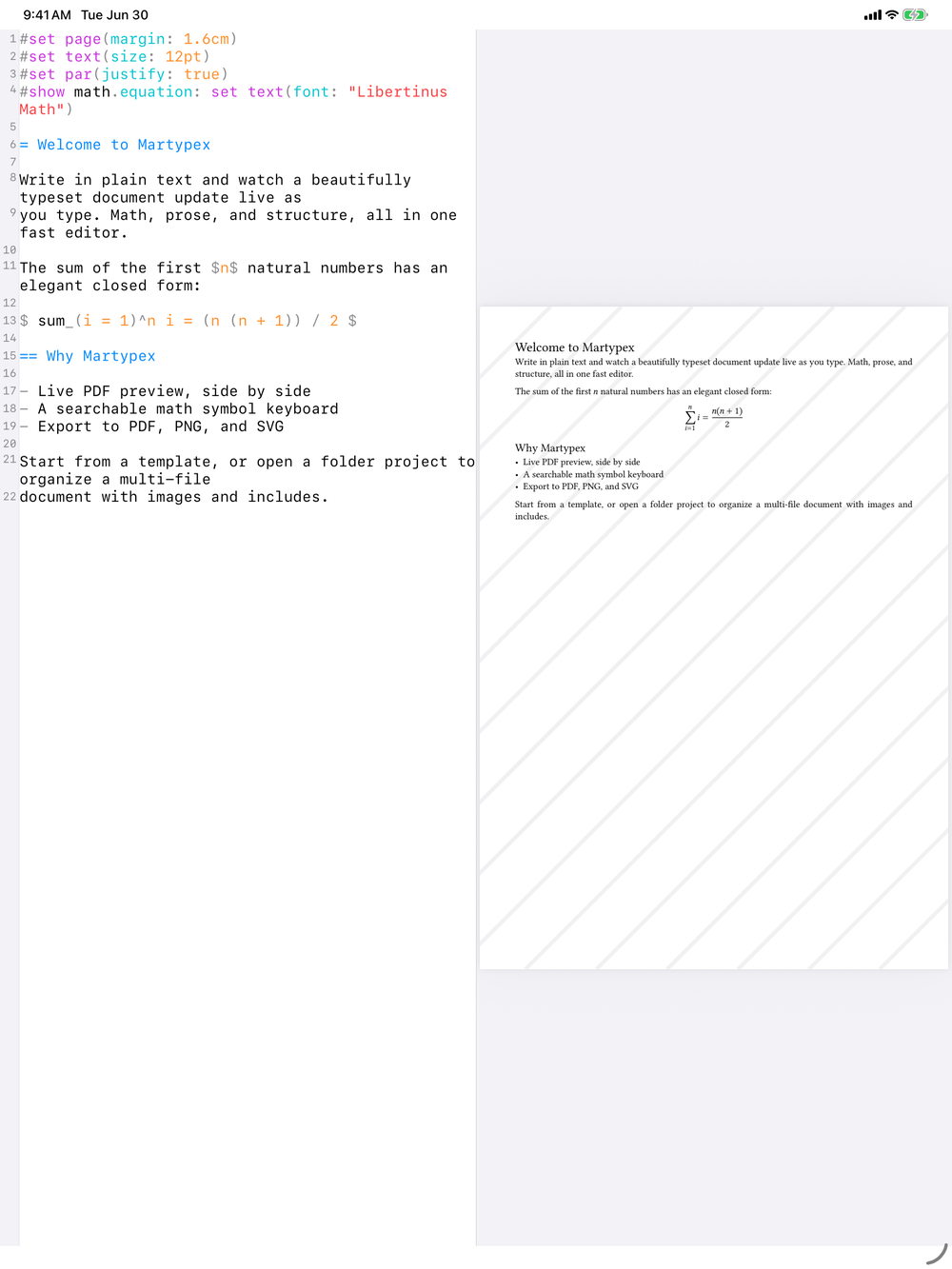
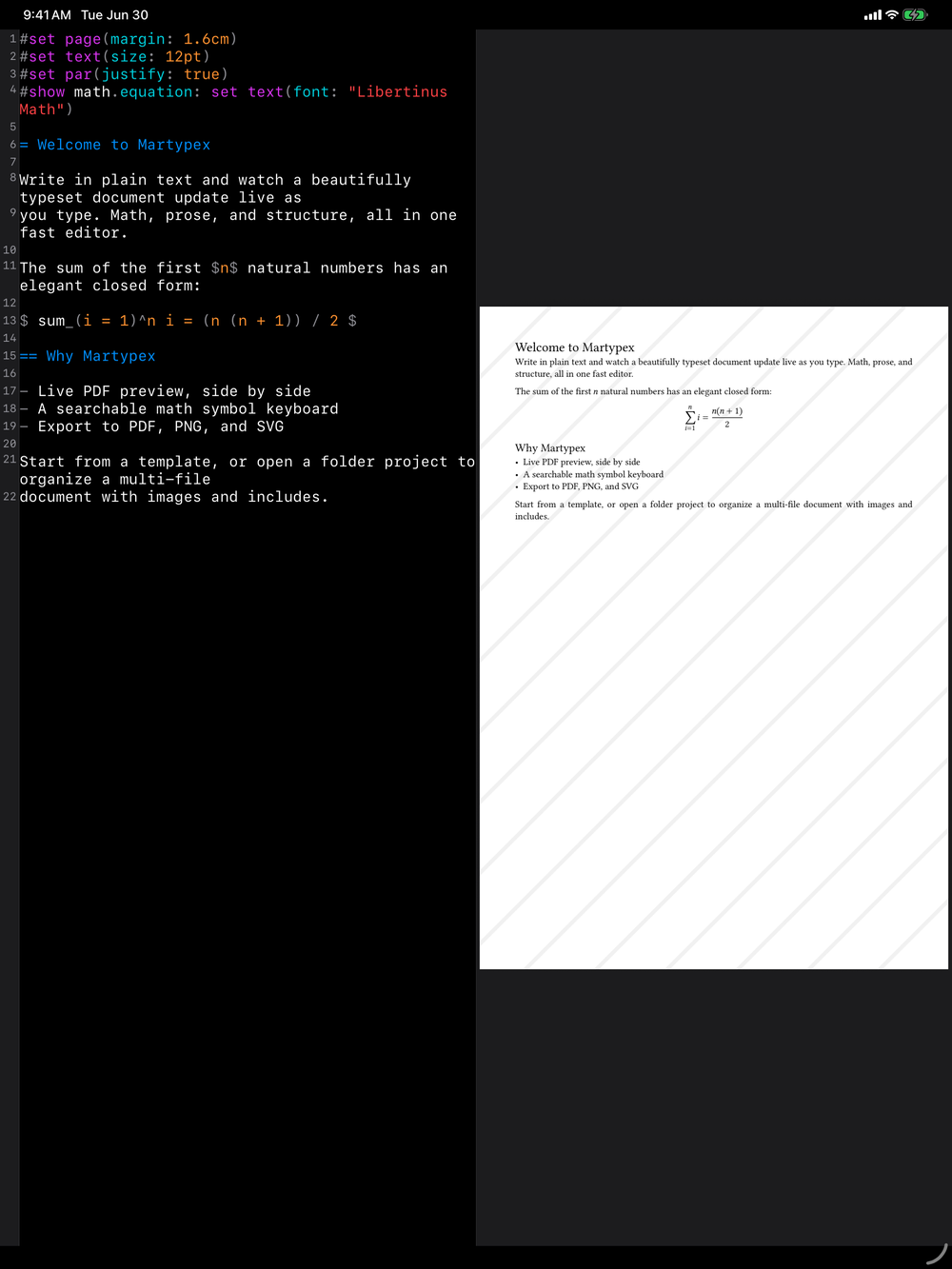
The editor is where you spend your time in Martypex. It is a full text-editing environment tuned for Typst and Markdown: syntax highlighting, line numbers, a current-line highlight, find & replace, and an input accessory bar that puts the symbols you need within thumb’s reach.
The title bar
The title bar shows your document’s name, so you always know which file you’re in, even with several open across a project. Next to it, a compact source/preview toggle switches between editing and the compiled page with a single button, replacing a segmented control with something that fits in less space. A ••• overflow menu holds the rest: Settings, Command Palette, Insert Image (in a folder project), Snippets, and Page Setup for Typst documents.
Writing
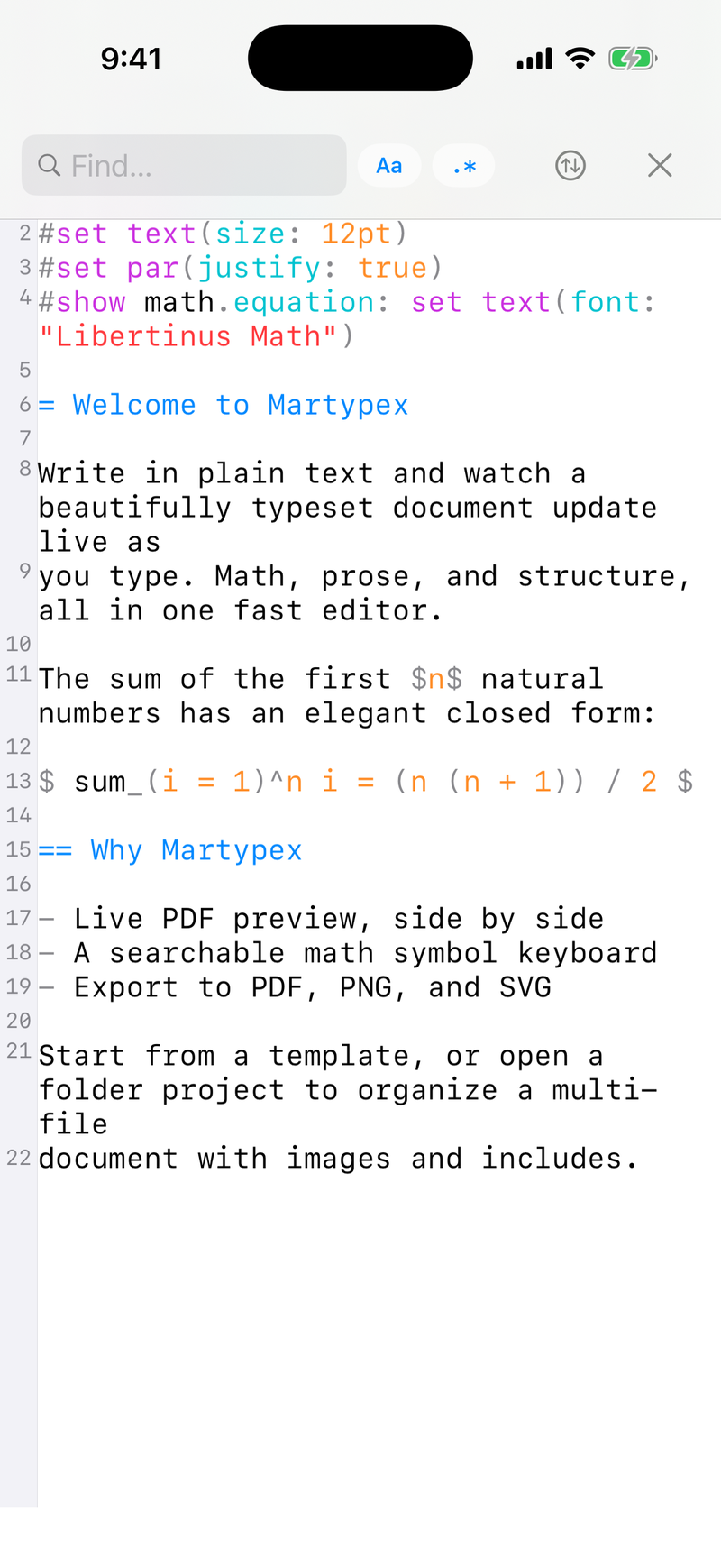
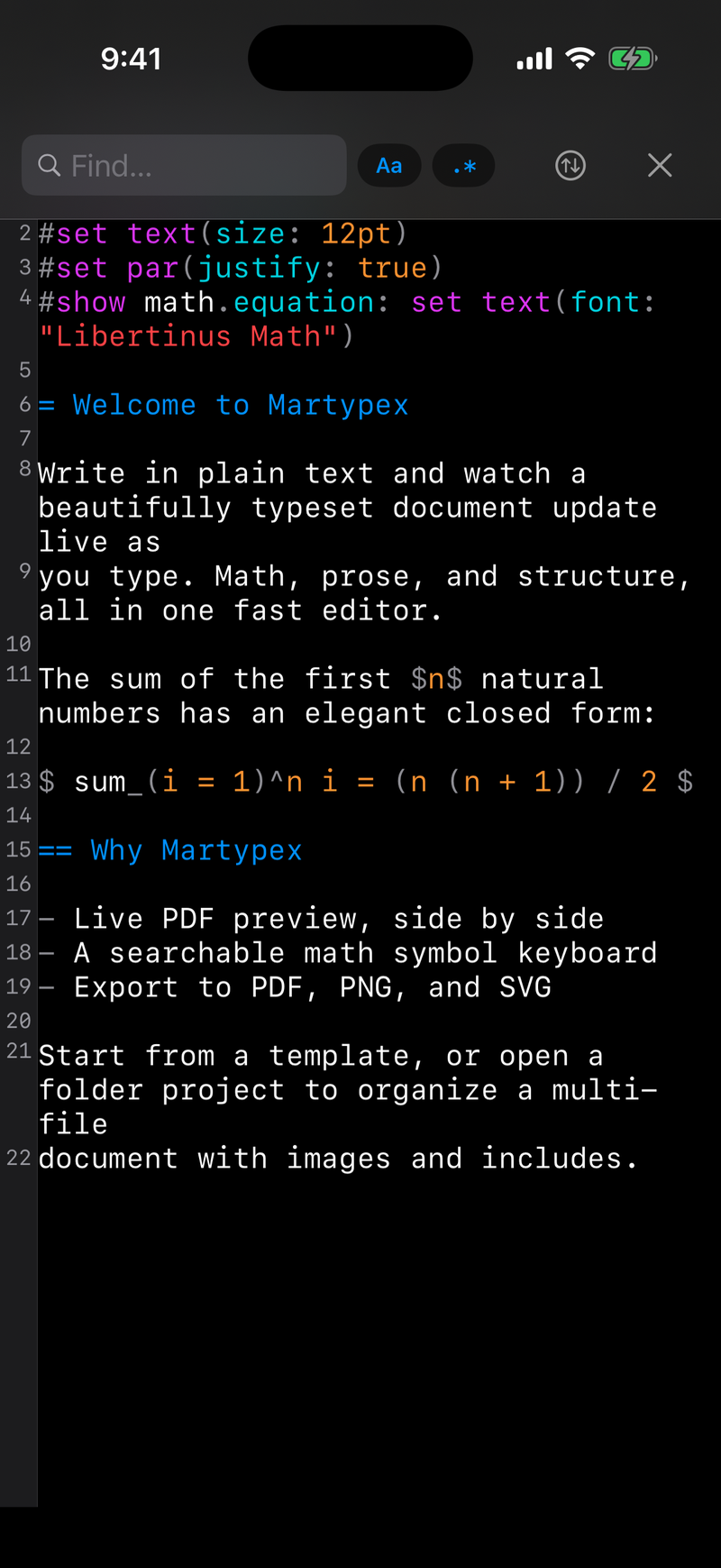
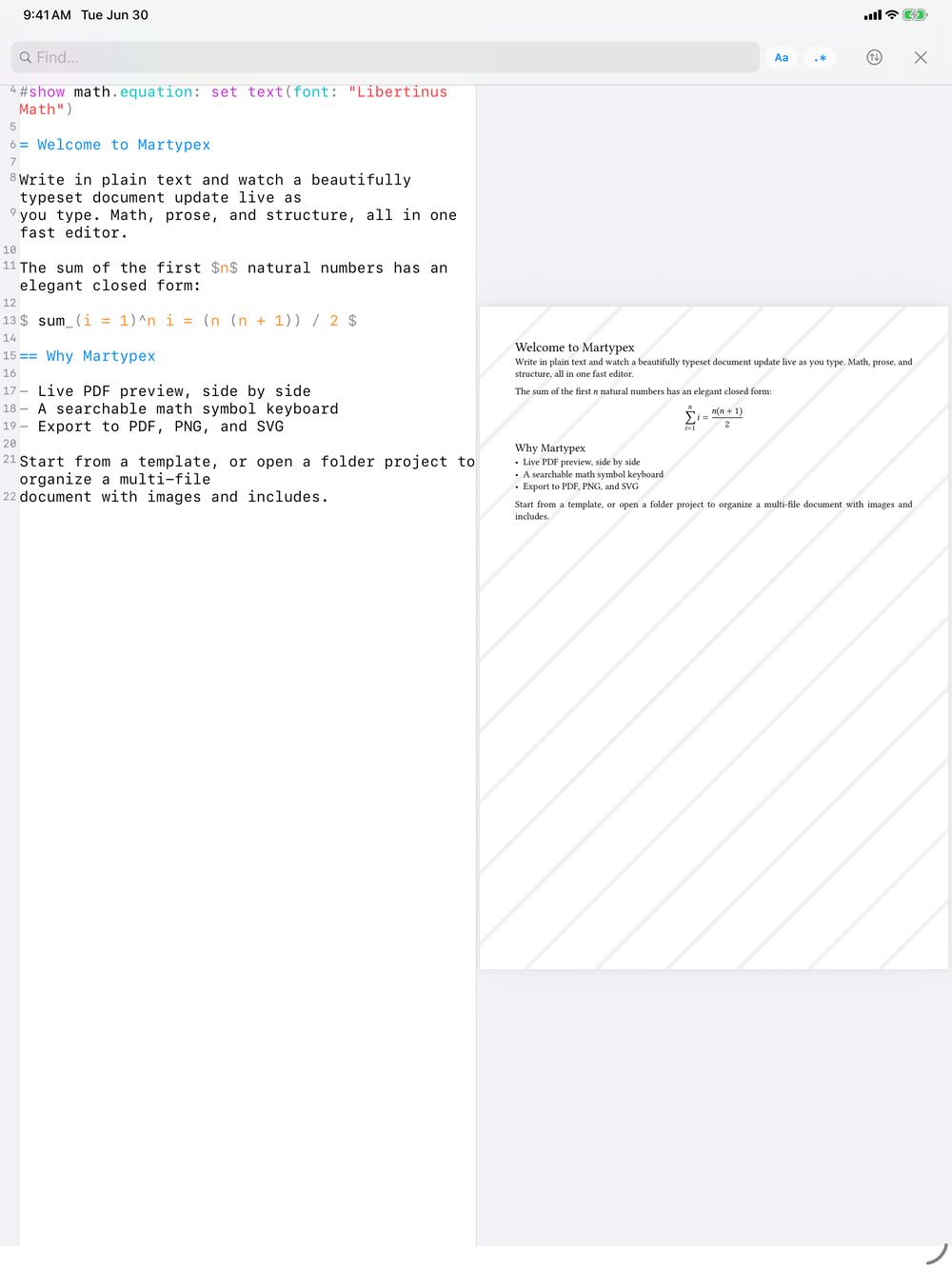
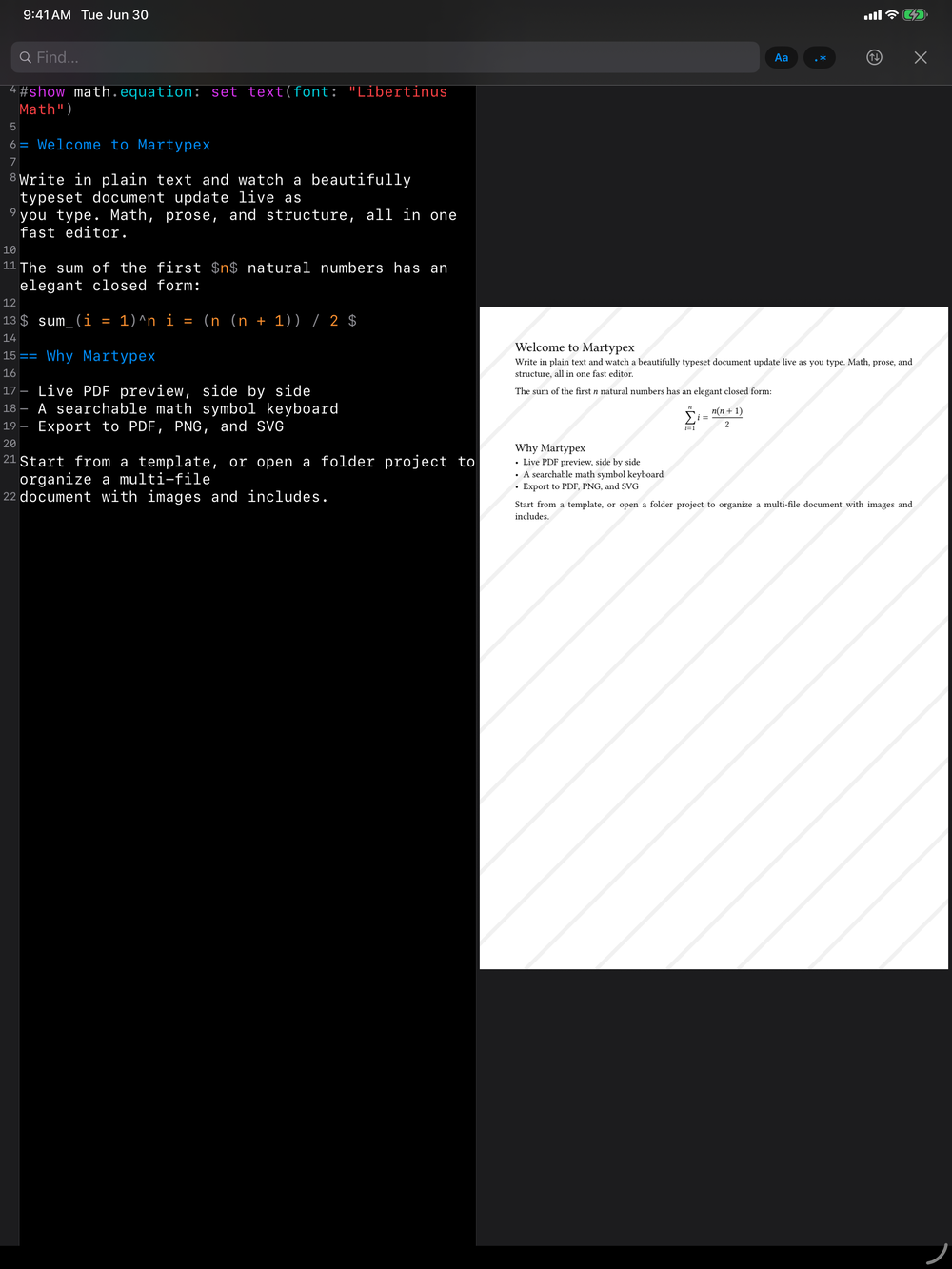
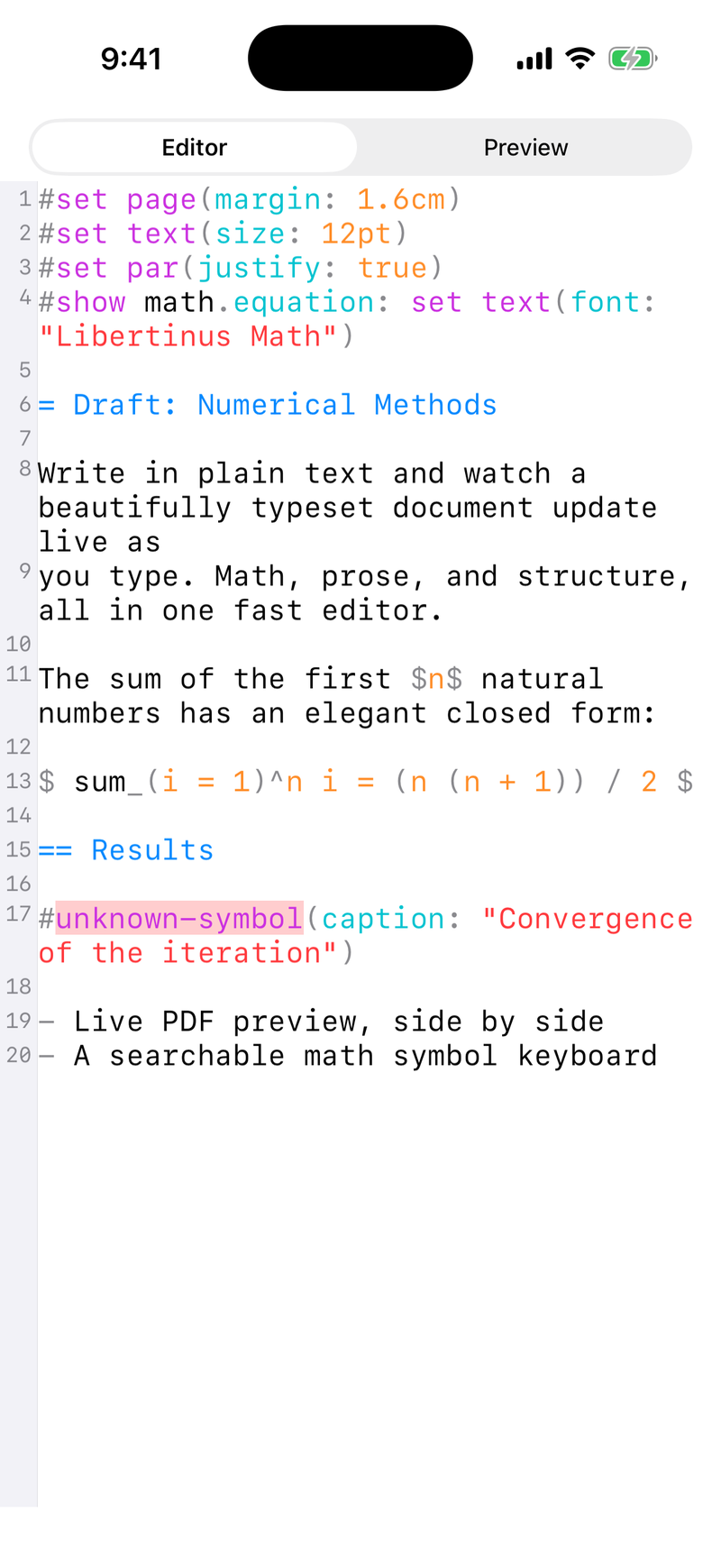
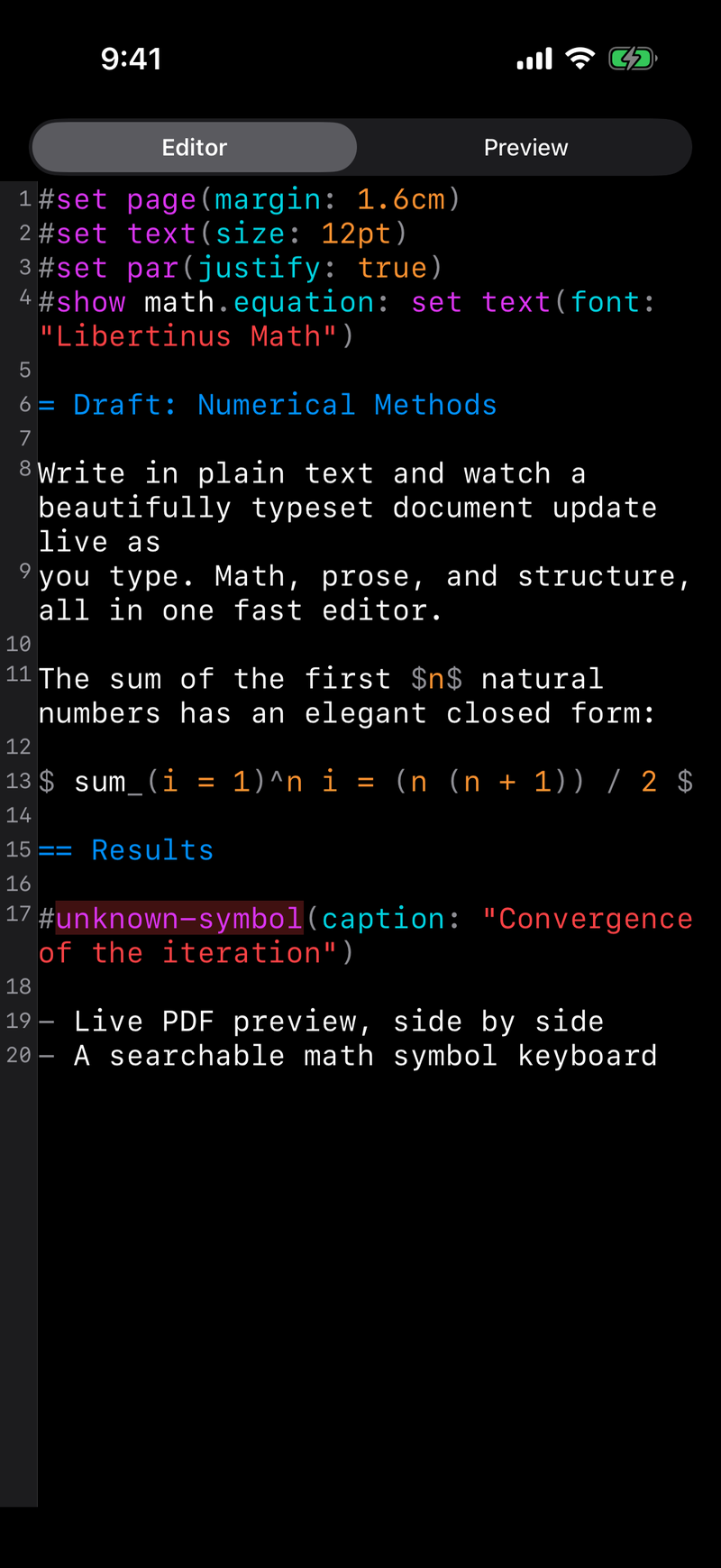
As you type, Martypex colour-codes your source so structure stays readable: headings, functions, math, strings, and comments each get their own treatment. Line numbers run down the gutter and the active line is highlighted so you never lose your place. The same editor handles both dialects, switching its highlighting to match whether the file is .typ or .md.
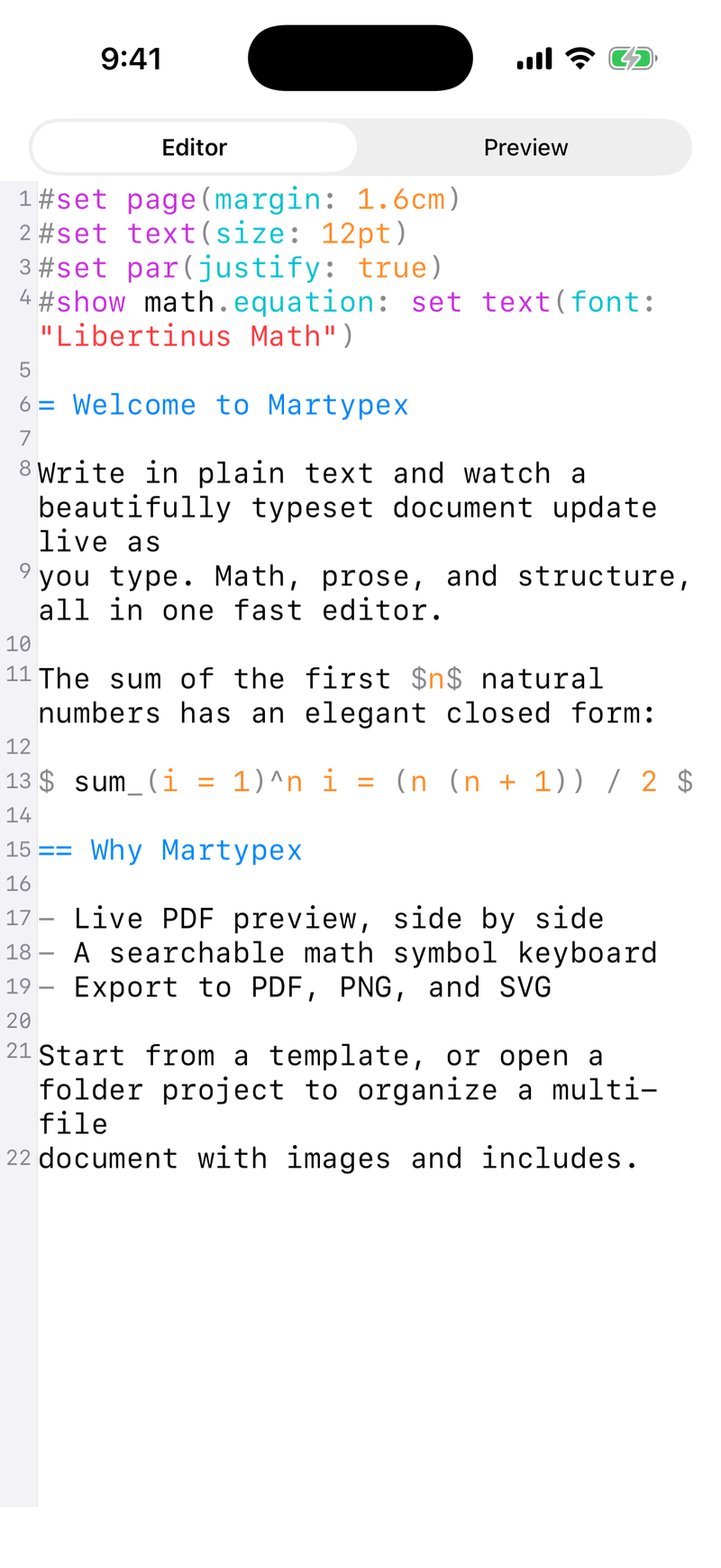

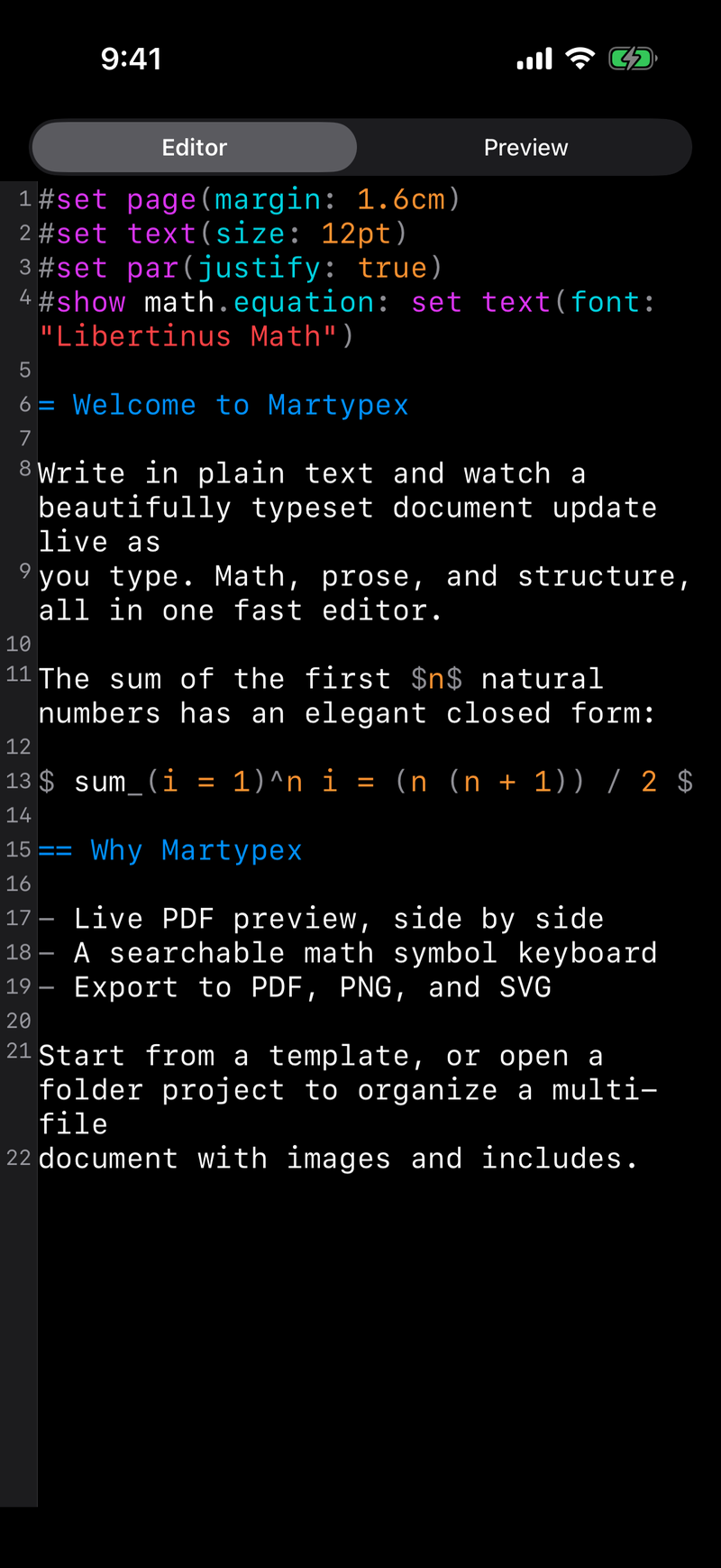

Live-styled editing
Turn on Live styling and Martypex dresses up your source while you type: serif headings sized by level, bold and italic text, tinted inline and fenced code, blockquotes, and, inside a folder project, inline math and images, all without leaving the plain file underneath. The page looks styled, but the raw Typst or Markdown is never more than a tap away.
The markers that drive the styling, **, _, =/# headings, backticks, don’t just get colored, they vanish. Move the caret onto a styled line and its raw markup reappears, dimmed, so you can keep editing; move off and it disappears again. List markers, blockquote >, and horizontal rules always stay visible, since hiding structure like that would cost more clarity than it buys. With Live styling on, the editor also drops the line-number gutter and picks up page-like margins, a centered column of text closer to a word processor than a code editor, while code spans and anything Martypex doesn’t recognise stay in monospace so code still reads like code.
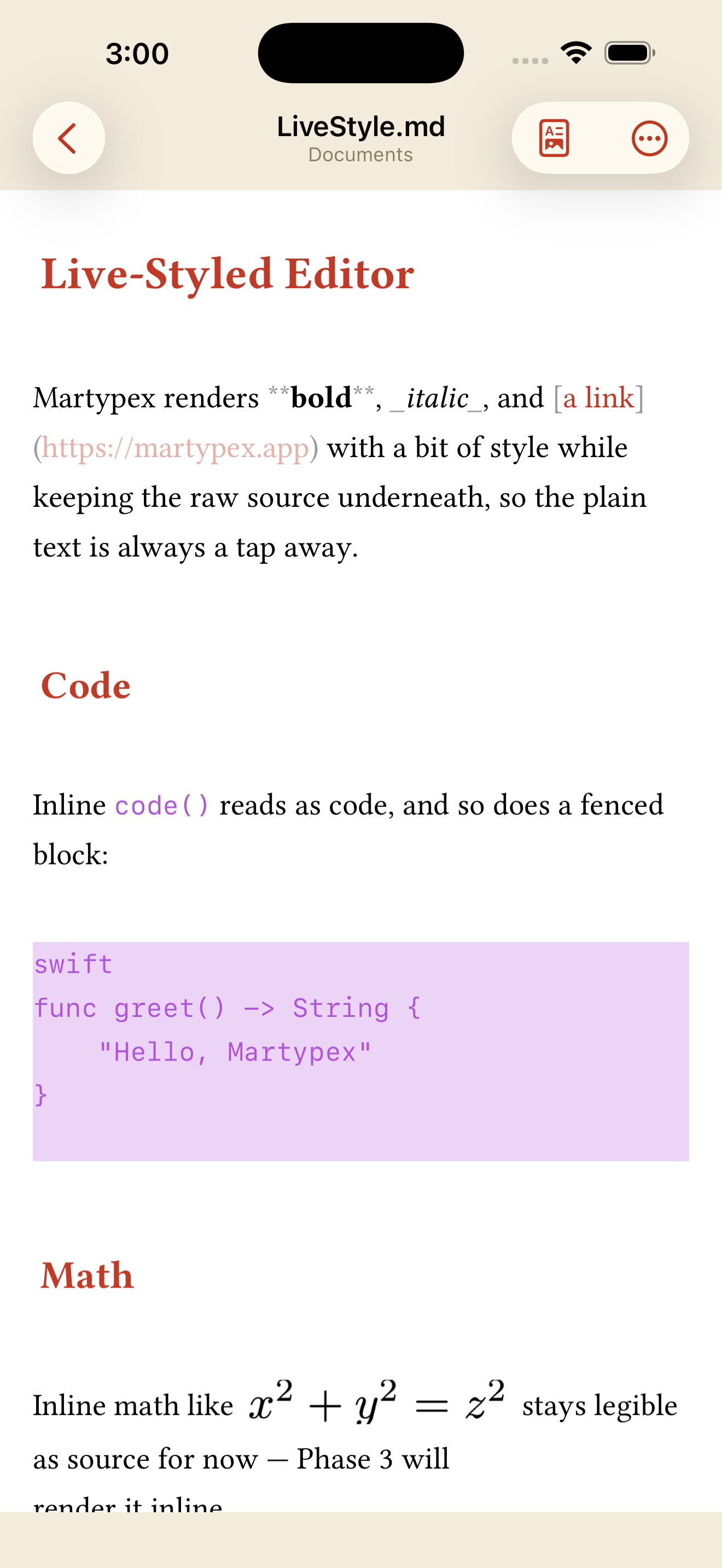
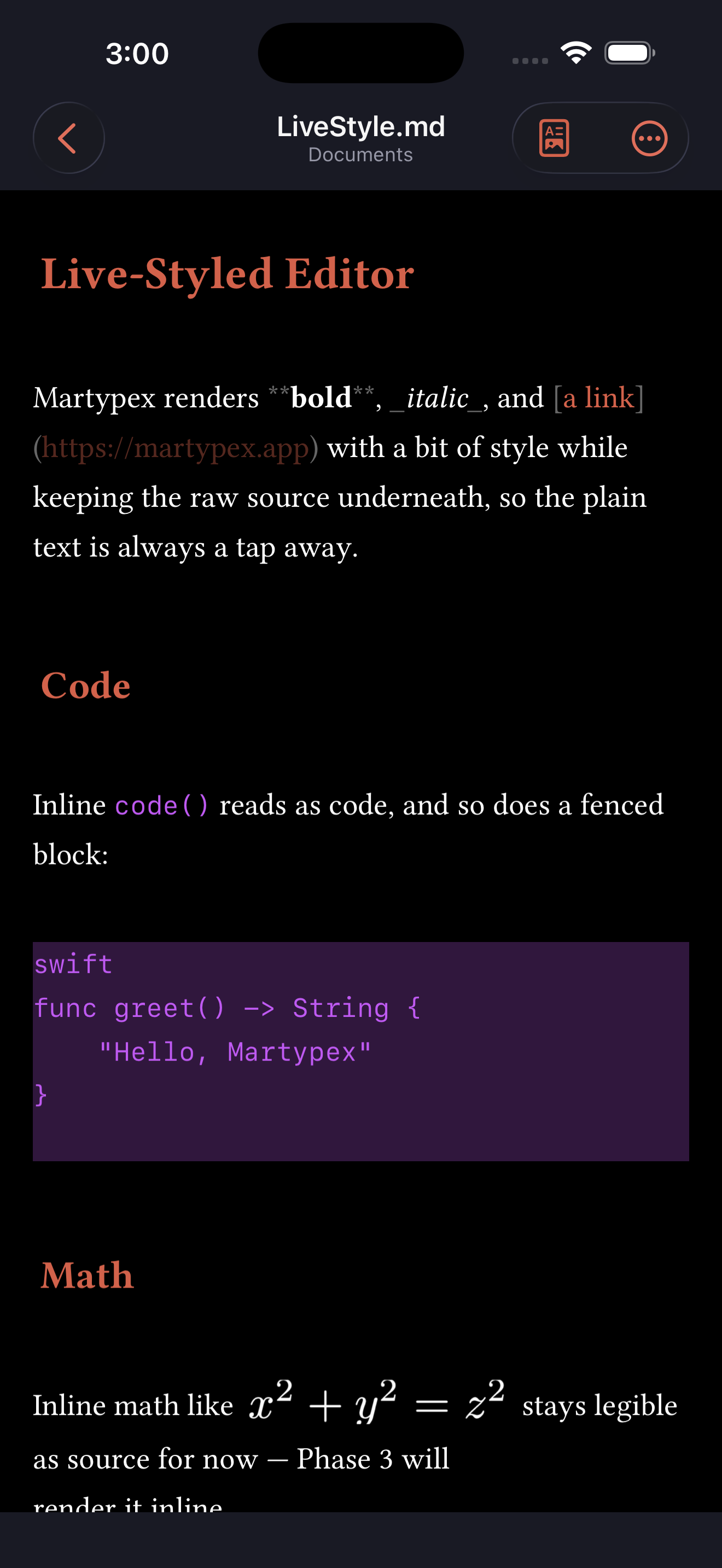
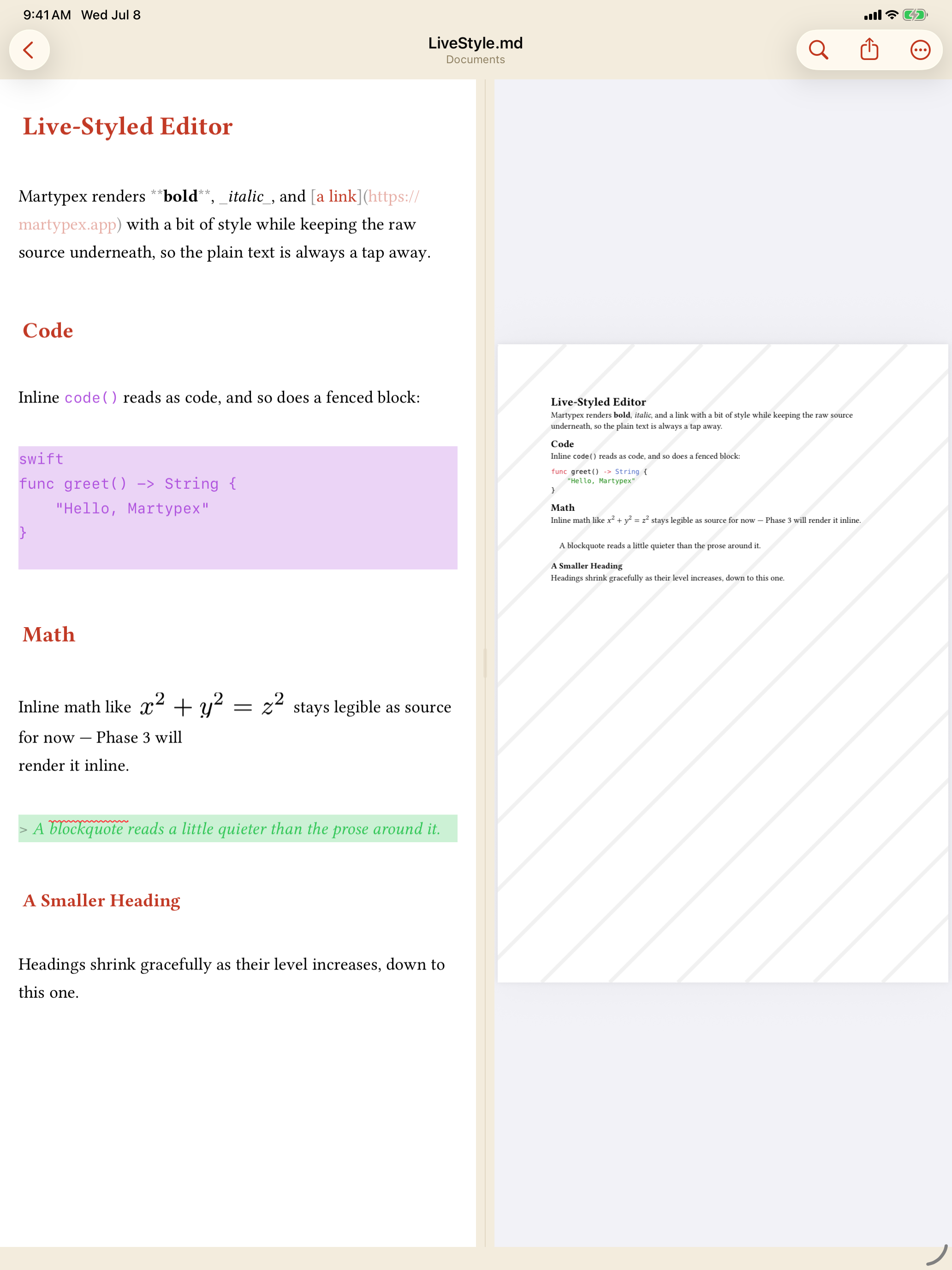
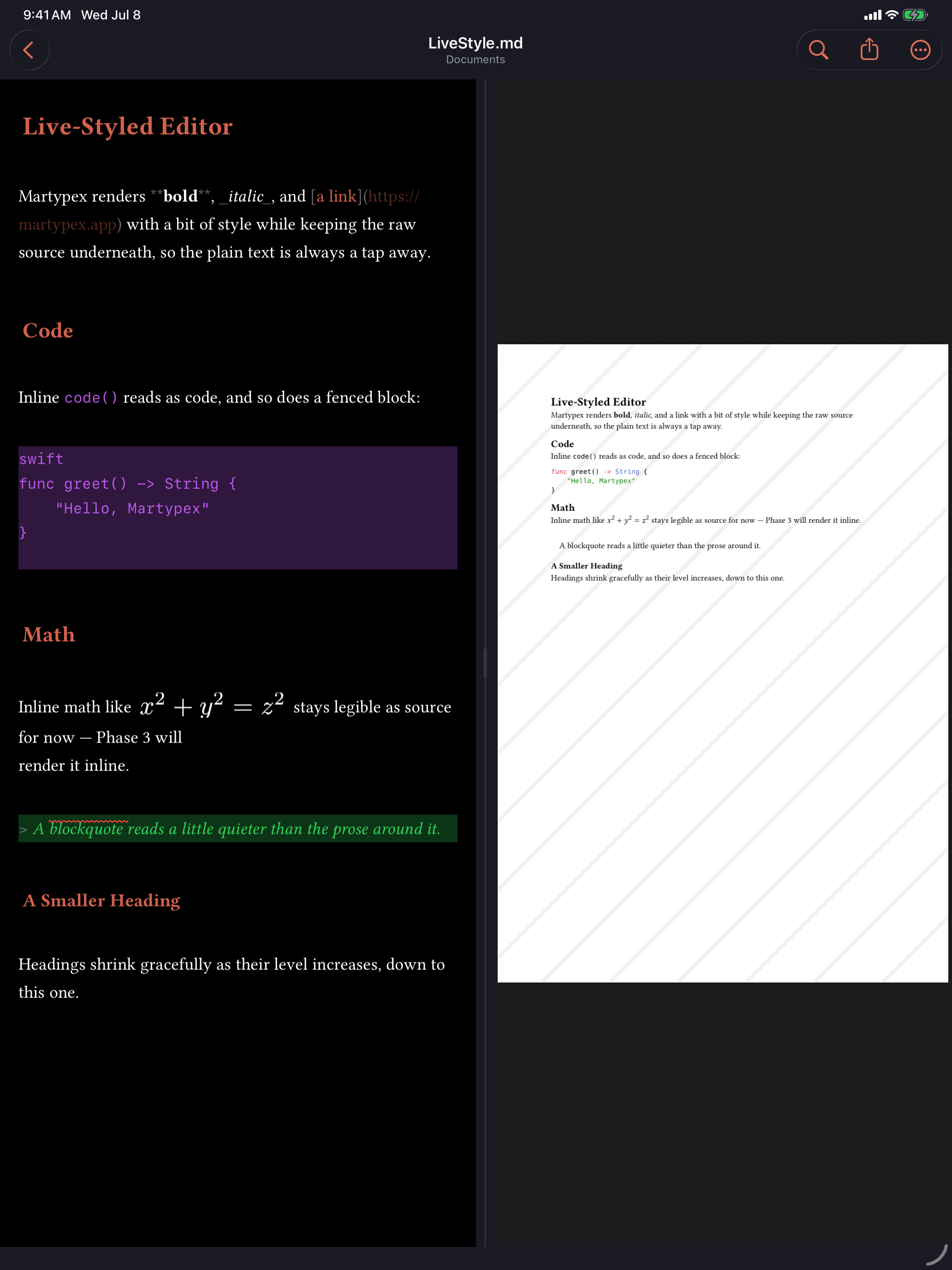
Live styling is on by default on iPhone and off by default on iPad (iPad’s split view already shows a live compiled preview beside your source, so the source pane starts out plain); either can be changed in Settings ▸ Editor, alongside Hide markers and Render math & images, two further toggles that separately control marker concealment and inline math/image rendering. None of this touches your document’s actual text. Concealment and inline rendering are a display layer over the same bytes you’d see with Live styling off.
See Live-Styled Editor for the full walkthrough, including how figures and the Document Options card render inline.
Find & replace
Open the find bar to search the current document. You can match case-sensitively, switch on regular expressions for pattern matching, and reveal the replace field to change matches one at a time or all at once. Previous/next controls walk you through every hit, and the bar stays out of the way of the text while you work.
The input accessory bar
Above the on-screen keyboard, the accessory bar gives you one-tap access to the things you reach for most: the Writing Tools quick-format bar, the math keyboard, common punctuation and markup, and quick navigation. The bar adapts to the dialect of the file you are editing.
Hardware keyboard
Pair a hardware keyboard and Martypex responds with familiar, fully rebindable key commands for finding, navigating, and compiling. On iPad, an on-screen HUD shows the available shortcuts when you hold the Command key.
As-you-type completion suggests functions, labels, and citation keys while you write, and a searchable symbol palette covers everything the math keyboard does not.
Diagnostics
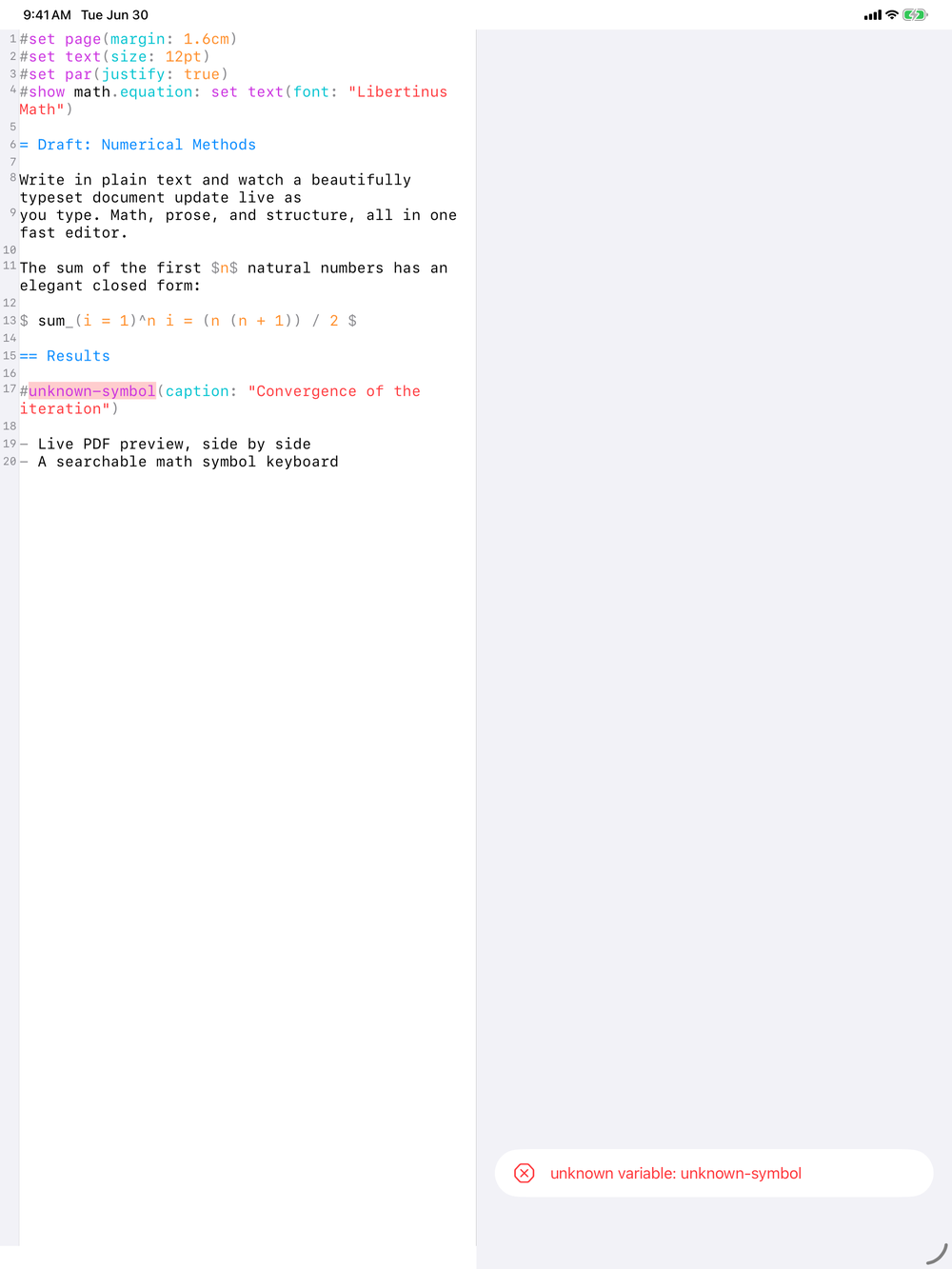
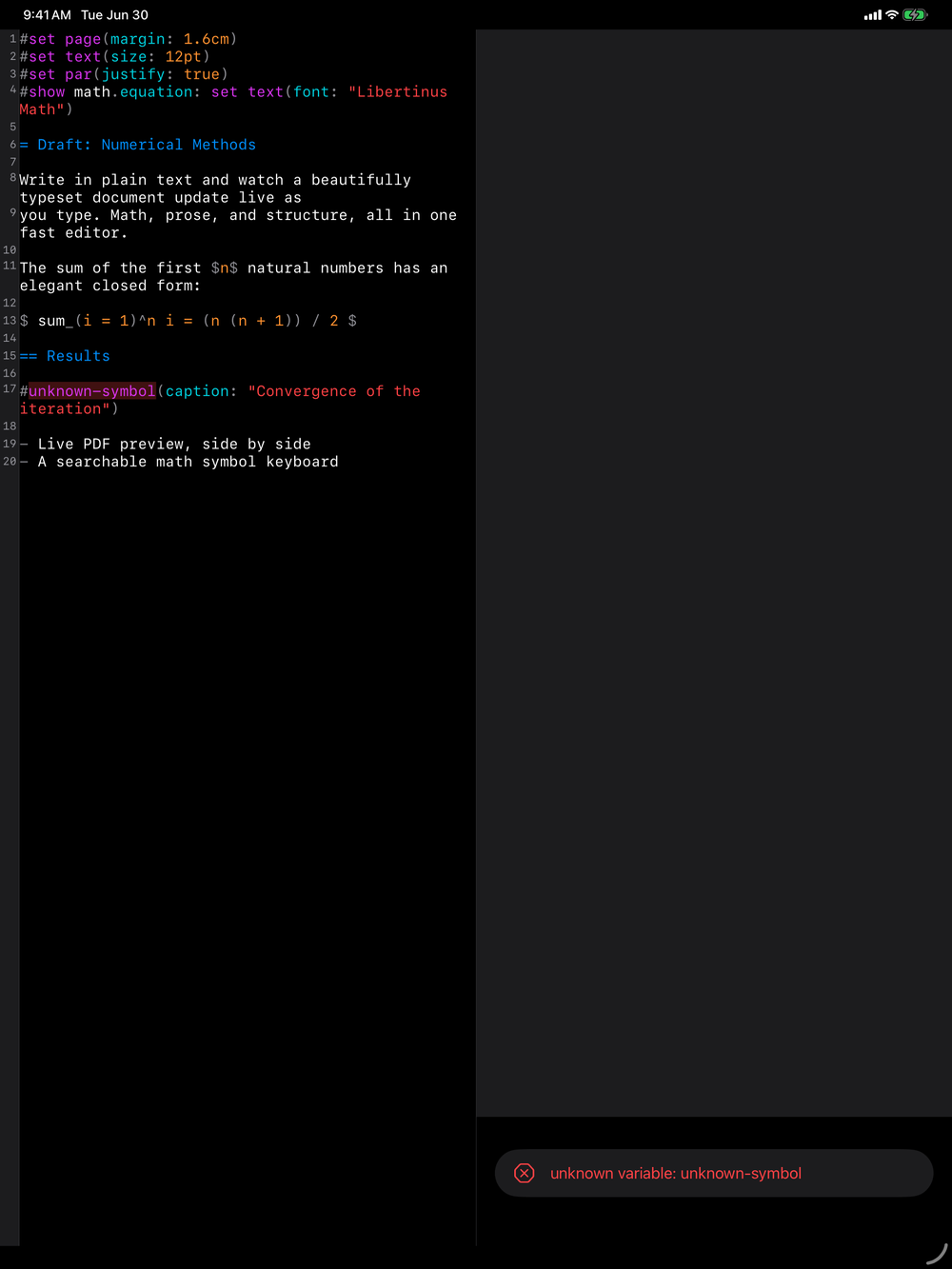
When a document fails to compile, Martypex surfaces the errors in two places at once. The offending line is highlighted inline in the editor, so you can see exactly where the compiler stumbled without leaving your text. On iPhone, where the screen shows either the editor or the preview but not both, a ⚠️ badge sits at the bottom of the editor and counts the outstanding issues as you type, so an error is never hidden behind the preview. Tap the badge to open the full Diagnostics list, then tap any row to jump straight to the line it refers to. On iPad, where the two panes share the screen, the same list sits beneath the live preview.
Auto-pairing
As you type an opening (, [, {, ", or (in a Typst document) $, Martypex inserts the matching close and leaves the caret between them, so a pair is always balanced. Type the closing character yourself and the editor steps over the one already there rather than doubling it. Backspace inside an empty pair removes both halves at once, and pressing Return inside { } opens a fresh, indented line between the braces. Auto-pairing is context-aware: it won’t add a quote right after a word, and it stays out of the way inside strings and comments, where a stray bracket is usually deliberate. You can turn the behaviour off with the Auto-pair brackets toggle in Settings.
Document statistics
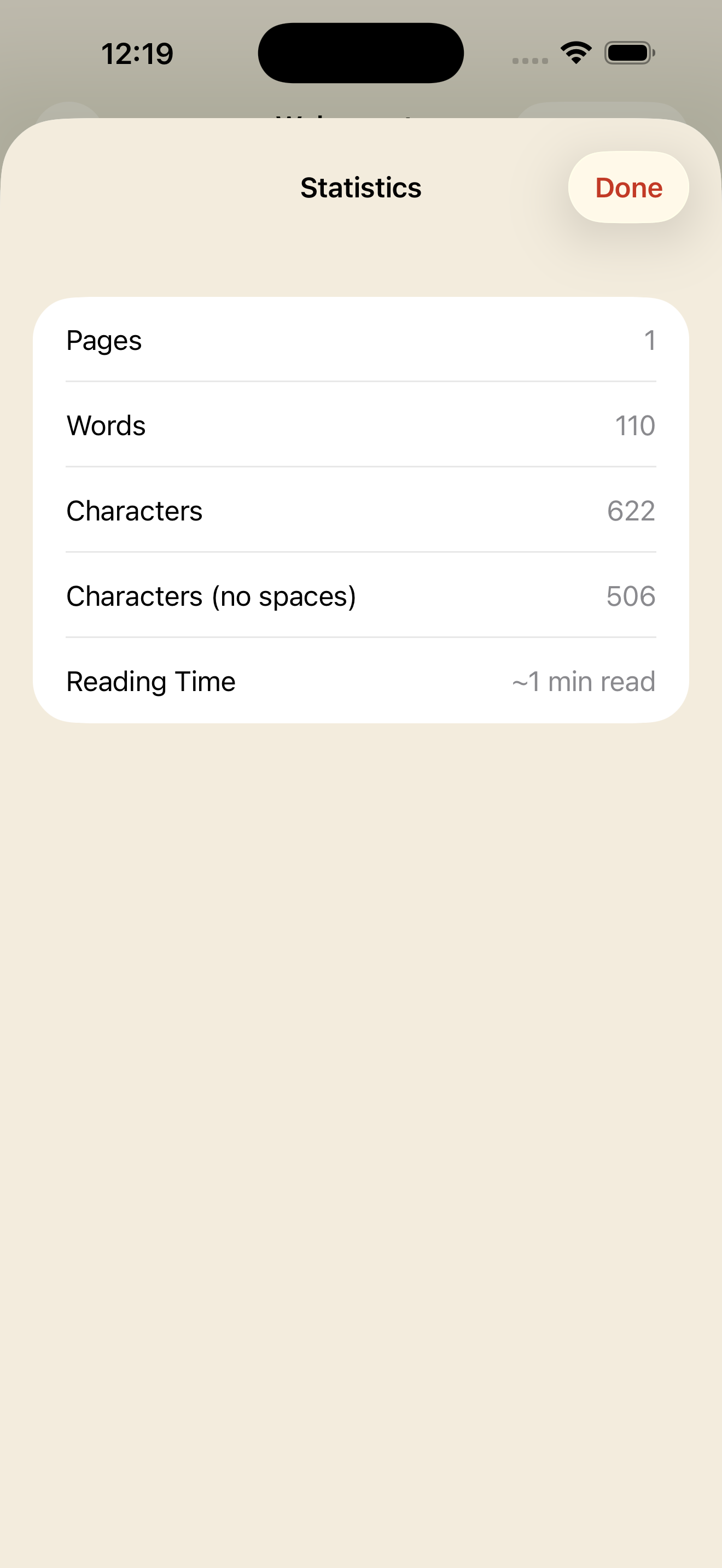
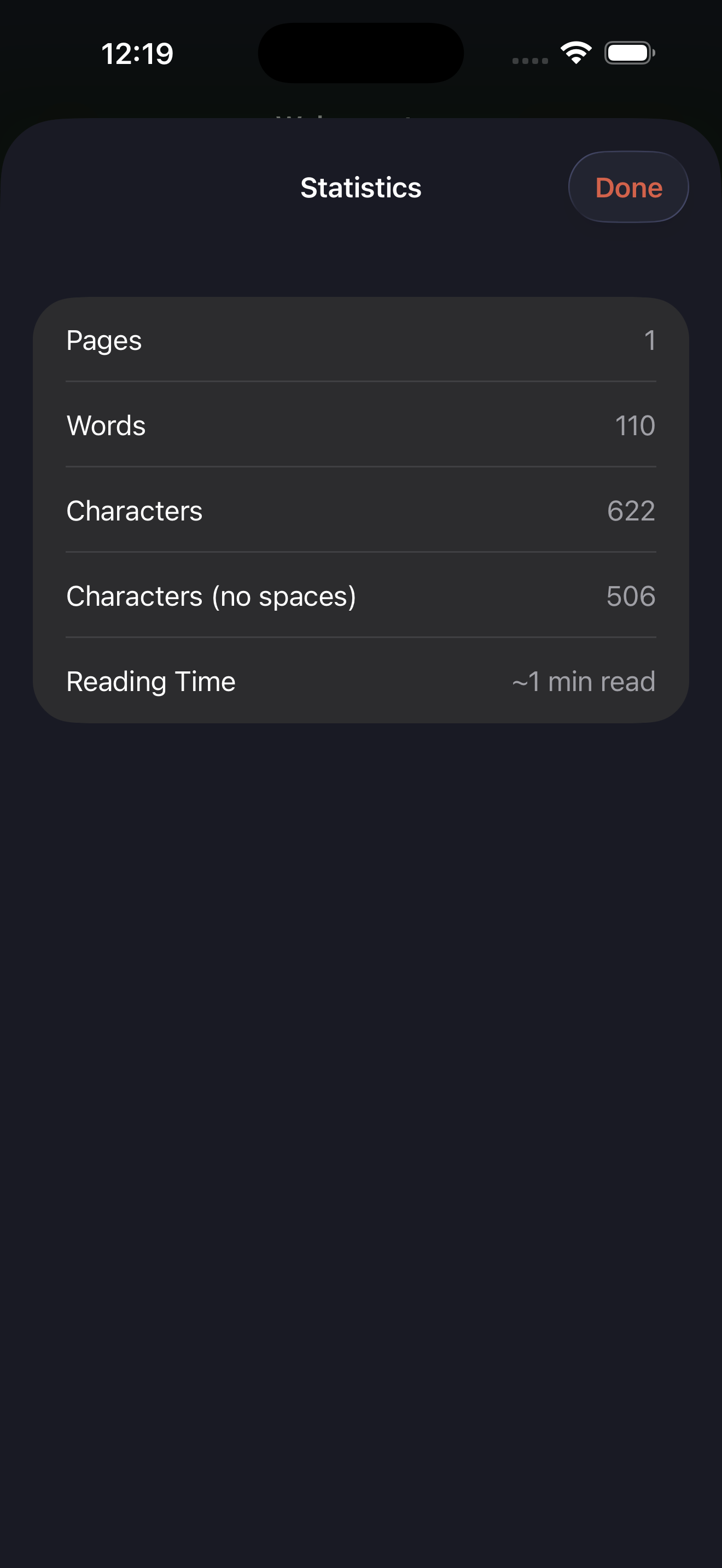
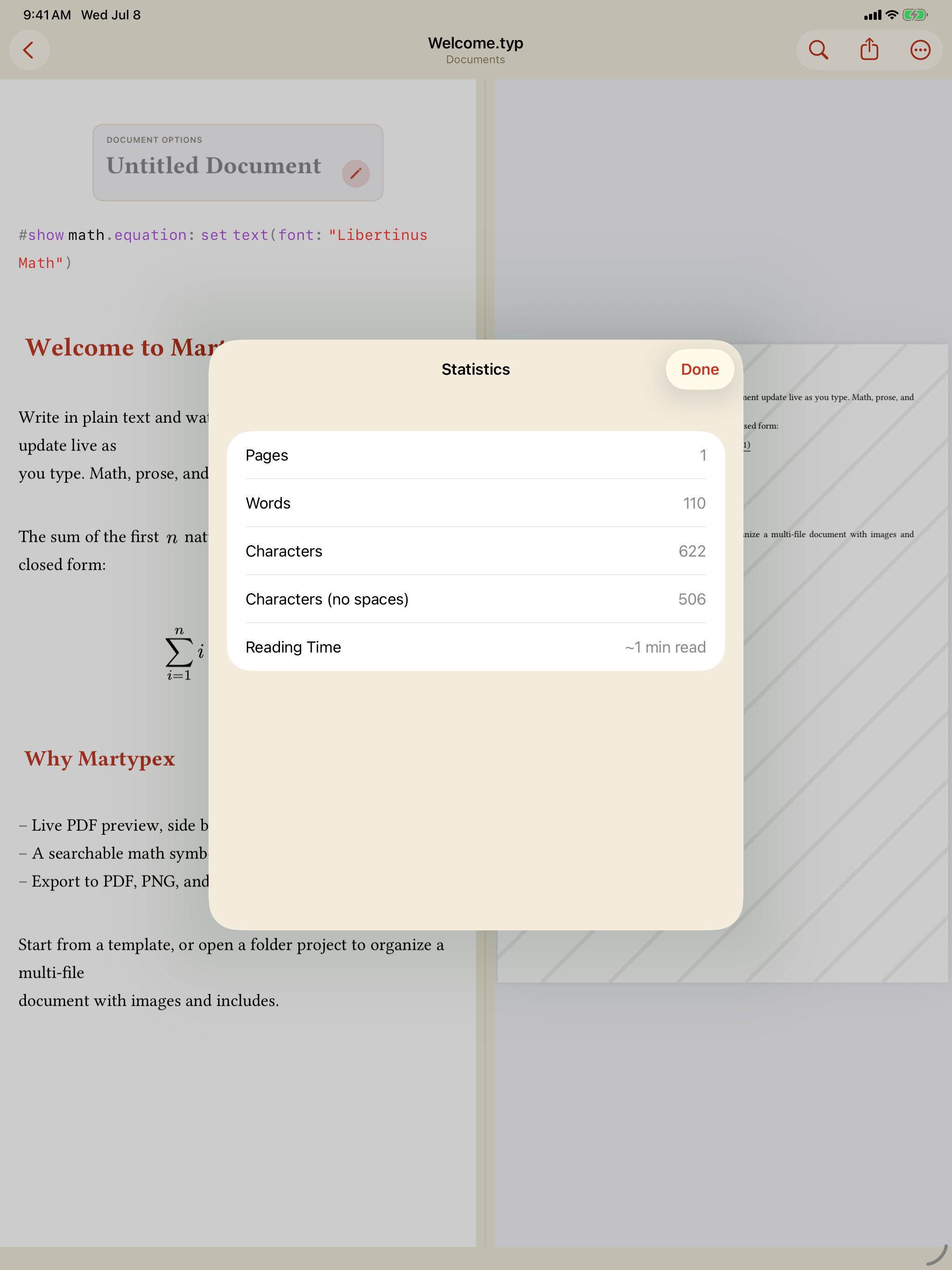
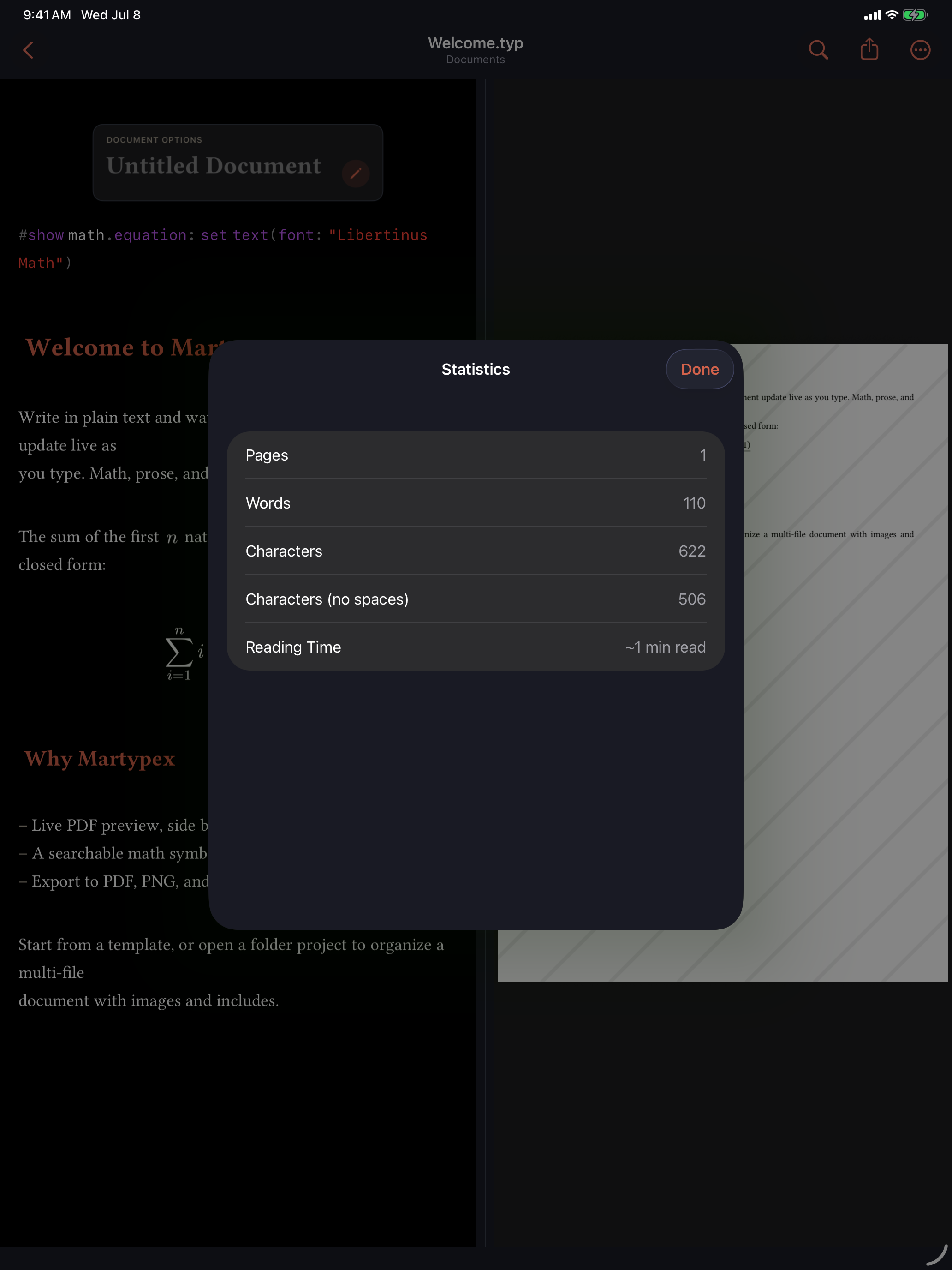
Choose Statistics from the ••• menu to open a sheet summarising the current document: the page count from the last compile, the word count, character counts, and an estimated reading time. The word count is CJK-aware, counting Chinese, Japanese, and Korean text correctly rather than treating a run of characters as a single word.