Markdown
Typst is not the only dialect Martypex speaks. Open or create a .md or .markdown file and Martypex treats it as a first-class document, not a lesser one: the same editor, the same accessory bar, the same Live Preview. Markdown is often faster to write for prose, notes, and quick drafts, since there is less syntax between you and the page, and Martypex compiles it to the same clean, paginated PDF as a Typst document, through the same on-device Typst engine, not a separate renderer.
Math
Markdown files support LaTeX-style math: inline with $...$, and display with $$...$$. Martypex converts it under the hood, so the equations you already know how to write in LaTeX just work, no need to learn Typst’s math syntax first. The Math Keyboard knows this too: it inserts LaTeX-style syntax automatically while you’re writing in a .md file, and Typst math syntax in a .typ file, so you never have to remember which form the current dialect expects.
Don’t know the LaTeX name for a symbol? Search the math keyboard by name, alpha, frac, int, and it finds the right symbol regardless of which dialect you’re writing in. See Math Keyboard.
What’s supported
Standard Markdown structure comes through cleanly: headings, ordered and unordered lists, emphasis and strong emphasis, links, inline code and fenced code blocks, tables, and blockquotes. Because the same Typst pipeline compiles both dialects, everything else about the writing experience is identical too: Live Preview, inline diagnostics, export, fonts, and packages all work the same in a Markdown document as they do in a Typst one.
Markdown trades away some of Typst’s layout control, there is no way to call custom functions or write layout code directly, but for prose-first writing it gets you to a clean PDF with far less syntax to think about.
The live-styled editor works fully in Markdown
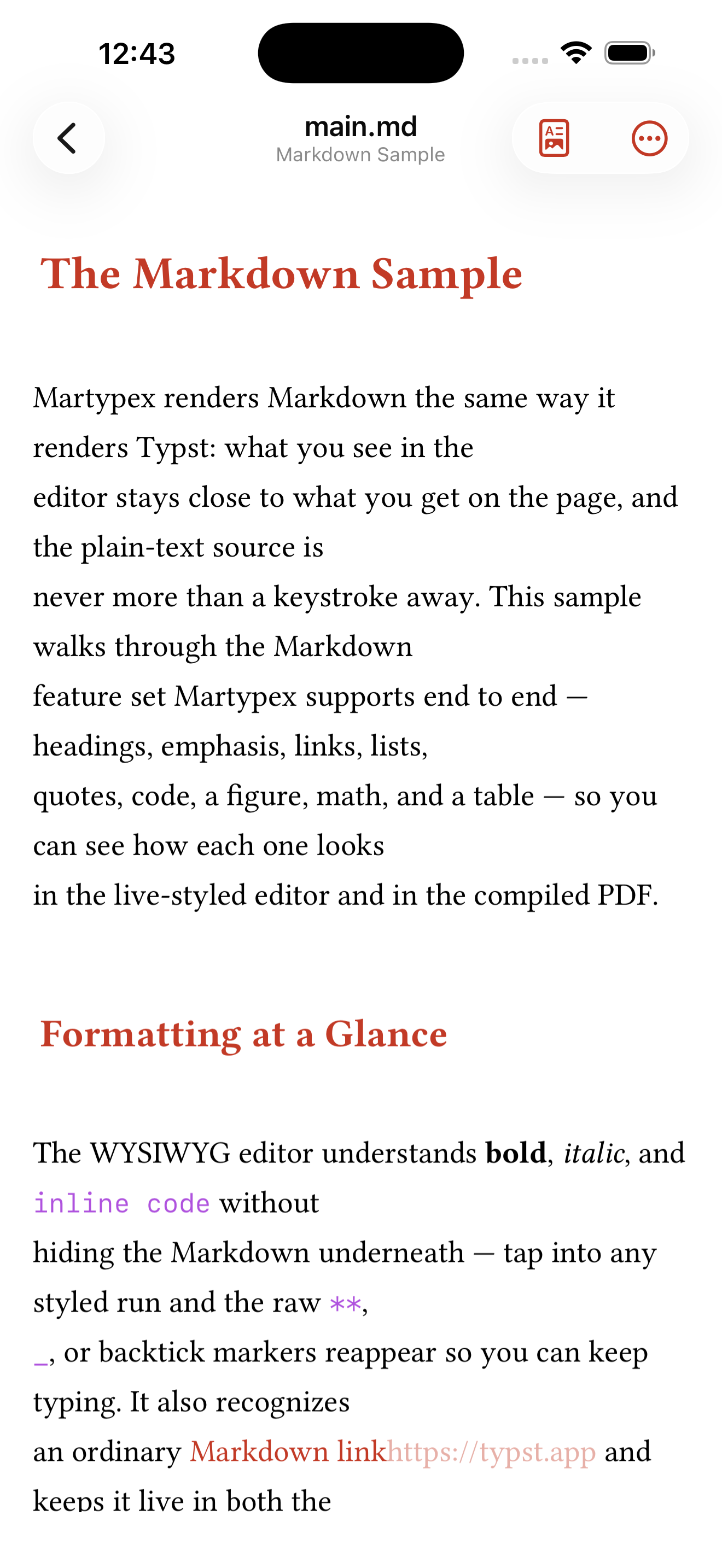
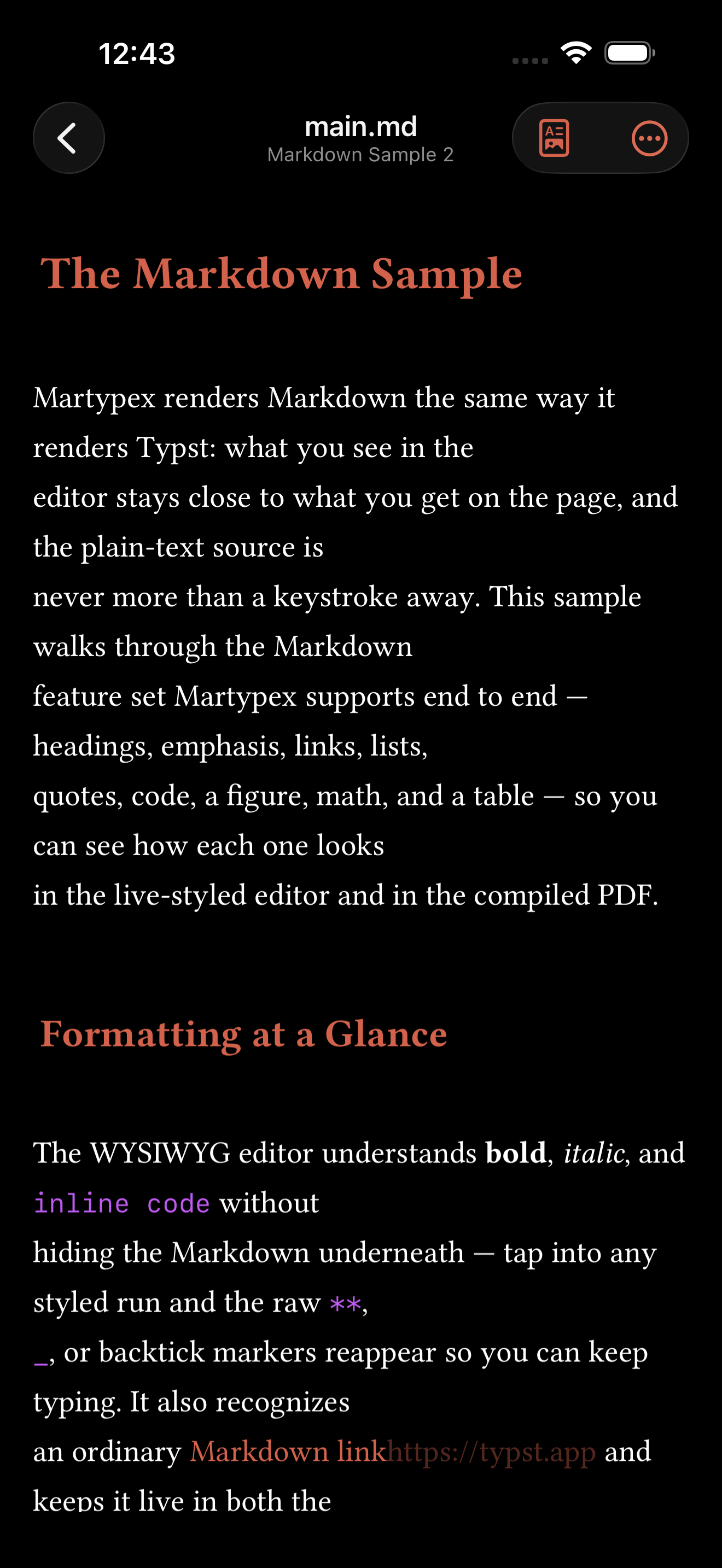
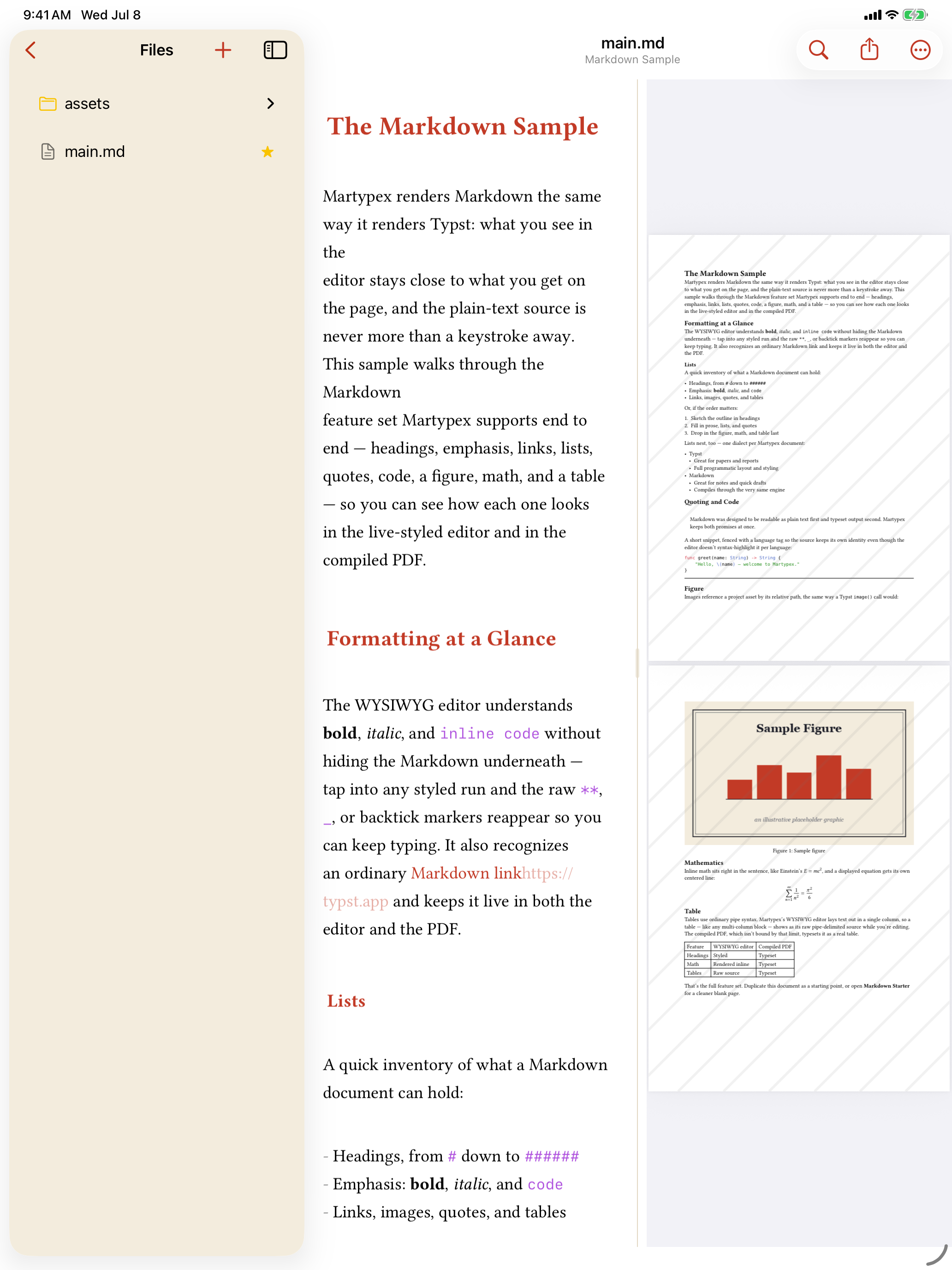
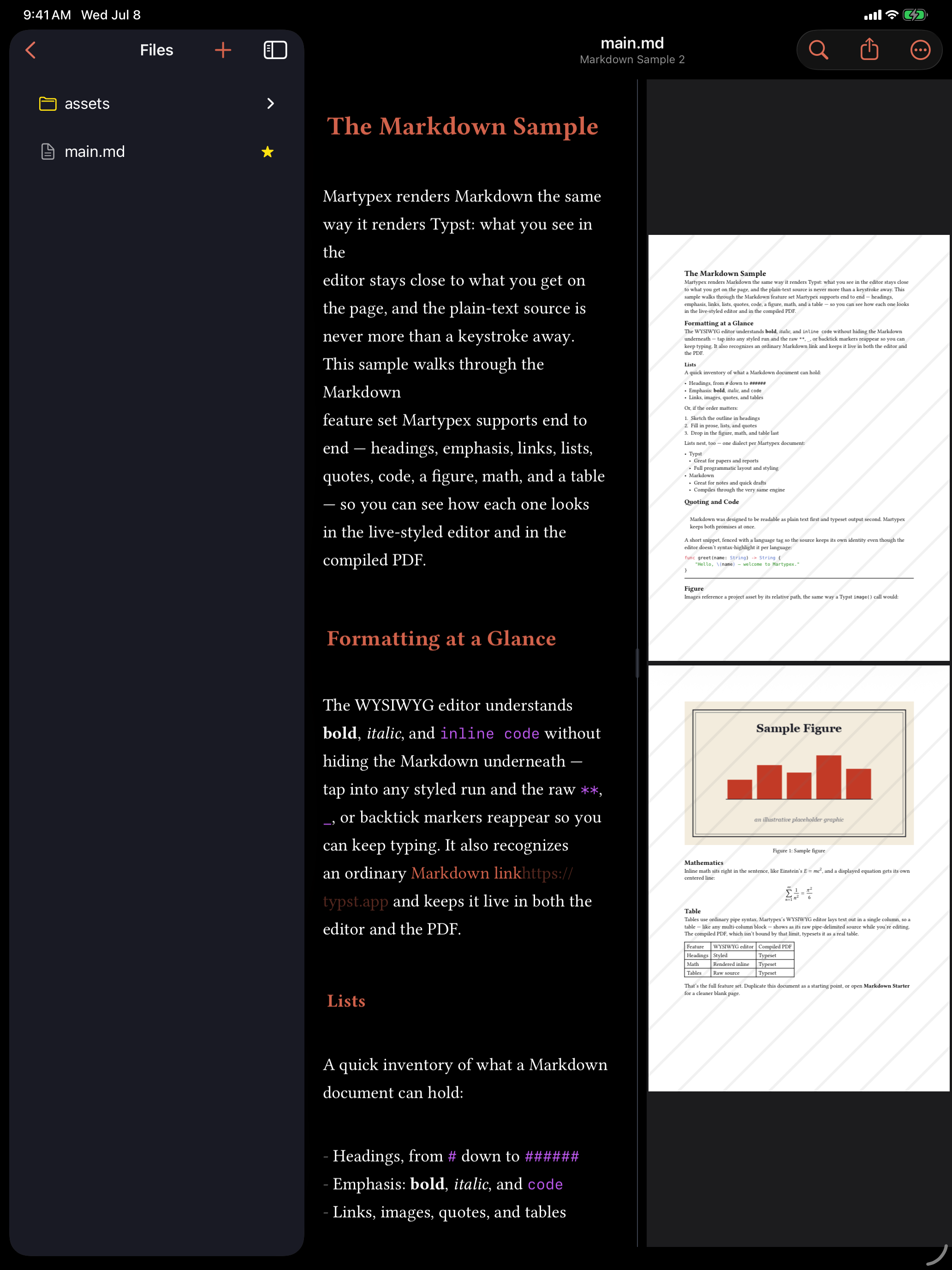
Live styling isn’t a Typst-only trick. Headings, bold, italic, links, inline and fenced code, blockquotes, inline and display math, and images all render the same way in a .md file as they do in a .typ one, with the same vanishing markup markers that reveal on whichever line your caret is on. A leading YAML frontmatter block renders as the same Document Options header card a Typst document gets, so title, author, and page setup work identically in either dialect.
Tables are the one exception: Martypex’s live-styled editor lays out text in a single column, so a Markdown table shows as its raw pipe-delimited source while you’re editing it. The compiled PDF isn’t bound by that limit and typesets it as a real table.
The Markdown Sample template
New Document ▸ Markdown Sample scaffolds a small folder project that walks through the whole Markdown feature set at once, headings, emphasis, links, nested lists, a blockquote, code, a figure, inline and display math, and a table, so you can see how each one looks live in the editor and in the compiled PDF, side by side.


Duplicate it as a starting point for a real document, or reach for the plainer Markdown Starter below when you’d rather begin from a blank page.
Getting a Markdown document
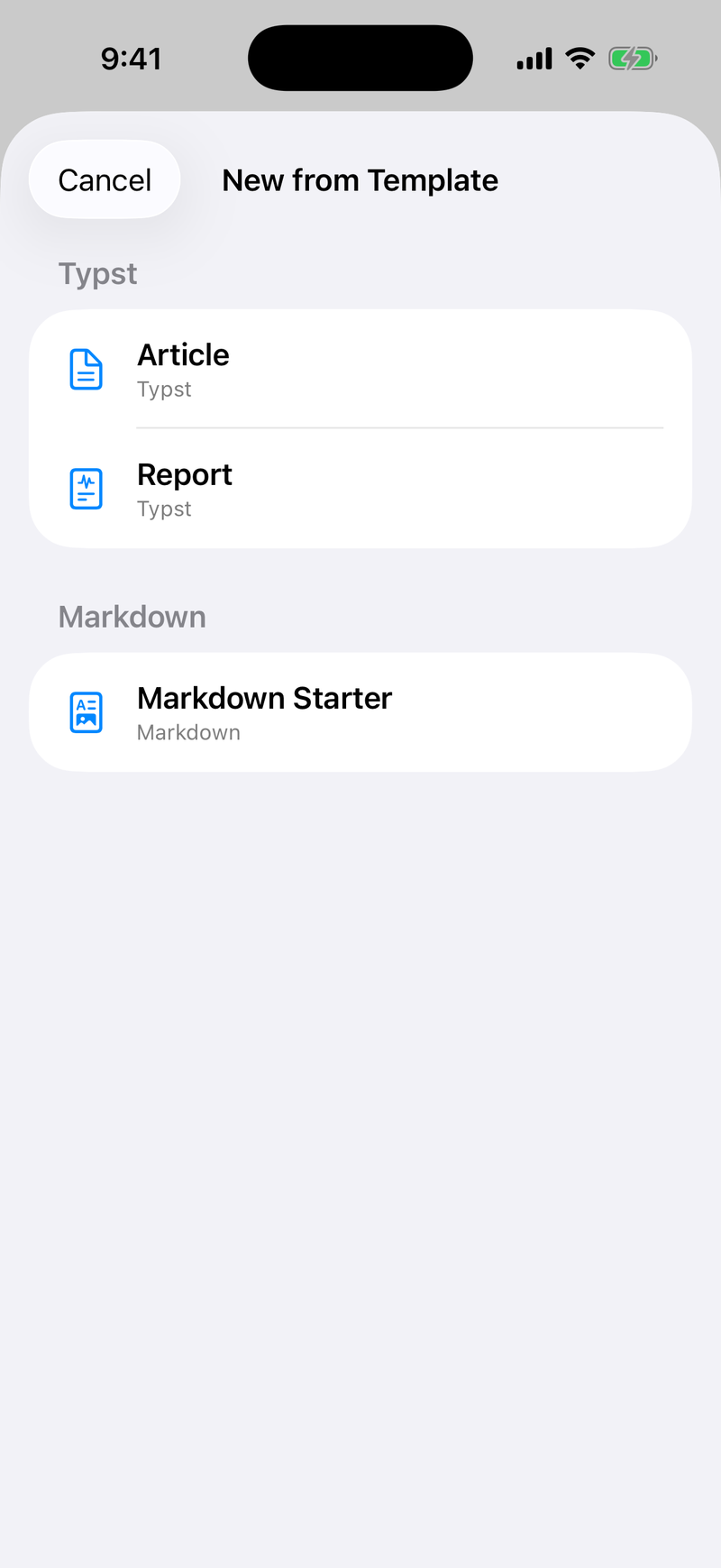
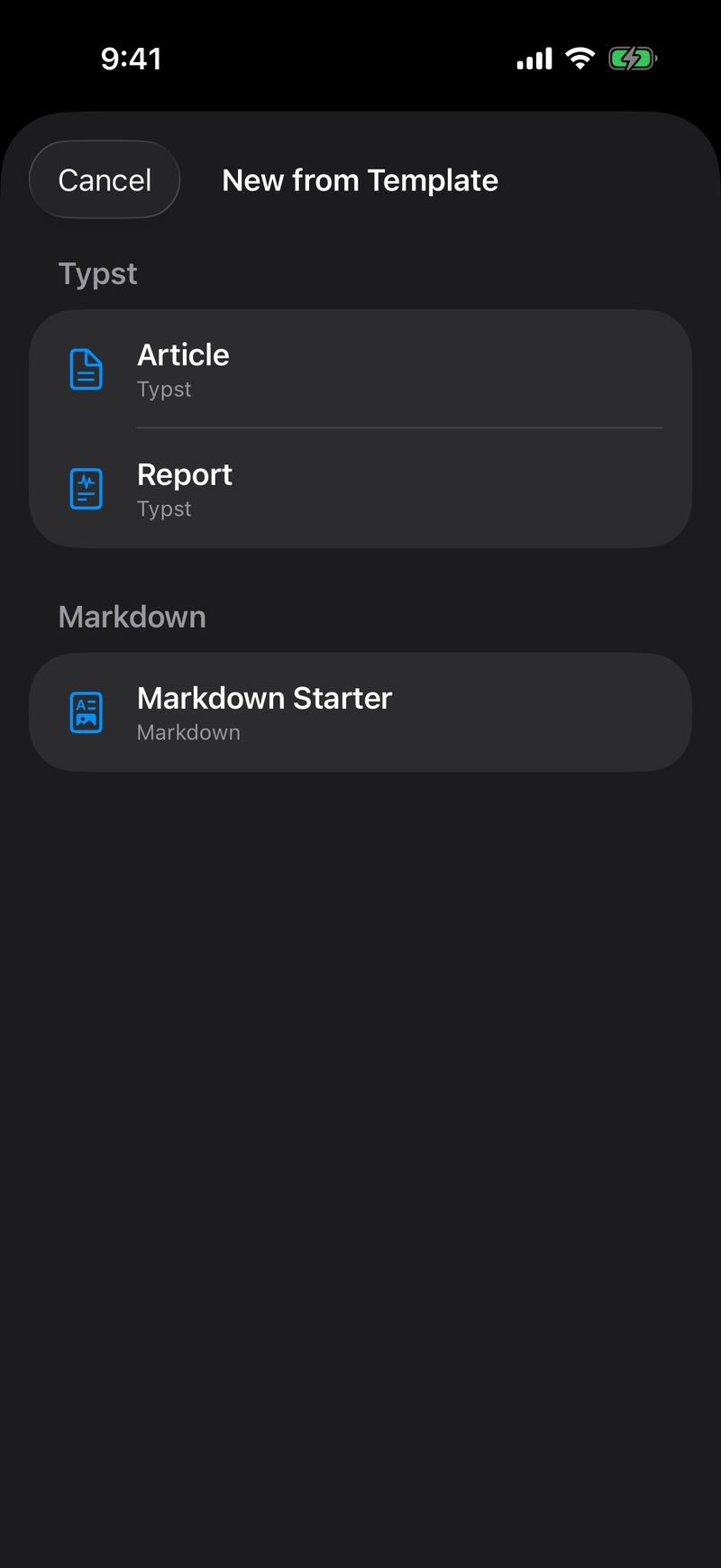
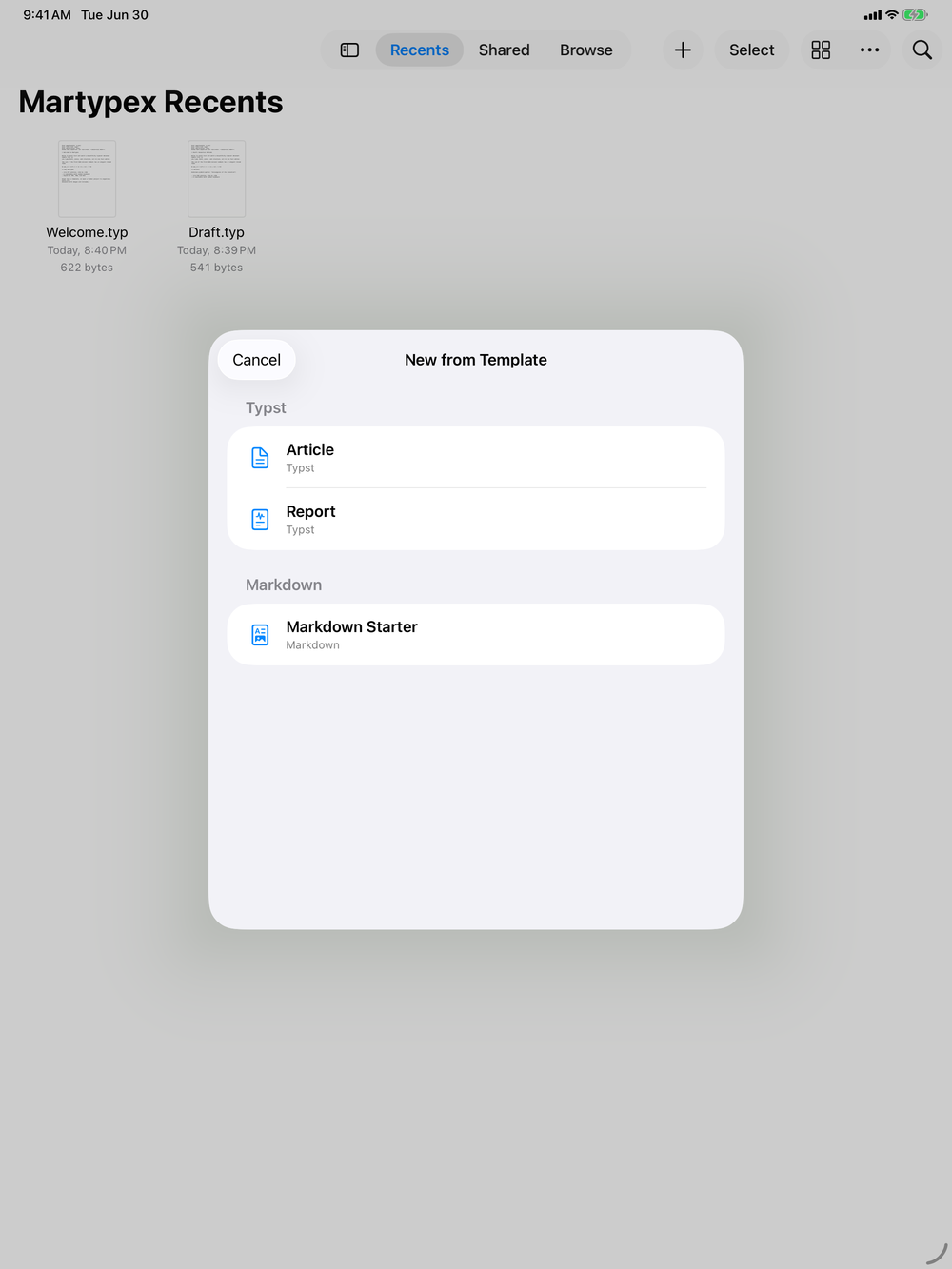
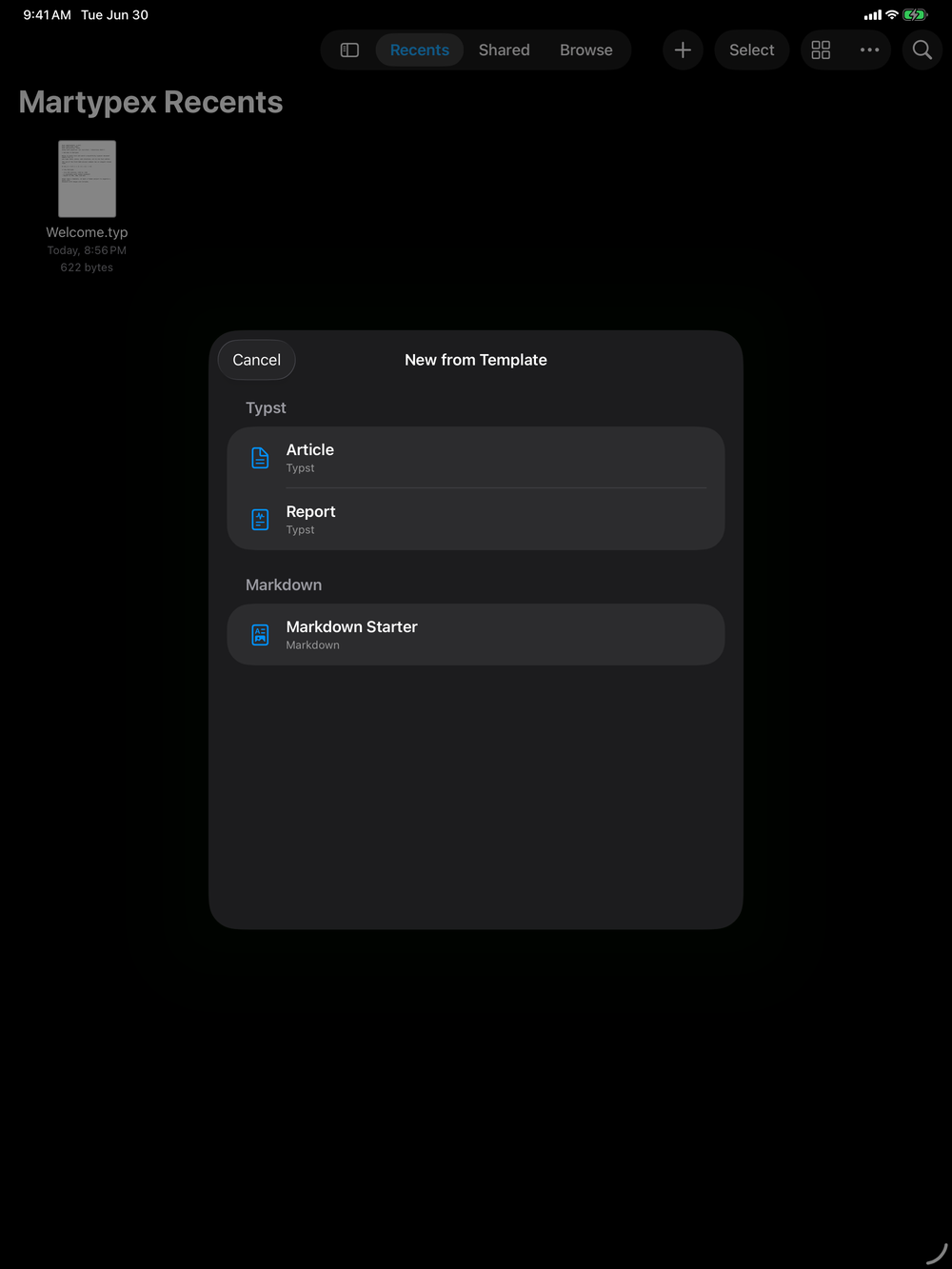
Tap New Document and choose Markdown Starter for a clean single-file page, or Markdown Sample for the guided tour above, or open any existing .md or .markdown file from the Files app, including iCloud Drive.
If you write in Markdown most of the time, set it as your default in Settings → Editor → Default dialect, and every new document starts there instead of Typst. See Settings.