Folder Projects
Most of the time a single file is all you need: open a .typ or .md document, write, and export. For anything larger, papers with figures, multi-chapter reports, or documents that share a bibliography, Martypex lets you open a folder as a project so you can work across many files at once.
Single files vs. folder projects
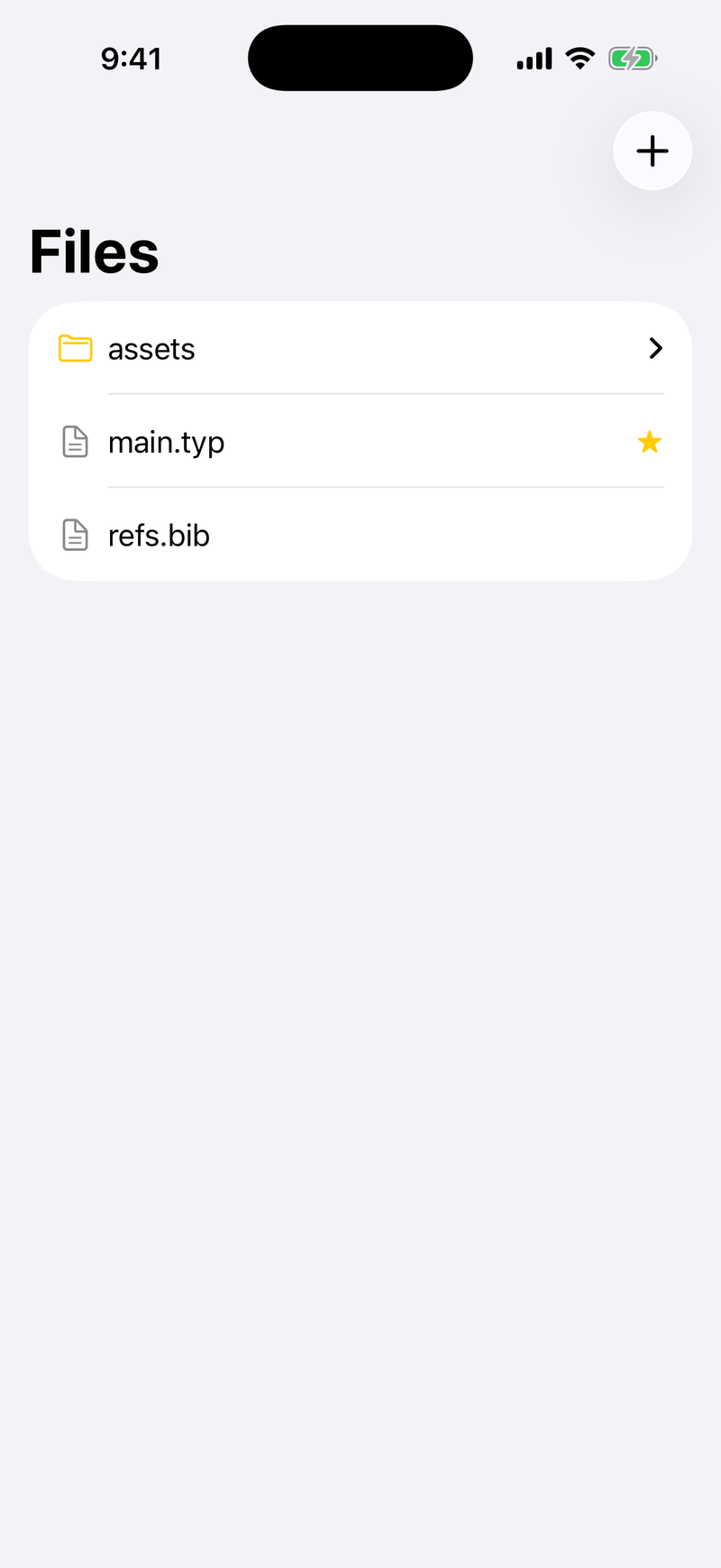
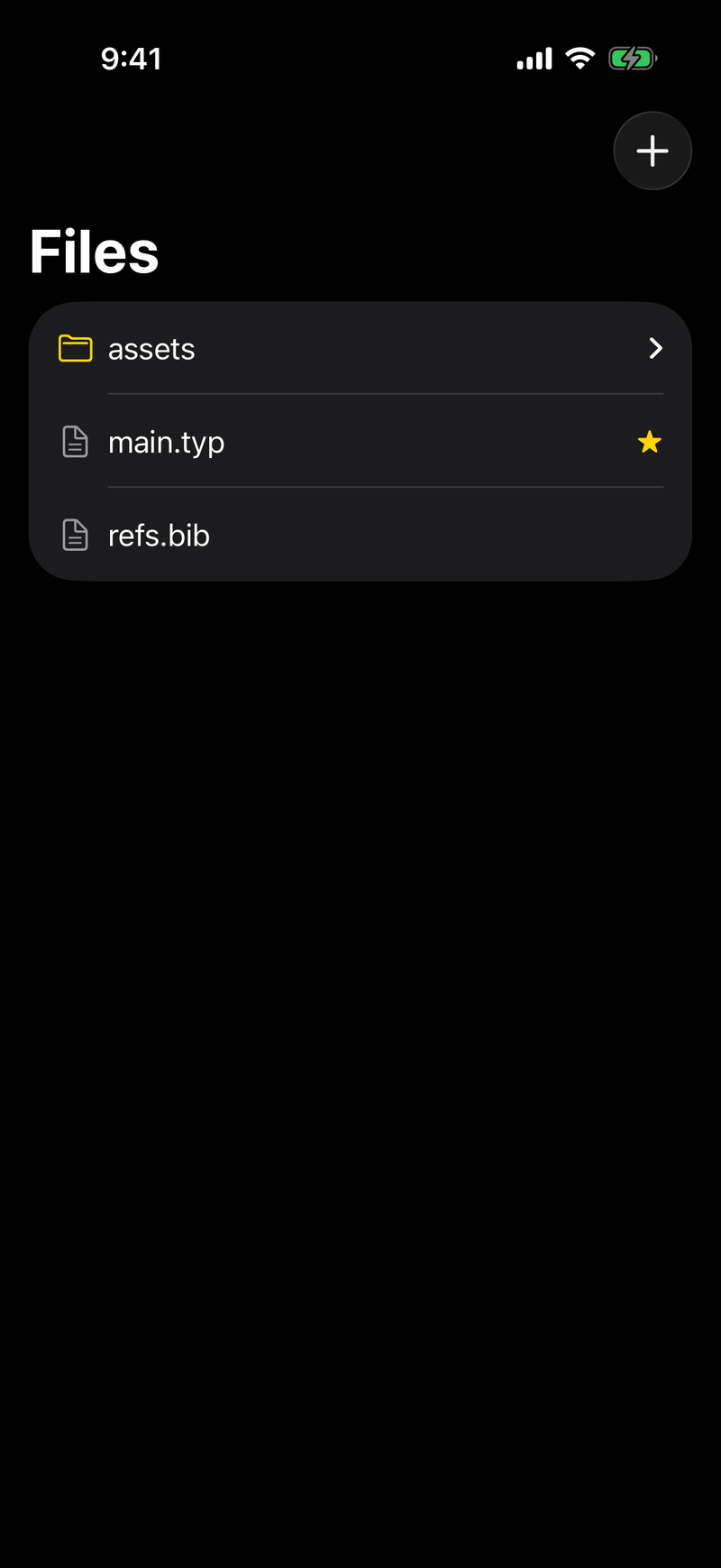
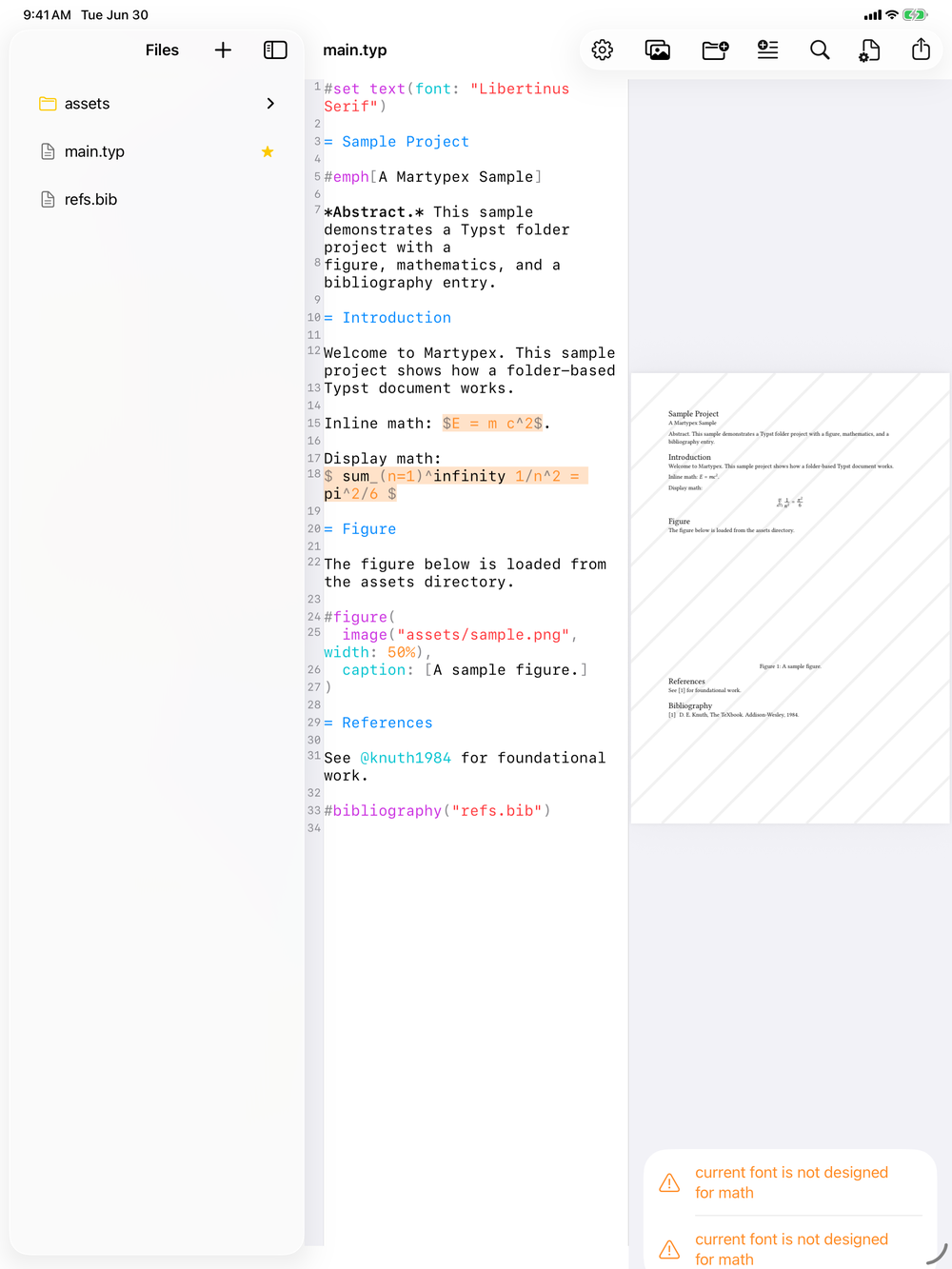
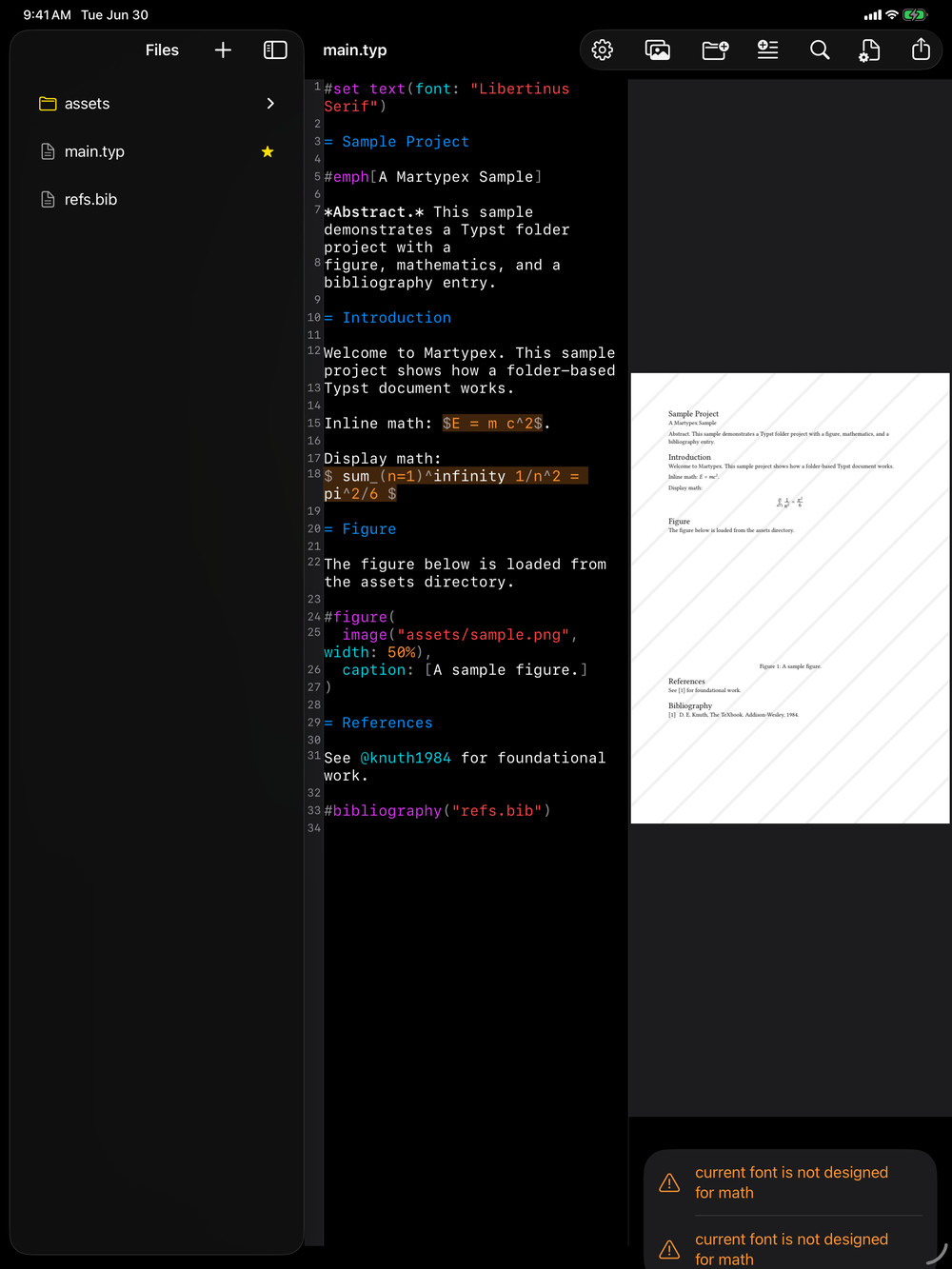
A single file works exactly as you would expect: open it, edit it, preview it, export it. A folder project is the same editor and the same preview, but scoped to a whole directory instead of one document. Open any folder through the Files app and Martypex treats it as a project, with a file browser alongside the editor so you can move between the files that make it up.
Working across files
A project can span several .typ files, with one file pulling in another using Typst’s own #import and #include. Split a long document into chapters, factor out shared helper functions, or keep a title page separate from the body, then compile the whole thing from a single entry point. Images referenced from your source resolve relative to the project folder, so figures live alongside the files that use them.
Where your files live
Projects are ordinary folders. Open them from anywhere the Files app can reach, including iCloud Drive, so the project syncs across your devices and stays under your control. Martypex does not copy files into a private store: you choose the folder, and your files stay exactly where you put them.
Autosave and recovery
Edits are autosaved as you type, in both single files and folder projects. If Martypex is interrupted, by a crash, a low-battery shutdown, or the app being closed mid-edit, recovery restores your unsaved changes the next time you open the file, so an interruption costs you nothing.
Convert a document to a project
A single-file Typst or Markdown document can grow into a full folder project the moment you need more than one file. From the editor’s ••• menu, Convert to Project moves the document into a new folder and reopens it as a project, so you can add images, #include-d chapters, and a .bib bibliography alongside it.
Conversion is a one-way convenience: the original file is moved into the new folder, not copied, so you continue working from the project rather than the standalone document.
Export and import as a .zip
A whole folder project can travel as a single .zip, whether you are backing it up or moving it between devices. Export as ZIP, from the ••• menu or the project toolbar, archives everything the project is made of, its source files, its assets, and its main-file setting, and hands the archive to the share sheet, so you can save it to Files, send it to a colleague, or drop it into any other destination the sheet offers.
Bringing a project back in is just as direct. Import ZIP in the document browser unpacks a .zip into a new project and opens it, ready to edit. An archive that Martypex exported arrives with its main file already set; if the archive came from somewhere else, a sensible main file is chosen for you, so the project opens to the right entry point either way.
Export preserves your main-file setting, so a project you export and re-import compiles from the same entry point it did before.