Keyboard Shortcuts
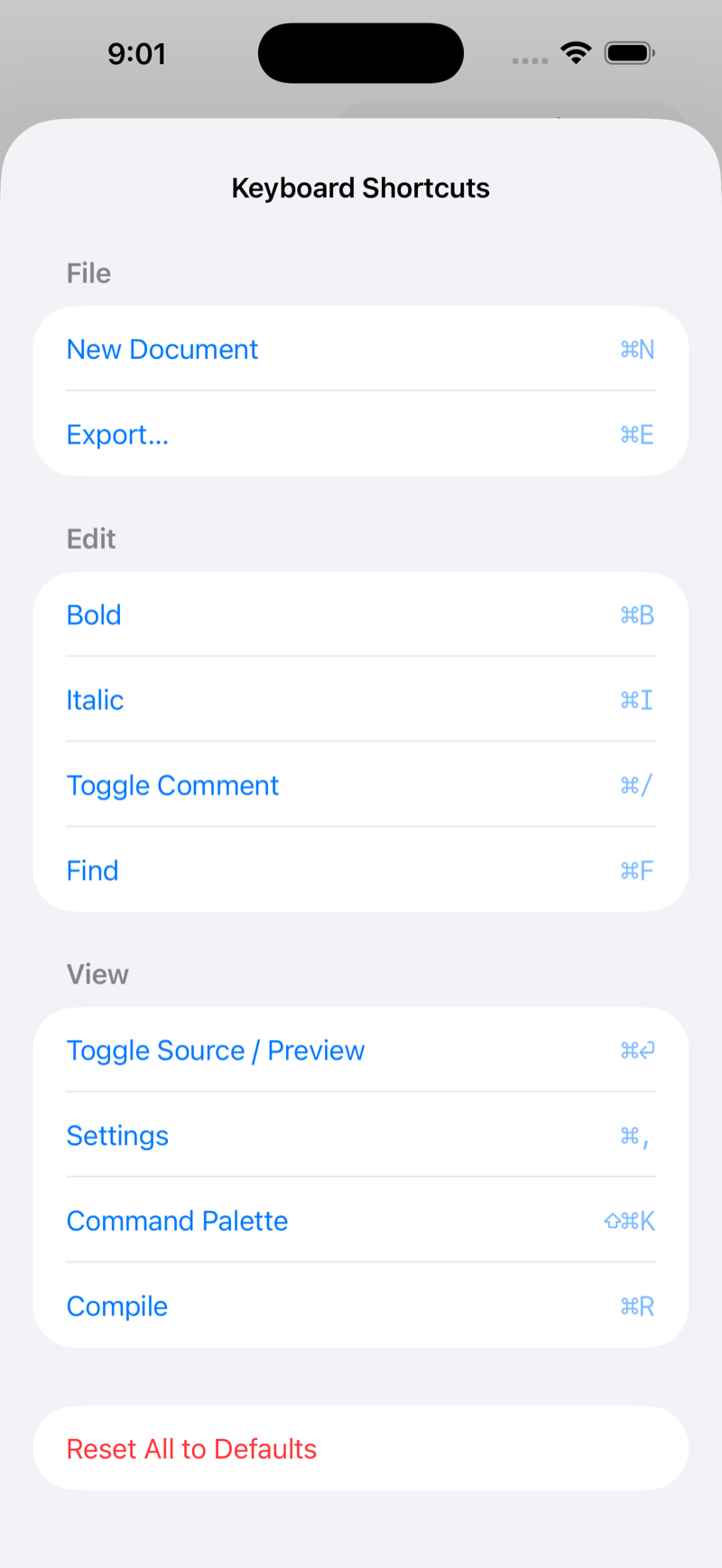
Pair a hardware keyboard and Martypex responds with a full set of shortcuts for editing, navigating, and running the app, and every one of them is rebindable. If a default clashes with another app or just doesn’t fit your hands, change it once in Settings and it sticks.
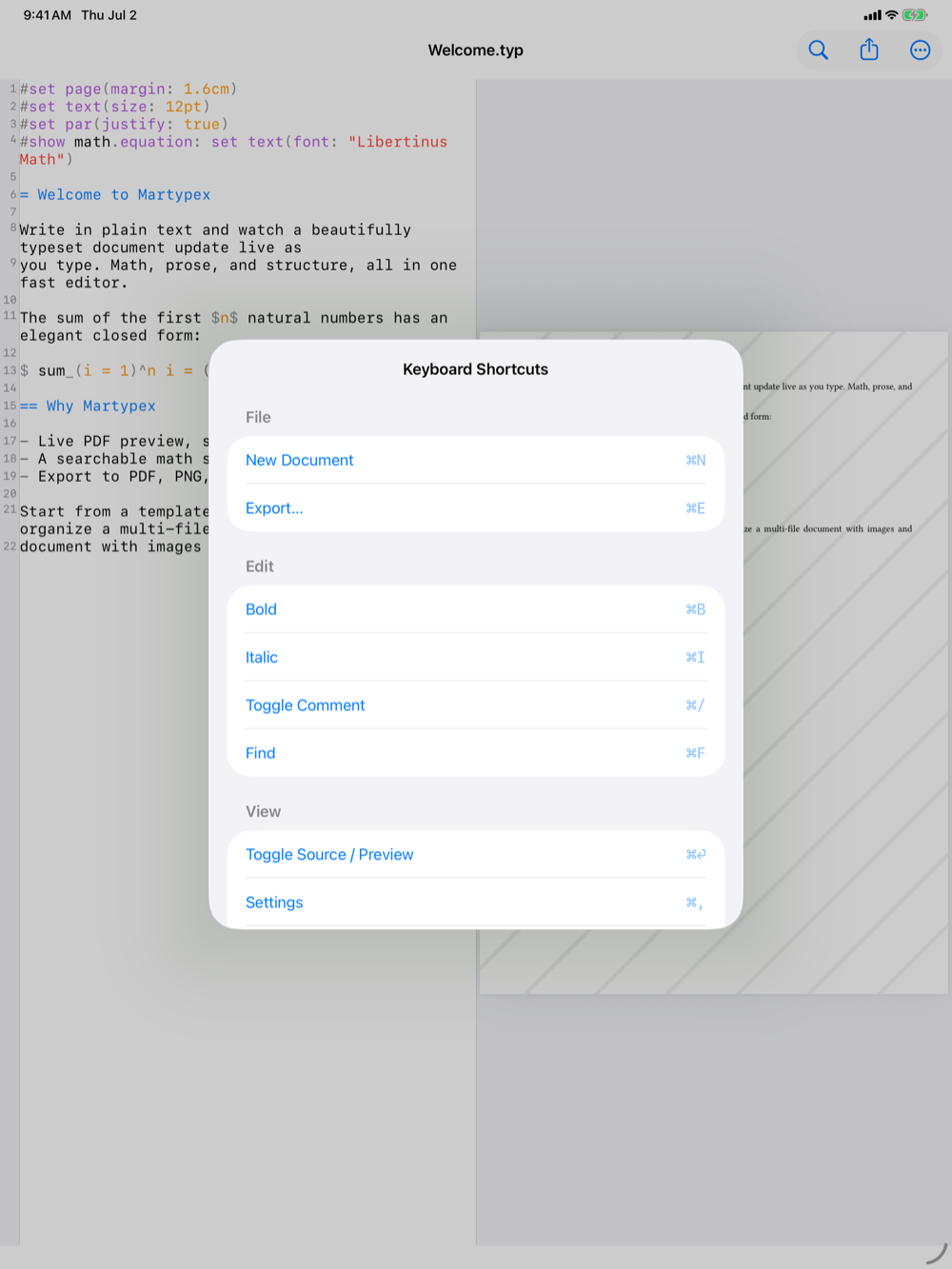
Discoverability: hold Command
On iPad, hold the Command (⌘) key and an on-screen HUD lists every available shortcut, grouped by editor commands and app commands, so you never have to memorize the set before using it.

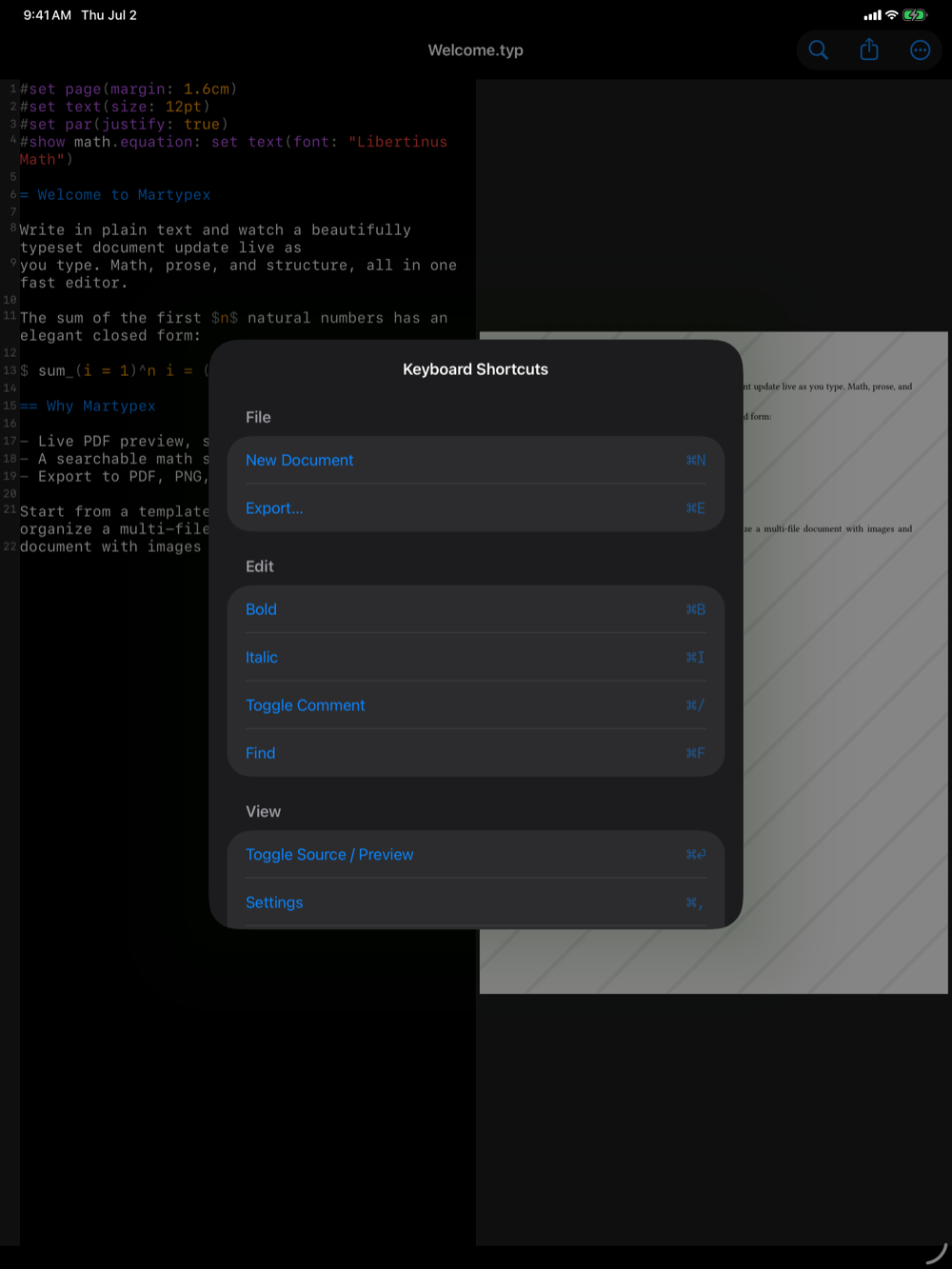
Editor commands
These act on the document you are editing:
- Bold (⌘B)
- Italic (⌘I)
- Toggle Comment (⌘/, Typst documents)
- Find (⌘F)
- Compile (⌘R)
App commands
These act on Martypex itself:
- New Document (⌘N)
- Export (⌘E)
- Toggle Source/Preview (⌘⏎)
- Settings (⌘,)
- Command Palette (⇧⌘K)
The Command Palette (⇧⌘K) is itself a shortcut, and also the fastest way to run any other command without remembering its binding at all.
Rebinding a shortcut
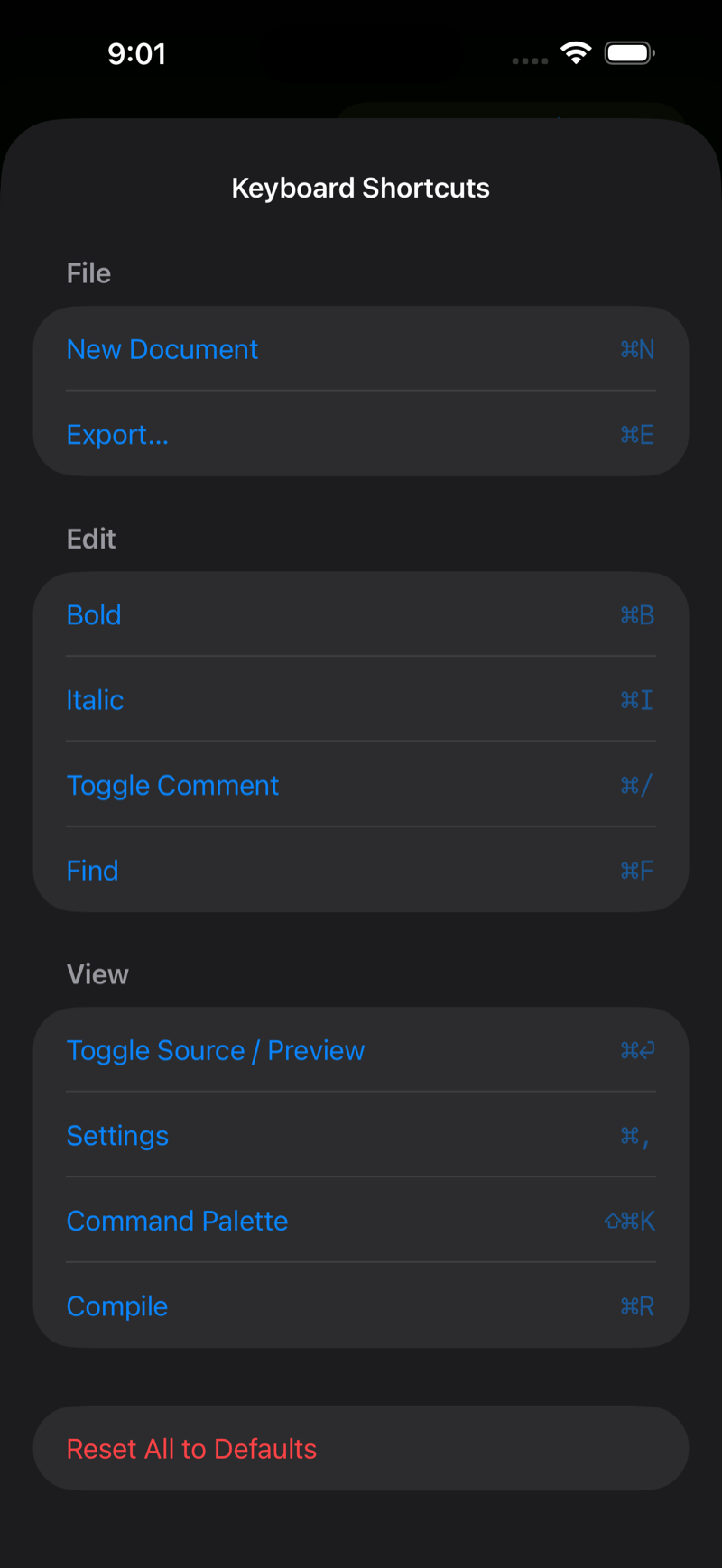
Open Settings → Keyboard Shortcuts to see every command, grouped into File, Edit, and View, with its current key binding. Tap a command to record a new one: Martypex prompts you to press a new shortcut, and captures the combination you press live.
If the combination is already assigned to another command, Martypex detects the conflict, tells you which command already owns it, and blocks the change, so you can’t accidentally shadow one shortcut with another. Two reset actions are always available: Reset to Default for a single command, and Reset All to Defaults to put every binding back to its shipped defaults at once (with a confirmation, since it can’t be undone).
Rebinding only changes the hardware-keyboard shortcut. The on-screen quick-format bar and Command Palette always work, keyboard or not.